New Inspiro AI Demo Generator — can't find the perfect demo? Describe your website and AI builds a custom one in about 2 minutes. Learn more →

Knowledge Base

Documentation

Theme Documentation


Plugin Documentation


Resources

Foodica – How to add Advertising Banners

This article refers to Foodica (PRO)

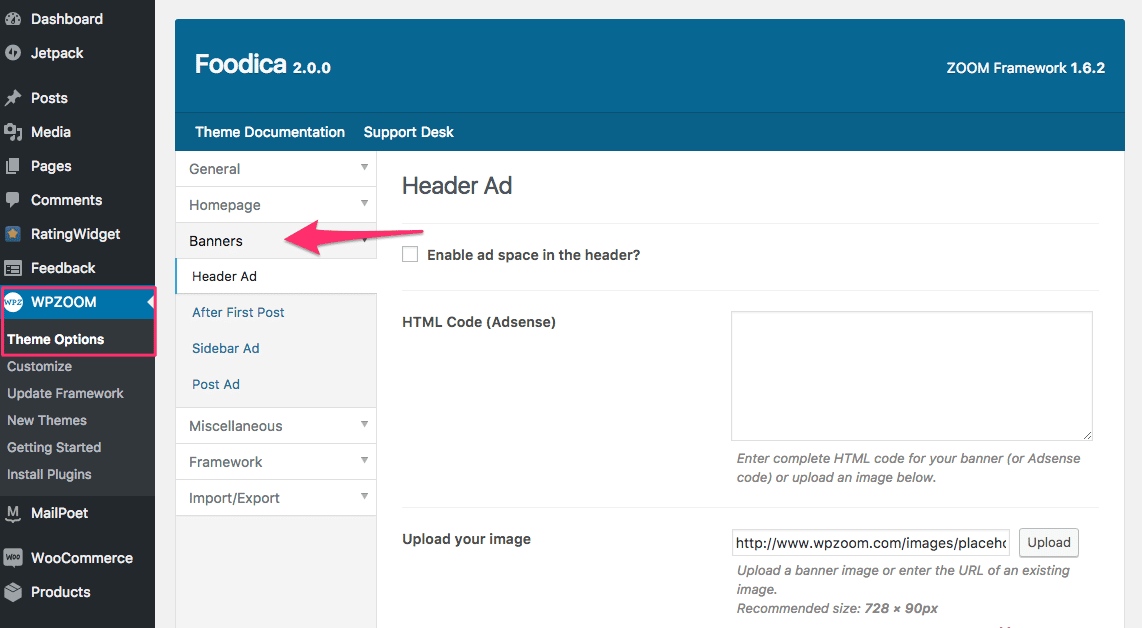
Foodica has four built-in ad locations, managed in WPZOOM → Theme Options → Banners. Each one accepts either an HTML/AdSense code snippet or an uploaded image with a link — you don’t need an ad plugin for these spots.

The Banners tab in Theme Options

The four locations

Ad spot Where it appears Recommended size
Header Ad In the header, to the right of the logo (the logo aligns left when enabled) 728×90px
After First Post On the homepage, after the first post 728×90px
Sidebar Ad In the sidebar — before or after the widgets, your choice 300×250px
Post Ad On individual posts, after the content 728×90px

Setting one up

  1. Go to WPZOOM → Theme Options → Banners and find the spot you want.
  2. Tick Enable ad space… for that location.
  3. Then either: – paste your ad network’s code into HTML Code (Adsense), or – use Upload your image to add a banner image, and fill in the Destination URL it links to and a Banner Title (used as the image’s ALT text).
  4. Save your changes.

For the sidebar spot, Ad Position decides whether the banner sits above or below your sidebar widgets.


More ad placements

The four built-in spots cover the common positions. For anything else — mid-content ads, between recipe cards, in the footer — add a Custom HTML block or widget with your ad code in any widget area, or use a dedicated ad-management plugin.

A note on speed: ad scripts are one of the biggest causes of slow recipe blogs. If you’re adding several, check the impact afterwards — see PageSpeed & Core Web Vitals Recommendations.


See also:

Last updated on August 30, 2026