WordPress, the ever-evolving content management system, has introduced a game-changer in website design and customization: block themes. These innovative themes have significantly altered the landscape of WordPress, offering users unparalleled flexibility and control over their website’s appearance and functionality.
But what are block themes in WordPress? This article explores block themes’ essence, features, and benefits and how they mark a significant shift from traditional WordPress themes.
Table of Contents
- What Are Block Themes?
- Block Themes vs Classic Themes
- What Are the Benefits of Block Themes?
- How to Use Block Themes in WordPress?
- Recommended Block Themes
What Are Block Themes?
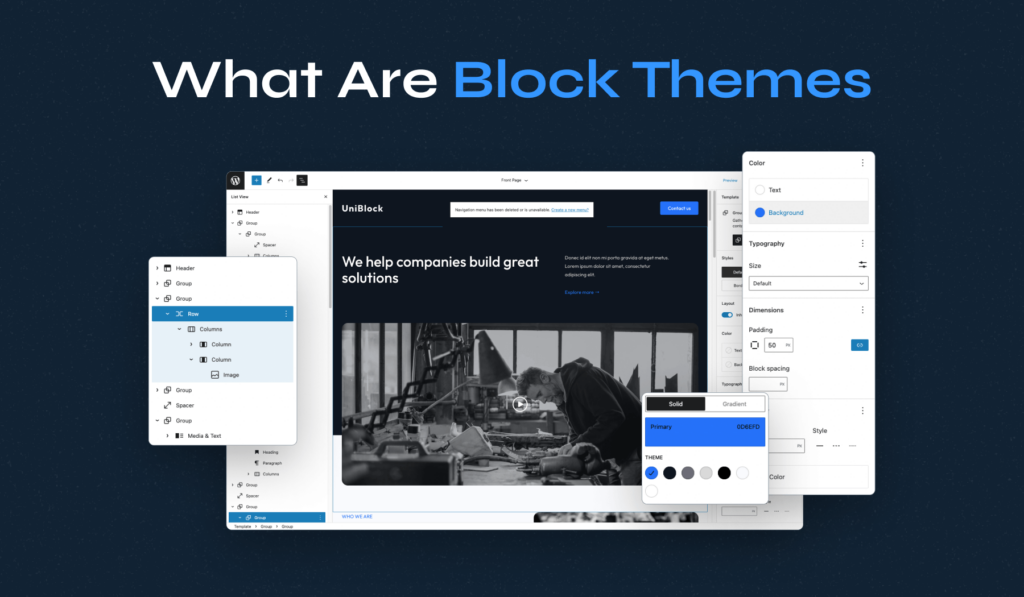
Block themes in WordPress represent a new way of building and customizing your website using a block-based architecture. They form an integral part of the Full Site Editing (FSE) experience, an advanced feature introduced in recent versions of WordPress.
A block theme is a WordPress theme that uses blocks to control every part of the design, from headers and footers to sidebars and content areas. This means that your entire site — from the top of the header to the bottom of the footer — is assembled using customizable, interchangeable blocks.
Block Themes vs Classic Themes
In the early days, WordPress relied primarily on PHP-based classic themes that required a fair amount of coding knowledge. These themes laid the foundation for WordPress’s theming system, offering basic customization options through PHP, HTML, and CSS.
Classic themes offer a certain customization level through various WordPress Customizer options. However, they typically rely on pre-defined templates and layouts, which can be limiting for users looking to create a more personalized website. While they allow for customization of elements like colors, fonts, and widget placements, the layout and structural changes often require additional coding knowledge or page builder plugins.
However, as the digital landscape evolved, so did the needs and expectations of users and developers. This evolution paved the way for block themes. Block themes simplify the website design process, allowing users to build and customize their entire site visually using blocks.
Block themes are built from the ground up to work seamlessly with the WordPress Block Editor. This integration allows for an unprecedented level of customization directly from the editor. Users can manipulate not only the content but also the layout and structure of their pages. The drag-and-drop functionality and the ability to see changes in real-time offer a more intuitive design experience. Users can create custom headers, footers, and even entire page layouts without coding knowledge.
The primary difference between block and classic themes lies in the approach to site design and customization. While classic themes offer a more guided and structured approach, block themes provide greater freedom and flexibility, allowing users to build their websites exactly as they envision them.
What Are the Benefits of Block Themes?
There are a lot of benefits to using block themes. Understanding these features will enable you to choose whether to stick with your current theme or switch to a block option. Spoiler: if you enjoy using the Block Editor, you’ll probably want to opt for the latter.
Let’s start with the biggest one, which is code-free editing!
1. Enjoy Code-Free Editing
If you’ve ever had to edit a theme in the past, you’ll know that this process often involves digging into files using FTP (File Transfer Protocol) and text editors. You need to understand what each theme component does before making any changes. Additionally, you’ll have to use child themes to avoid losing your customizations.
Block WordPress themes do away with that messy approach by supporting what WordPress calls “Full-Site Editing.” This feature replaces the theme editor in WordPress and lets you edit templates using the Block Editor:
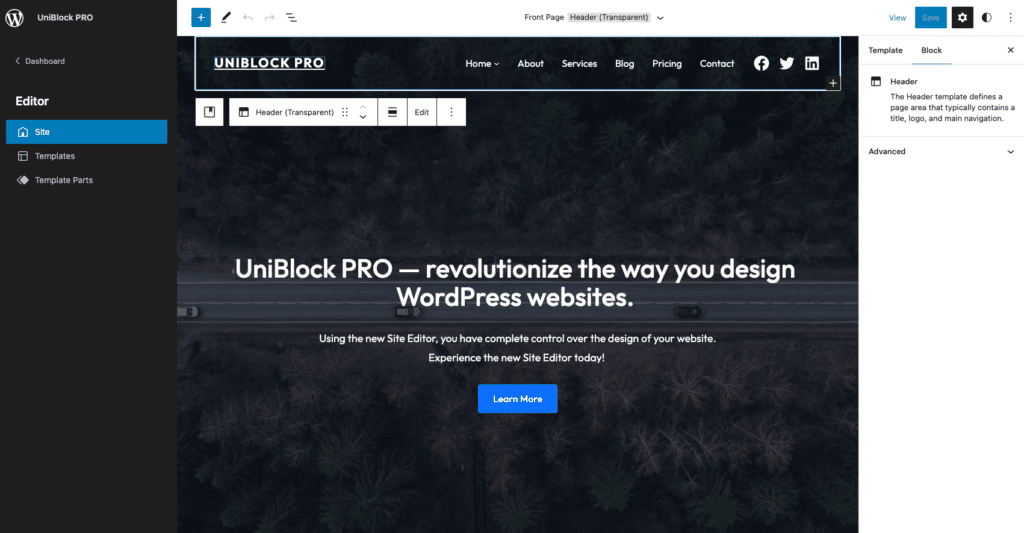
The editor enables you to create and modify page templates and template “parts.” By parts, we mean elements such as theme headers and footers. You can customize them using blocks and decide on which pages each variation will display:
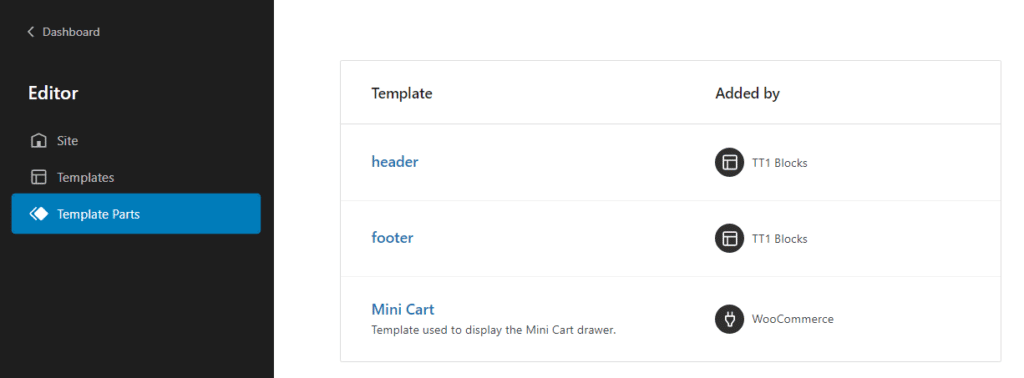
Remember that you can’t add or remove content while editing theme templates. The template editor only lets you modify your site’s layout. Therefore, you’ll still need to edit posts and pages to adjust content.
2. Get Access to Pre-Designed Block Patterns
WordPress patterns are block arrangements you can save and reuse on other pages and posts. One advantage of using block themes is they often include an array of ready-to-go patterns for your website:
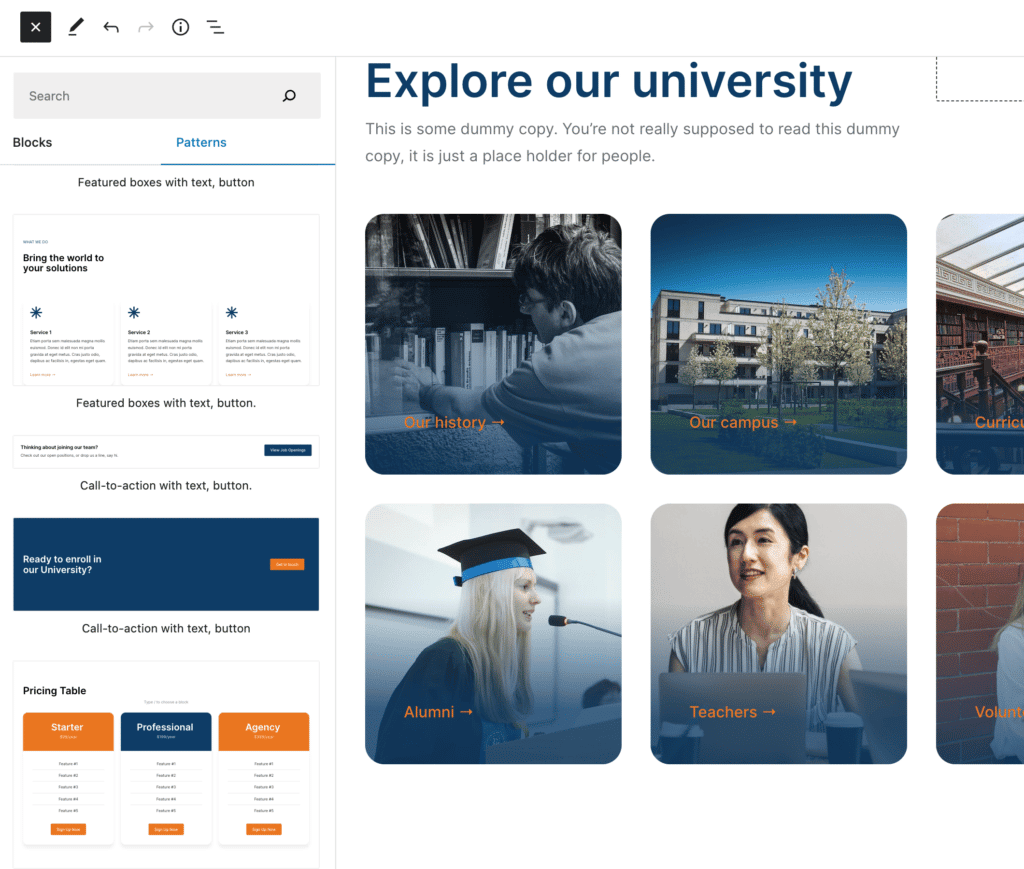
These patterns can speed up your design process significantly. Instead of building everything from scratch, you can insert patterns and customize them to fit your needs.
It’s important to note that you don’t need to use a block theme to access patterns. You can create and save patterns with any theme that works with the Block Editor. However, accessing pre-built options out of the box can make your work much more manageable.
3. Avoid Page Builder Bloat
Page builders are among the most popular and valuable WordPress tools. Many page builders offer features that neither Classic nor Block Editor support. For a long time, these tools provided the only alternative to editing theme templates manually.
If you’ve been using page builders because they enable you to edit theme templates and designs, block themes will allow you to say goodbye to them. This can help improve site performance because many page builders add a lot of “bloat” to the page code.
Thanks to the Block Editor and full-site editing, the base WordPress experience is now close to what page builder plugins offer. Some of these tools provide additional features, so your mileage can vary.
4. Use Fewer Plugins
Page builders aren’t the only types of plugins you can avoid by using block themes. There’s nothing wrong with using plugins per se (in fact, WordPress plugins are amazing), but it’s best to stick to only the ones you need.
Too many plugins may slow down your website on the front and back end, making updating it much harder. Moreover, the more plugins you use, the more likely you’ll encounter compatibility issues.
Without block themes or full-site editing, you may need to rely on plugins to customize the header and footer and configure different versions of these elements for each page. Even WordPress page builders such as Elementor require you to use additional plugins to edit these templates.
Anything that enables you to reduce the number of plugins on your website without losing out on crucial functionality is a win. Block themes meet that criteria.
5. Future-Proof Your Website
Right now, block themes are still relatively new to the WordPress ecosystem. There are plenty of options to choose from, but the vast majority of the available WordPress themes are not block-enabled.
Even though block themes are new on the scene, that doesn’t mean you should avoid using them. Most new themes will likely rely on block templates in the coming years, and full-site editing will become much more commonplace.
That means you’ll get access to new features and tools, enabling you to customize your site and themes without relying too much on plugins. The earlier you switch to block themes, the more ready you’ll be when these new features roll out.
How to Use Block Themes in WordPress?
Using block themes in WordPress is a straightforward yet transformative process that enhances the web design experience. To fully leverage the capabilities of block themes, you can follow these steps:
- Choose and Install a Block Theme: WordPress offers various block themes with unique designs and features. To simplify your selection process, we’ve carefully curated a list of recommended block themes below. Once selected, install and activate the theme much like any traditional WordPress theme.
- Familiarize with the Site Editor: After activating a block theme, the next step is to explore the Site Editor, a new addition to WordPress that provides a full-site editing experience. The Site Editor offers a live preview of changes, making the design process more intuitive and efficient.
- Utilize the Block Patterns and Templates: Block themes often come with various block patterns and templates. Users can use these patterns to quickly build sophisticated page layouts, saving time and effort while maintaining a high level of design quality.
- Experiment with Additional Blocks: Users can enhance their site’s functionality and aesthetic appeal beyond the default blocks by exploring additional blocks. These can be native to WordPress or added through third-party plugins. These additional blocks offer endless possibilities for customizing and enhancing a website, from advanced sliders and galleries to interactive forms and social feeds.
- Customize Continuously: The beauty of block themes lies in their flexibility. Users can continually tweak and adjust their website’s design as their needs evolve. Whether it’s updating the color scheme, rearranging the layout, or adding new content sections, block themes make these adjustments seamless and straightforward.
By following these steps, users can harness the full potential of block themes in WordPress.
Recommended Block Themes
As early adopters of the block editor, we also wanted to get familiar with the new Site Editor. We have added 7 new themes to our collection of WordPress Block Themes.
Here are some of them:
1. UniBlock PRO
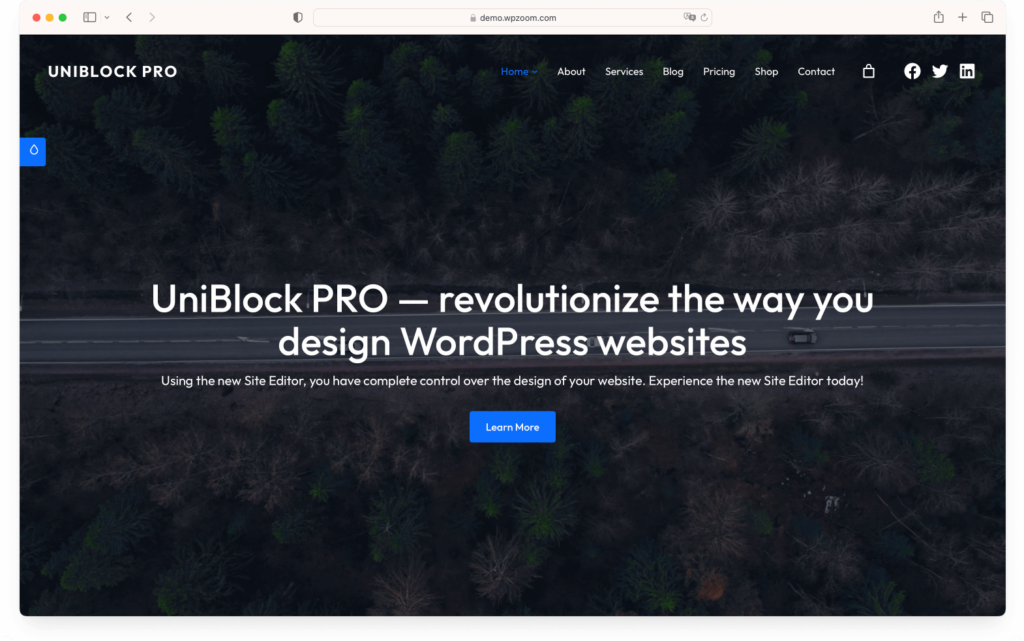
UniBlock PRO is a premium WordPress theme embracing the Full Site Editing concept. It allows complete design control over your website, extending beyond colors and fonts to the layout and global sections like headers and footers.
Key Features:
- Offers 6 color schemes and over 30 custom block patterns for various website types
- Multiple layouts with detailed adjustments, including logo uploads and social icons, without needing additional plugins.
- Features like 1-Click Demo Content Install make it user-friendly.
- Edit complete pages, including headers, footers, and templates natively in WordPress without external solutions or coding skills.
- It promises excellent page speed scores due to fewer required plugins and clean, compact code generated by full site editing.
2. Inspiro Blocks PRO
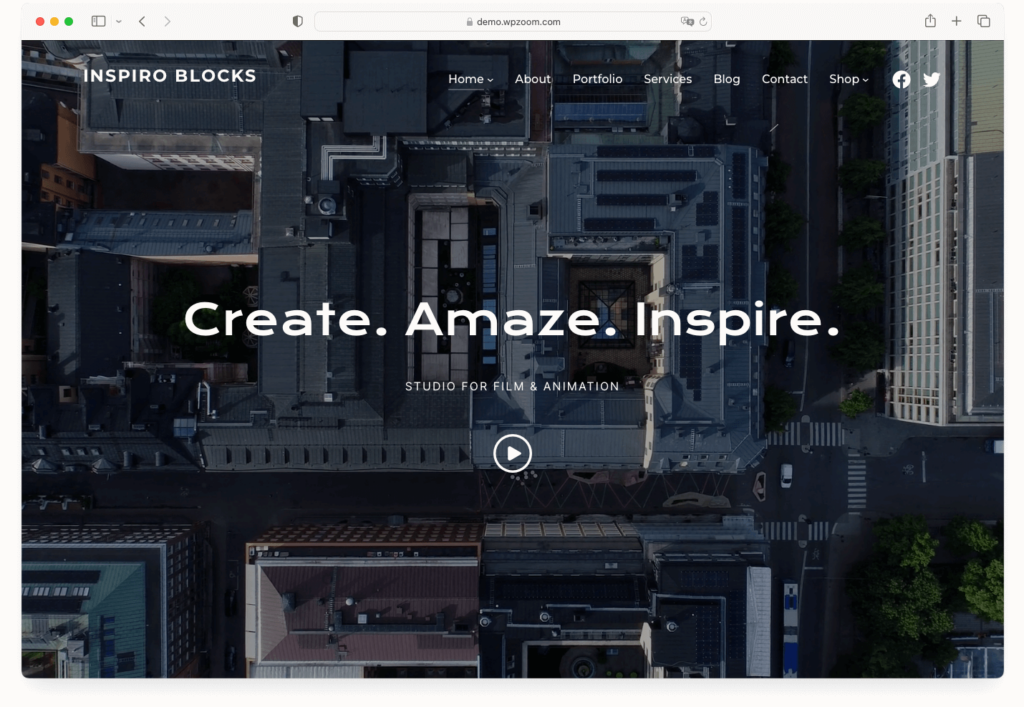
Inspiro Blocks PRO is a Full Site Editing WordPress theme, ideal for bloggers, photographers, creatives, and small businesses. It’s known for its modern, minimalist design and portfolio integration.
Key Features:
- Complete control over the layout and design, with adjustments possible down to the most minor details.
- Multiple header & footer layouts and various page templates, including full-width and portfolio pages.
- Multiple starter sites with a 1-click demo importer for easy setup.
- More than 40 block patterns and 7 theme styles, all customizable.
- High Page Speed scores and full WooCommerce compatibility.
3. Anchor

Anchor is tailored for online clothing stores, offering a seamless Full Site Editing experience. It integrates well with WooCommerce, making it a solid choice for e-commerce platforms.
Key Features:
- Clean and simple design philosophy, with drag-and-drop functionality for intuitive content arrangement
- Versatile page templates catering to different content layouts, like full-width pages and portfolio pages
- Over 20 block patterns for quick and easy page creation, aligning with distinct page templates
- Seven distinct theme styles that are easily switchable and customizable
- Optimized for speed and seamlessly integrates with WooCommerce for effective online store management
Each of these themes brings unique strengths to the table, making them excellent choices for different types of WordPress sites.
Our block themes are available in both free and premium versions. You can download the free versions from the official WPZOOM theme repository.
Conclusion
When the Block Editor launched in 2018, many users thought it was a gimmick. Blocks have come a long way since then, and they’ve become an integral part of the WordPress experience. WordPress now feels as intuitive as any modern page builder tool, and block themes are part of that evolution.
The introduction of block themes in WordPress marks a significant evolution in website design and customization. WordPress democratizes web design by embracing the block-based approach, making it accessible to a broader audience. The future of WordPress themes is here, and it’s block-based.