
Whether you’re a photographer, designer, artist, or writer, a well-crafted portfolio site is your digital calling card, essential for attracting potential clients.
This guide will teach you how to create a portfolio in WordPress. We’ll cover everything from choosing a domain name and hosting provider to selecting the right theme and plugins to showcase your work best.
We aim to help you build a professional-looking portfolio site that effectively presents your work and brand to your target audience.
How to Create a Portfolio in WordPress: Quick Guide
Here’s a quick rundown of the essential steps of creating a WordPress portfolio website:
Step 1: Register a Domain Name
Step 2: Choose a Hosting Provider
Step 3: Install WordPress
Step 4: Select a Portfolio Theme
Step 5: Install Must-Have Plugins
Step 6: Builde a Portfolio Page
Step 7: Create an “About Me” Page
Step 8: Set Up a Contact Form
Step 9: Promote and Expand Your Portfolio Site
Let’s examine these steps in more detail to ensure you’re prepared to make a portfolio website on WordPress.
9 Steps to Make a Portfolio Website on WordPress: A Detailed Guide
Creating a WordPress portfolio site is an exciting and straightforward journey. Here’s how to navigate through the setup smoothly.
1. Register a Domain Name
Picking a domain name is like choosing the address for your WordPress portfolio. It’s a big deal. A catchy, easy-to-remember domain makes your brand look sharp and professional. Think short and sweet to make it stick in people’s minds and prevent those annoying typos. And about extensions? Sure, .com is the classic, but there’s no harm in checking out .net, .org, or something more unique like .design if it fits your vibe and is available.
Make sure your chosen name is one-of-a-kind and does not tread on anyone else’s trademark.
Budget-wise, remember you’re in it for the long haul. Domains require yearly renewals, and costs can vary, so plan for this ongoing investment to keep your site up and running.
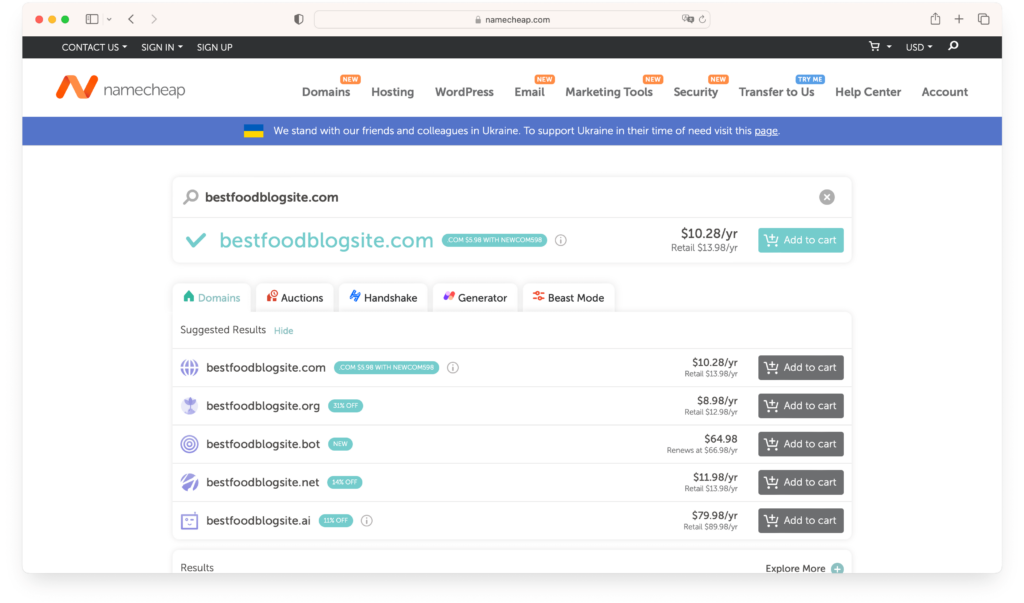
Need help finding the right name? Don’t stress. Tools like DomainWheel are here to help, suggesting available names based on your ideas. It’s a smart way to find a name that captures your brand’s essence and what you want to show the world.
2. Choose a Hosting Provider
Choosing the best web host is a big deal when creating your WordPress portfolio site. Your host impacts how fast your site loads and its uptime — how often it’s running smoothly for anyone visiting. You aim for a host that keeps your site live as much as possible and jumps into action if any tech glitches arise.
A host with stellar uptime is a must. It keeps your visitors’ frustration at bay. When you encounter a technical problem, you want quick and helpful support to fix it. That’s why customer service matters a ton.
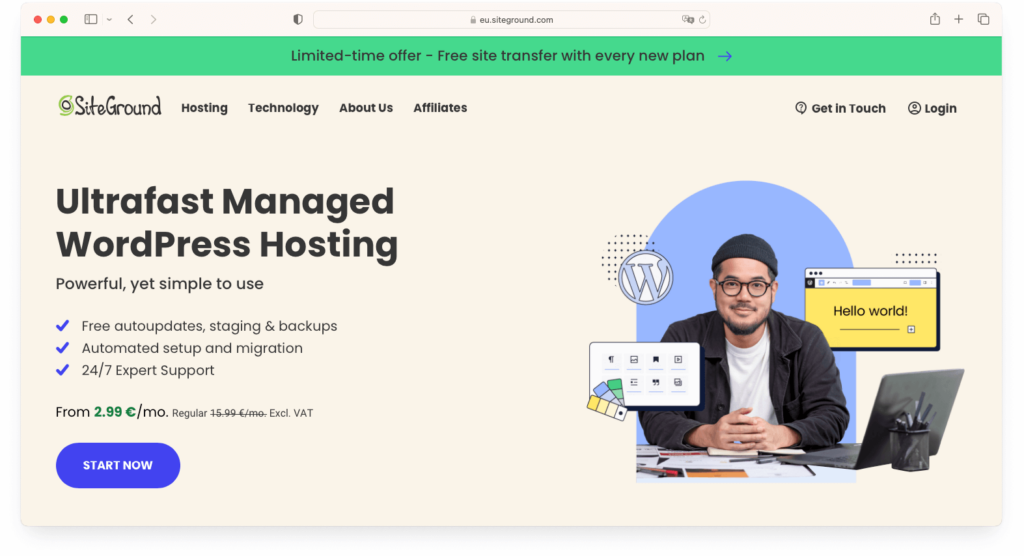
If WordPress is your platform, choosing a host that’s all in on WordPress can make your life easier. They often offer perks like easy one-click installs and automatic updates, not to mention they’re very knowledgeable if you have any WordPress-specific questions.
Also, think about the convenience factor. Some hosts bundle domain registration with their hosting plans. Finding a host that gives you a free domain name for the first year can simplify managing your site. It means less juggling between services for your domain and hosting needs.
3. Install WordPress
WordPress is your go-to for building an online portfolio website. It’s user-friendly, letting you put together, manage, and show off your work smoothly. Luckily, getting WordPress up and running is usually a breeze, thanks to the one-click installs many web hosts offer.
Here’s how to get started:
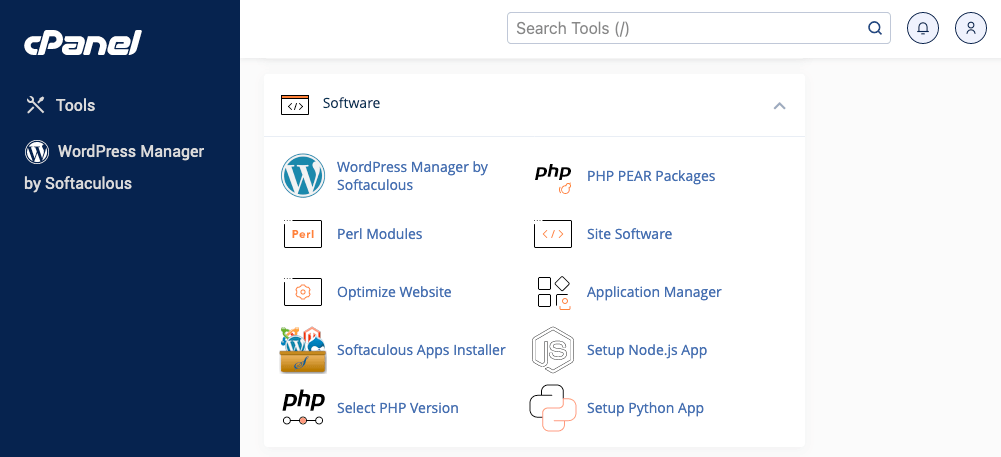
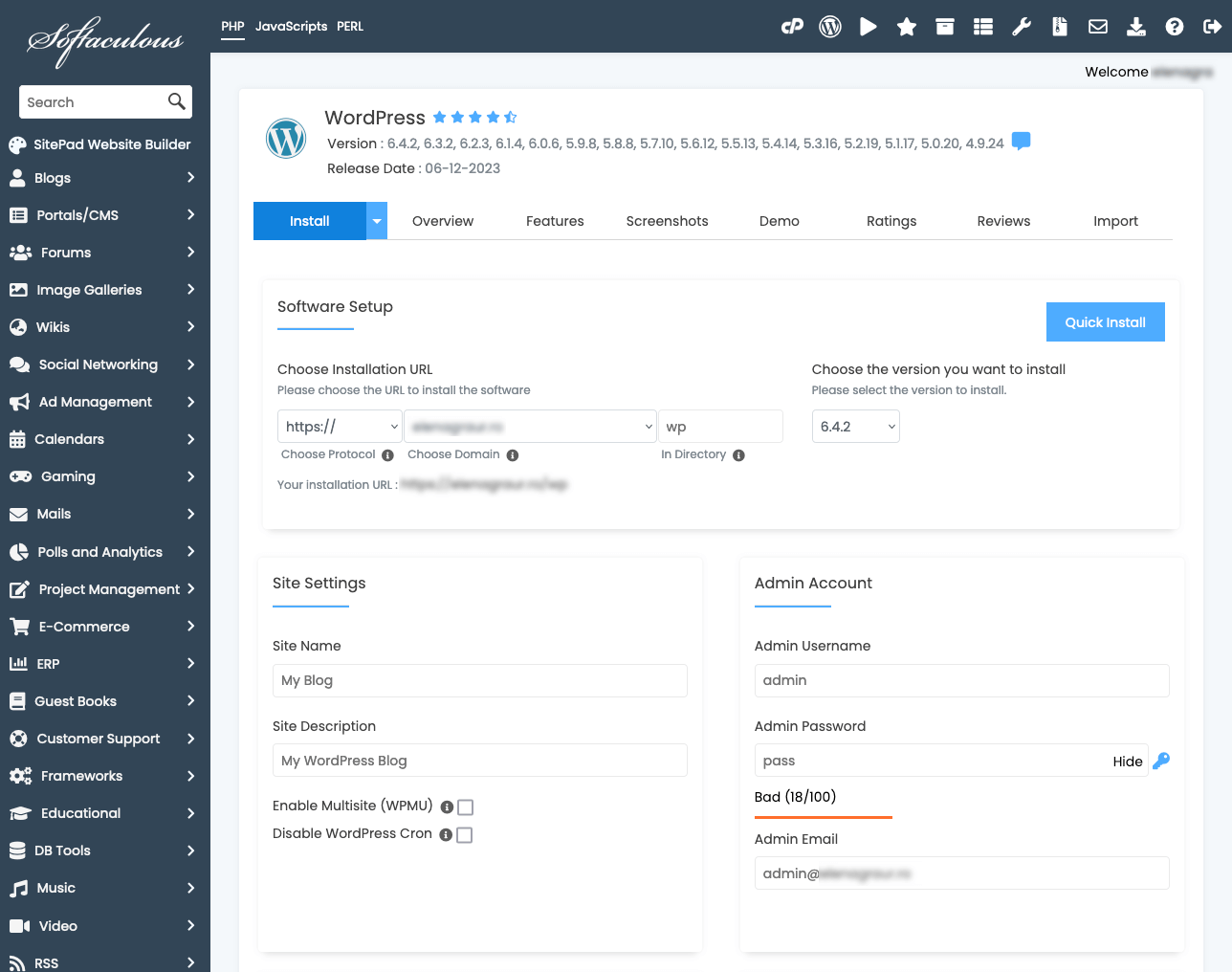
- Access Your Hosting Account: Log into your hosting account and head over to the control panel, also known as cPanel. This is your mission control for everything hosting-related, including setting up your website.
- Find the WordPress Installer: Look for a section dedicated to website installations or a specific WordPress installer tool. Many hosts use software like Softaculous, which automates the installation process.

- Start the Installation Process: Click on the WordPress installer to begin. You’ll pick the domain where WordPress should live. Make sure you’re choosing the right one from the list.
- Fill in the Details: The installer will need some basics from you — website title, your chosen admin username and password, and your email. These details are key for logging into and running your site later on.

- Tweak the Advanced Stuff (If Needed): You might see advanced settings, like database configuration. Most users can stick with the standard setup, but if you’ve got particular needs, this is the time to adjust.
- Complete the Installation: Follow through with the installation steps. It’s usually quick. You’ll get a confirmation with links to your site and the admin area when it’s done.
- Log Into WordPress: Log into your WordPress dashboard with the admin URL and the login info you chose.

Now the fun starts. This is your creative playground to customize your site, add your work, and begin crafting your online portfolio.
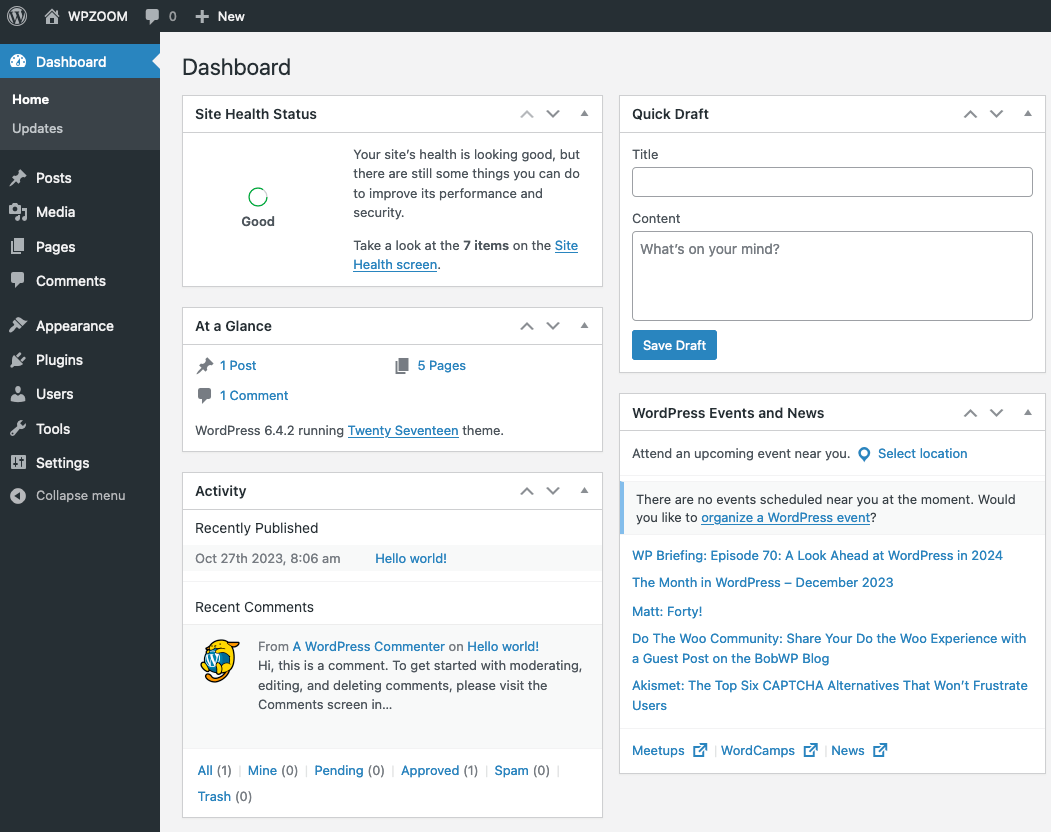
With WordPress installed, you’re ready to select the perfect theme to showcase your work and brand and further customize your site to make it truly yours.
4. Select a Portfolio Theme
Picking the right theme is like choosing the outfit for your WordPress site. It’s not just about looking good; it’s about functionality, performance, and how inviting your site feels to visitors. Especially for an online portfolio, where making a strong first impression is everything, you want a theme that’s as impressive visually as it is under the hood.
Your theme should also be SEO-friendly to help your site pop up in searches, making it easier for potential clients to find you.
If you’re looking for a theme that ticks all these boxes, look at Inspiro PRO.
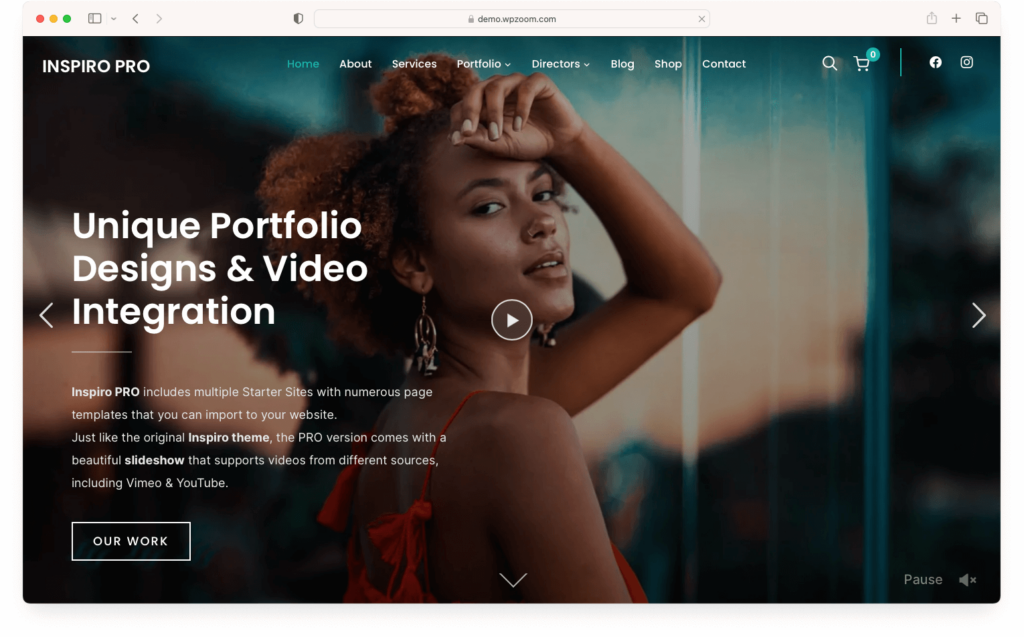
It’s a professional portfolio WordPress theme focusing on the Elementor page builder. Inspiro PRO shines with its video and photo capabilities, perfect for showcasing creative work. It offers custom modules, various layouts, ready-to-use templates, and many customization choices. Plus, its intuitive interface supports dynamic elements, packing everything you need for a standout WordPress portfolio.
For additional options, check out our collection of WordPress portfolio themes.
5. Install Must-Have Plugins
WordPress plugins are all about adding those extra features that make your site more functional and user-friendly, like better SEO, quicker load times, social media buttons, and handy contact forms. But with so many plugins out there, the trick is to pick ones that amp up your site without slowing it down.
To help you out, we’ve compiled a list of must-have plugins that are good for any site. These picks cover a broad range of needs with reliable, top-notch plugins.
The WPZOOM Portfolio PRO plugin is a game-changer for those of you showcasing creative work.

It’s crafted for artists, photographers, and video wizards looking to present their projects in style. You can pop images into a sleek lightbox for viewers to enjoy in full glory or embed videos from places like YouTube and Vimeo right in your online portfolio. It even handles videos you host yourself.
As you sift through plugins, remember each one should earn its spot on your site. It’s all about finding that sweet spot between adding cool features and keeping your site fast and easy to use.
6. Build a Portfolio Page
This is your moment in the spotlight. Your portfolio page is where you showcase what you’re good at and capture the attention of those potential clients. Think of it as setting up your art gallery online; you want every visitor to be wowed by what they see.
- Start with a Clear Structure: Begin by mapping out the structure of your portfolio page. A clear, intuitive layout means people can easily find their way around your best pieces. Sort your work by category, like type or theme, so everyone can find something that catches their eye. A visually pleasing grid layout grows with you as you keep adding projects.
Make sure navigating around your WordPress site feels effortless, allowing visitors to explore different categories without a hitch. Plugins like WPZOOM Portfolio PRO can help organize your work neatly, making everything just a click away. - Highlight the Stars: Resist the urge to post every project you’ve done. Instead, choose the ones that best showcase your talent and the work you want to do more of. Mix it up to show off your versatility and attract a wider audience.
For every project you showcase, include vibrant images or videos, a brief description, your role, the tools you used, and the results. Share the challenges you faced and how you tackled them, shining a light on your problem-solving abilities. Add links to live examples or detailed case studies for a deeper insight. - Optimize Images and Videos: Optimizing your media files ensures your page loads swiftly and looks sharp across all devices. Lazy loading for your images and videos can also speed things up, loading content just as needed.
- Implement Interactive Elements: Enhance your page with interactive elements like hover effects, lightboxes, or sliders to give visitors a closer look at your work without leaving the page. Just make sure these features enhance rather than interfere with the user experience.
- Include Descriptive Text: Adding a bit of text to each project gives context and offers insights into your creative journey. Share the goals, challenges, solutions, and impacts of your work. Well-thought-out descriptions let visitors appreciate your skills and thought process more deeply.
- Keep It Updated: To stay current, keep your portfolio updated with your latest projects. Equally, phase out older work that no longer represents your best. A regularly updated portfolio shows you’re growing and evolving in your field.
Creating an impactful portfolio page goes beyond just showing off your work; it’s about narrating your creative path and professional development in a way that engages and resonates with your audience.
7. Create an “About Me” Page
This page lets you tell your story and introduce yourself to future clients. It’s a space to connect personally and share what makes you, you.
- Start With a Friendly Hello: Kick things off with a warm greeting. Use a casual tone to talk about who you are, what you do, and what sets your work apart. This is your moment to leave a great first impression, so keep it real and let your unique personality come through.
- Share Your Background and Experience: Chat about your professional journey, including your education, key experiences, and the path that brought you here. Celebrate the big wins and lessons learned along the way. This adds to your credibility and gives a glimpse into your depth of knowledge and commitment.
- Highlight Your Skills: Describe your talents and what you’re good at. Make it clear whether you’re a wizard at web design, a photography storyteller, or a coding guru. This clarity helps those potential clients or employers see how you fit into their puzzle.
- Include a Professional Photo: Pick one that shows your professional side and hints at your personality. A good photo can make your audience feel more connected to you.
- Share Your Values and Work Philosophy: Share your core values and what fuels your work. Whether you thrive on creativity, tackling challenging problems, or advocating for green design, letting people know what matters to you can help attract those with similar values.
- Include Testimonials: If you’ve got glowing reviews from clients or colleagues, showcase a couple. Testimonials lend you extra credibility and offer an outsider’s view of your work’s reliability and quality.
- Add a Call to Action: Close with a direct call to action. Prompt visitors to check out your portfolio, reach out for work, or follow you online. Make it super easy for them to get in touch or see more of your work.
When sharing your story and information, create an exciting and informative narrative. This will encourage your audience to learn more about you and your journey in creativity.
8. Set Up a Contact Form
A contact form makes it easy for future clients or partners to contact you directly from your WordPress website.
WordPress offers plenty of plugins perfect for crafting contact forms. Favorites like Contact Form 7, WPForms, and WPZOOM Forms stand out for their user-friendly interfaces, flexibility, and reliability.
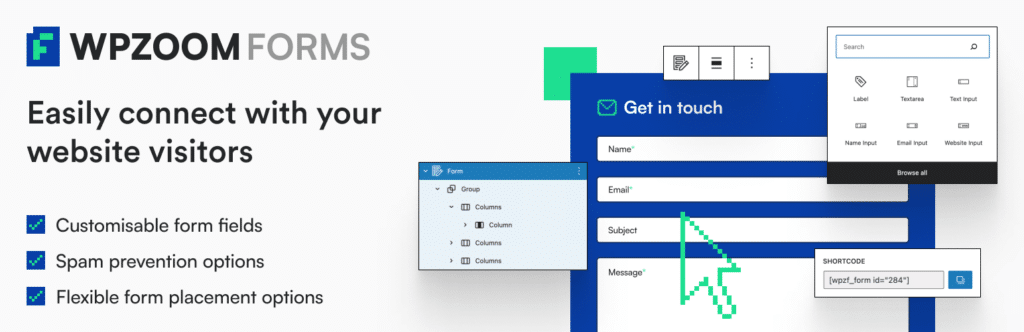
Think about what info you need when setting up your form. Stick to the basics: name, email, and message. Skip any extra fields that might make someone think twice about filling it out.
Make sure your contact form is easy to find. Putting it on a dedicated “Contact” page is a solid move. It gives users a specific spot to reach out. Also, add a link to your contact page in your site’s navigation menu or footer. This way, no matter where someone is on your site, they’re always just a click away from contacting you.
Once your form is up and running, have a plan for responding to messages quickly. Setting up automated emails to acknowledge receipt and give an idea of when you’ll reply keeps communication smooth. Prompt, professional responses make you look good and build trust with your visitors.
9. Promote and Expand Your Portfolio Site
Getting your portfolio website live is just step one. You need to spread the word and keep growing your site to stand out and attract potential clients.
Here are effective strategies to increase visibility and engagement for your portfolio:
- Use Social Media Wisely: Social platforms are fantastic for showing off your work and drawing people to your site. Post your best projects, updates, and sneak peeks where your audience hangs out, like Instagram, LinkedIn, Twitter, Pinterest, Behance or Dribbble. Make sure to chat with your followers to create a community vibe. Use plugins like Instagram Widget and Social Media Icons Widget.
- Join Online Groups: Dive into online forums and communities related to your work. Places like Reddit, Quora, or niche forums are great for sharing what you know, helping others, and gently pointing them to your site. Being helpful and engaged boosts your visibility and brings more eyes to your work.
- Use SEO Best Practices: SEO helps your site appear more in searches. Use the right keywords, correctly label your images, and ensure your website looks good on any device. Keeping your site updated with new content also helps bump up your search ranking, making you easier to find.
- Consider Blogging: Adding a blog to your portfolio can share more about how you work, industry insights, or how-tos. Quality posts can attract more visitors, show you’re an expert, and help your site’s SEO.
Promoting and growing your portfolio site is a marathon, not a sprint. With the right strategies, you can boost your visibility, connect with more people, and open doors to new opportunities and collaborations.
Bottom Line
You’re all set to create, personalize, and boost your online portfolio website, making it a dynamic showcase of your work. Whether you pick an eye-catching WordPress theme like Inspiro PRO or choose a portfolio plugin like WPZOOM Portfolio PRO, every decision is crucial to your website’s effectiveness.
The real trick to a thriving portfolio site lies in consistent dedication, the willingness to evolve, and real passion for your work. Keep exploring new ideas and be ready to adapt. Staying curious and adaptable is essential for keeping your site fresh and engaging.


February 11, 2020 12:02 pm
This portfolio is good but it has 1 problems Even better if there is a shortcode option in this portfolio