Until recently it was something normal for any restaurant to have a well-maintained website. Even so, it seems that for many restaurants this was something difficult to achieve.
In these difficult times, for many restaurant owners and other businesses in this field, owning just a simple website is no longer enough. If you still want to remain in business you have to adapt quickly and find alternatives. Taking online orders through your WooCommerce restaurant website and delivering them to your customers would be a good start.
But what if you weren’t prepared for such a scenario and your business is affected?
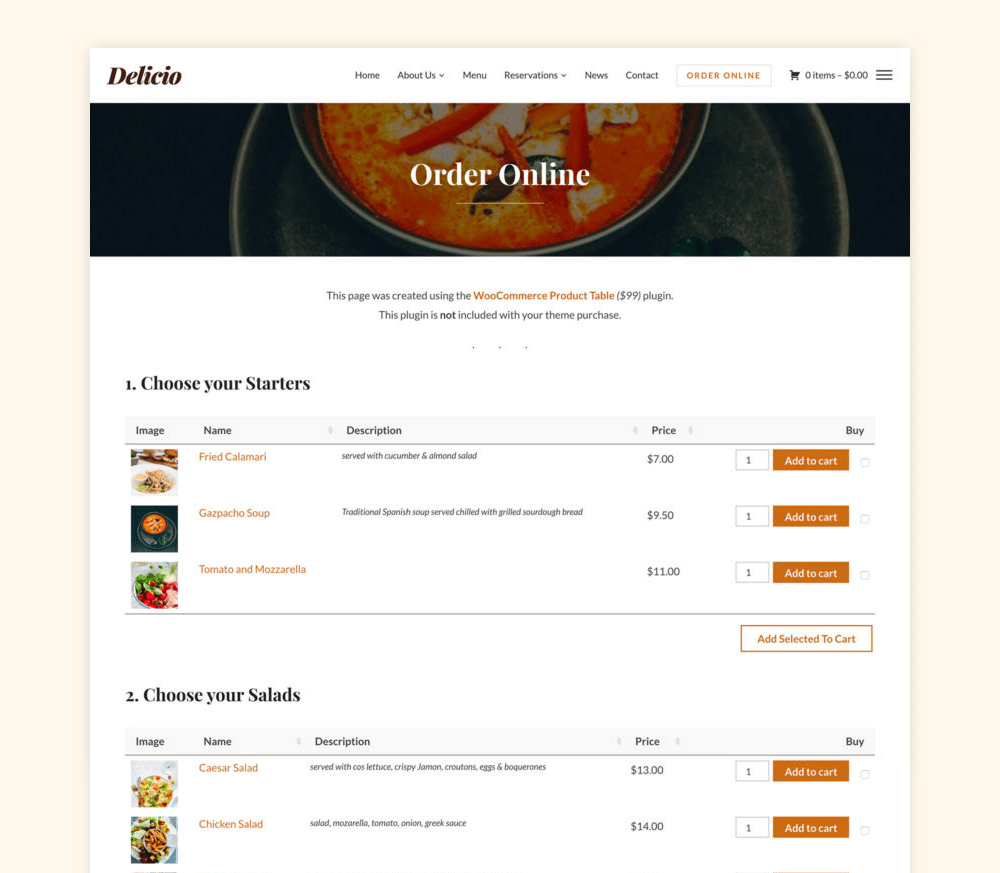
Well, with this article I will try to give you a hand of help and explain how you can quickly create an online ordering page for your restaurant using WordPress and WooCommerce.
Tools we’ll use for the WooCommerce restaurant system
Before proceeding to the needed steps, let’s take a look at the tools we’ll use:
1. WordPress – I will assume that your website is already built on top of this platform, so we’ll not get into too many details here. However, if you’re new to WordPress and site-building in general, you can quickly create a WordPress site by getting your hosting from SiteGround. We also have an article dedicated to creating a WooCommerce restaurant website from scratch.
2. WooCommerce. Installing this plugin on your WordPress website will transform it into a powerful eCommerce store so that you can start adding your products and sell them.
3. Delicio Theme. This is our most popular WordPress theme for restaurants and cafés. It includes full WooCommerce support and highly-customizable design that can be adapted easily to your brand.
4. Beaver Builder and Beaver Builder Addons. Using these two free WordPress plugins we’ll be able to quickly create a custom ordering page on which you can arrange your dishes as you want.
5. WooCommerce Product Table (optional). This is a powerful add-on for WooCommerce that will help you take the ordering page from your website to the next level. It will add special features, such as fast one-page ordering and showing additional details about each dish.
Step 1: Add Food Items as WooCommerce Products
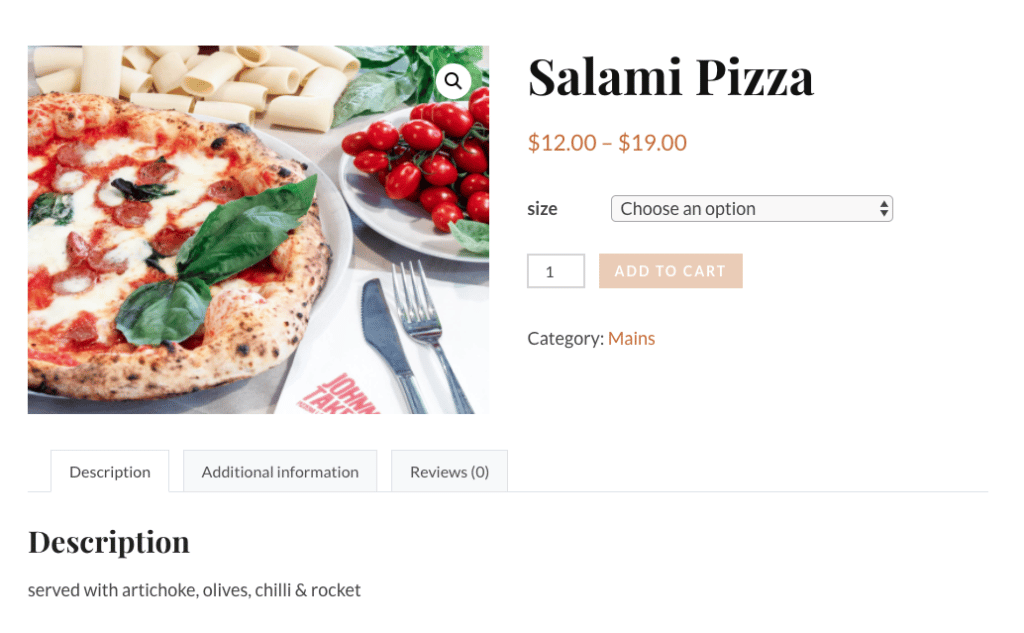
In this first step, we’ll have to fill the website with the dishes your restaurant sells.
We’ll add the food items as new products in WooCommerce. Make sure to use quality photos for your products and on your website, in general.
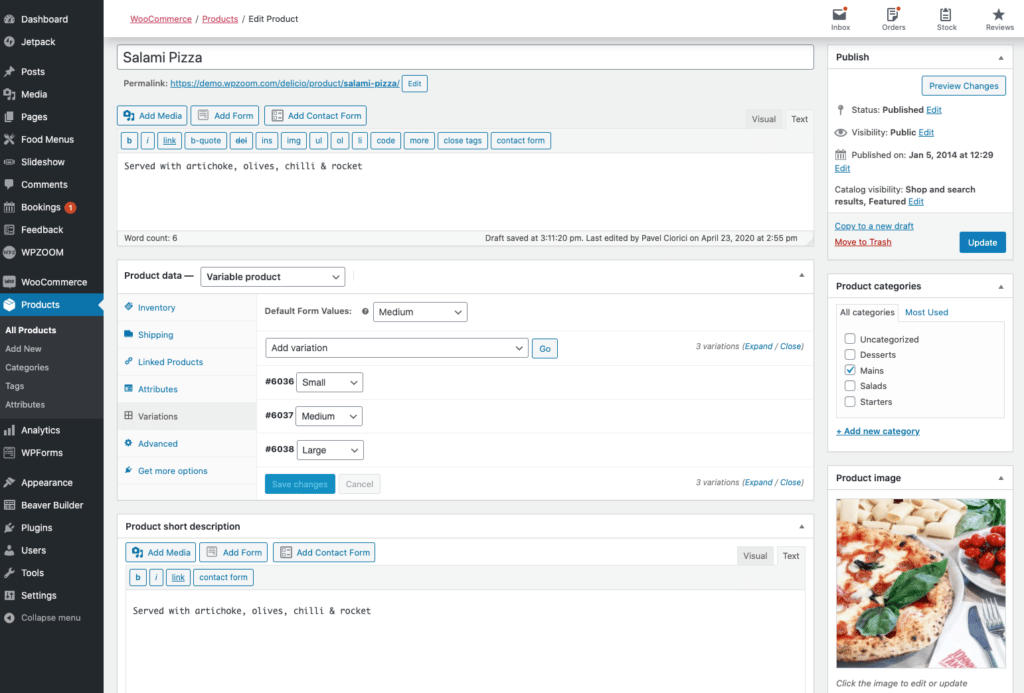
Adding your food in WooCommerce is very simple, and usually, you will have to fill in the following details: Featured Image, Description, Category, and Price.
Make sure to organize your products in the right Categories, as we’ll use these in the next step.
If you have specific dishes offered in a different size or maybe with additional toppings, you will have to change the Product Type to “Variable Product“. This way, you can create new attributes that will later help you to create product variations, where you can set a different price, for example.
For more details about creating a Variable Product in WooCommerce, please refer to the official documentation.
Step 2: Create the Online Ordering Page for your Restaurant
This is the step I find the most interesting, as you can be as creative as you want in building the page where the food will be displayed.
On the demo page of Delicio, you can find two different Ordering page designs, so I will explain how to create each of them below:
Create an Online Ordering Page using Beaver Builder
For this step, we’ll use the free version of the Beaver Builder plugin accompanied by our free Beaver Builder Addons by WPZOOM.
The default Shop page generated by WooCommerce doesn’t provide enough flexibility, so that’s why we’ll use a Page Builder and design the page as we want. In this way, we can make the page look more organized and we’ll have full control of what dishes appear and where.
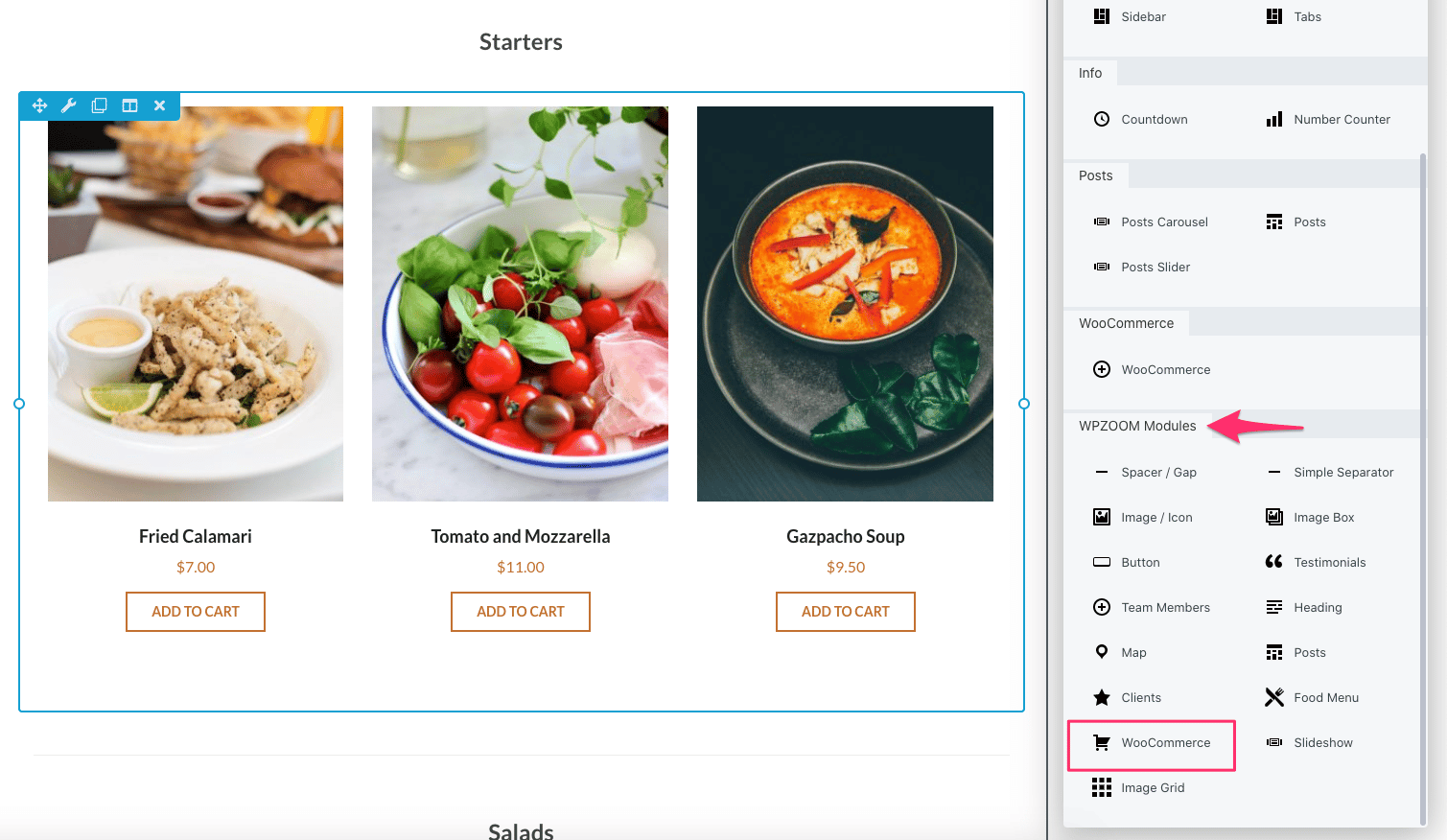
Drag the WooCommerce module included in our add-ons plugin on your page created using Beaver Builder and select the category of products to display:
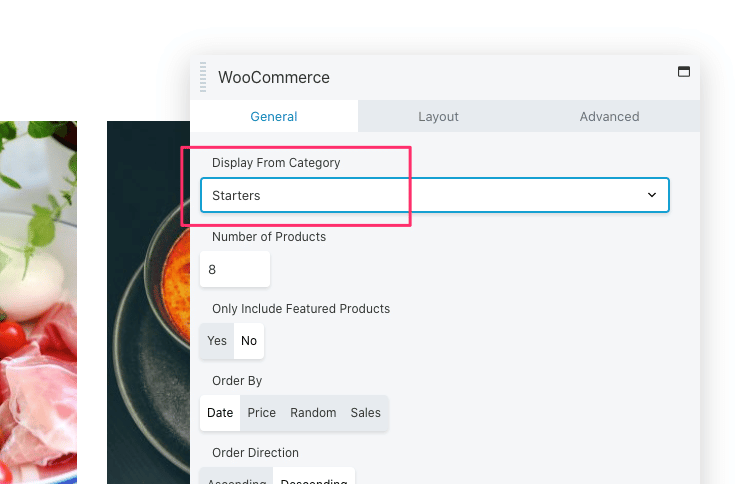
Repeat the same thing for as many sections with courses or type of products your restaurant offers:
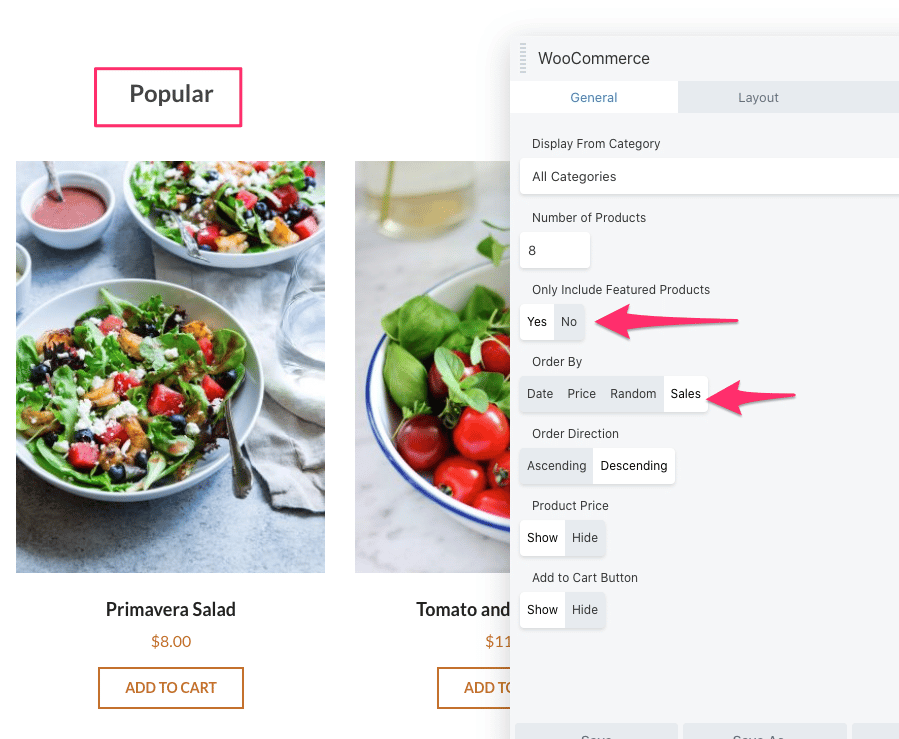
You can go even more creative and add a section where you can highlight specific products.
For example, using the WooCommerce module in Beaver Builder you can display Featured Products or Best Sellers:
See how I’ve set everything up on this page.
Create an Online Ordering Page using WooCommerce Product Table
WooCommerce Product Table is a commercial plugin created by Barn2 and its price starts from $99.
While in the previous step we’ve created a simple ordering page using Beaver Builder, in this step we will create a page with more advanced options using the WooCommerce Product Table plugin.
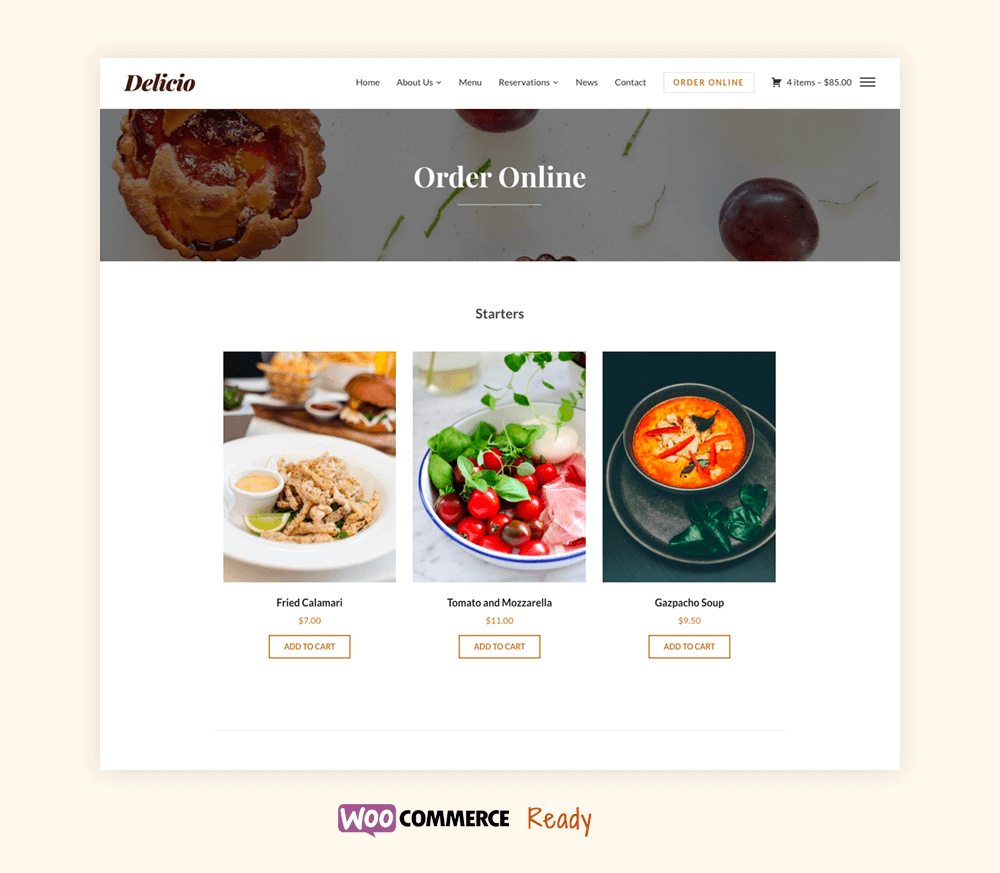
You can see the final result in this demo.
WooCommerce Product Table is a great plugin that can be used for any kind of WooCommerce store, but we find it to be ideal for WooCommerce restaurant websites.
Here are some of the advantages of using WooCommerce Product Table compared to the previous method:
- You can customize the columns with details about each item
- Customers can select multiple items and add them to cart with one click
- The plugin includes additional features like Search, Sort & Filter
The following example from the demo was created using the default WordPress editor, so no page builder is needed in this case.
To make the page look more organized, we’ll insert the needed shortcode multiple times and display only dishes from a specific category in each section:
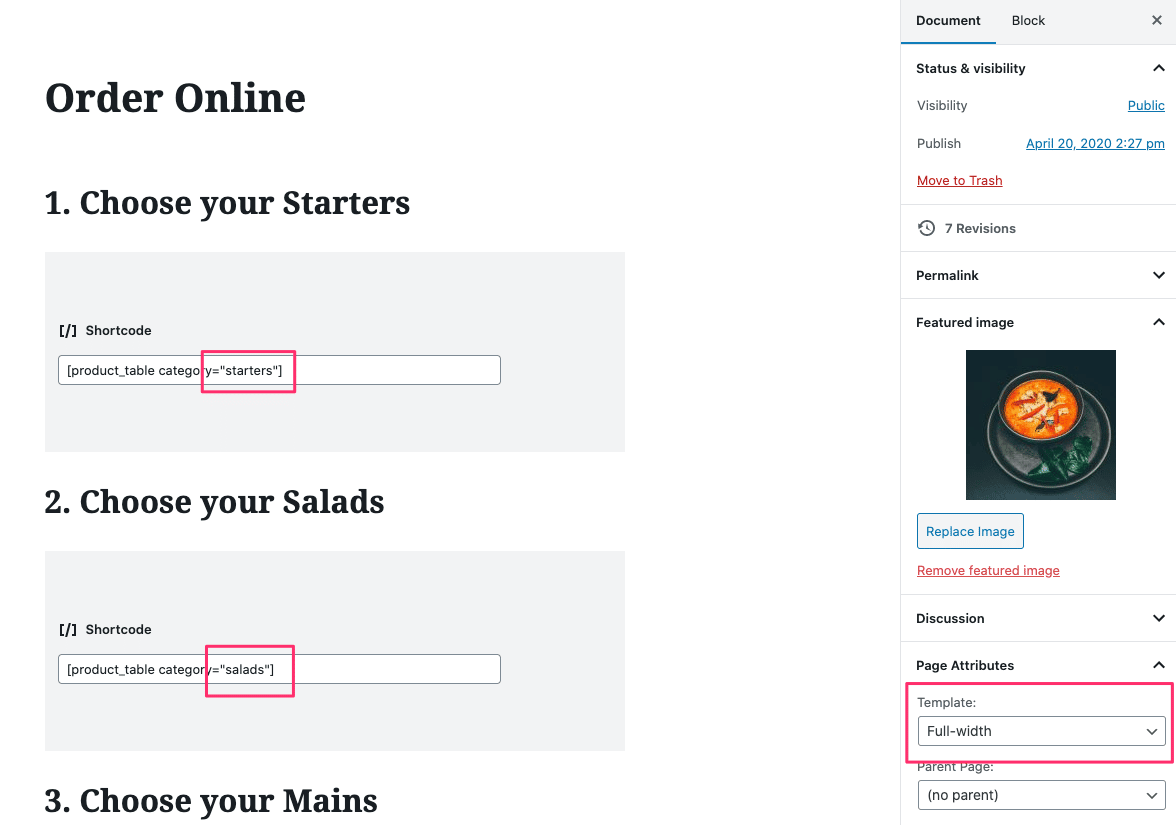
Here’s an example of shortcode used above:
[product_table category="starters"]
Customize the Product Table
By default, WooCommerce Product Table will include columns with details like Image, Name, Description, and Buy Buttons.
From the settings page of the plugin located in WooCommerce > Products > Products table, you can easily change the order of the columns or add new ones:
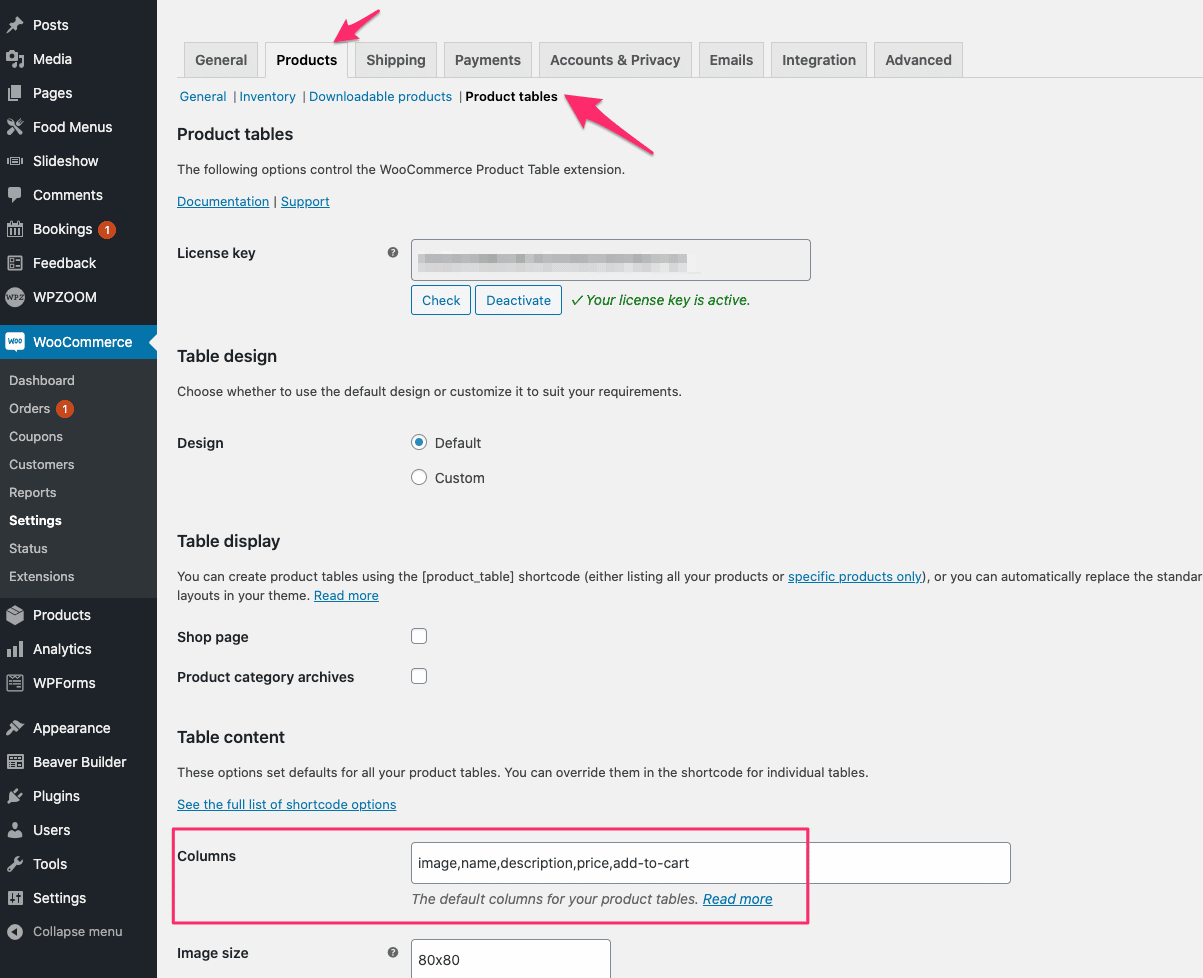
A list with all the available columns can be found in the documentation of the plugin.
What’s Next?
Our goal with this article was to show how easily you can create an online ordering page for your restaurant with a minimal spending. Thanks to great tools available for free like WordPress and WooCommerce, you can build and manage your own restaurant website with a small budget.
WooCommerce is a complex plugin and there are dozens of add-ons available to add almost any functionality you want to your website.
Here are some of the next steps you will have to take care of when building an eCommerce website for your restaurant but haven’t been covered here:
1. Set opening hours and delivery times. You can do this using WooCommerce Delivery Slots.
2. Set up shipping zones and restaurant delivery areas. If you want to allow takeaway orders, you can use WooCommerce’s built-in Local Pickup shipping method.
3. Set up payment methods. You’ll need to decide whether you want to accept online payments, accept cash on delivery, or both. You can set up your payment methods by going to WooCommerce → Settings → Payments.
Recommended Guides
Our friends at Barn2 have more in-depth articles written on their website about creating a Virtual Restaurant with WooCommerce, so we recommend to check them as well:
– Tutorial: Create a WooCommerce Restaurant Ordering System
– Create a Restaurant Ordering System – Start Selling Online in the Coronavirus Lockdown
– Complete Guide: How to Set Up and Run a Virtual Restaurant
Let the WPZOOM team help you get started!
We really hope that you’ll find this article useful for setting up your WooCommerce restaurant website and completing it with the missing features.
Let’s do a quick rundown of the tools you’ll need to create an online ordering page for a WooCommerce restaurant:
1. WooCommerce
2. Delicio Theme
3. Beaver Builder and Beaver Builder Addons
4. WooCommerce Product Table
If you decide to choose our Delicio theme for your website, I guarantee that you’ll have our full support in a timely manner to fully set up your website from the start and to the launch.
So if you’re not sure where to start or need an advice, get in touch with us or ask a question in the comments below.