Because WPBruiser is invisible to visitors, you can’t tell from the form itself whether it’s protected. This article shows two ways to check: the note administrators see under every protected form, and Test Mode, which emails you the result of every check without blocking anything.
Table of Contents
While you’re logged in as an administrator, WPBruiser adds a small line under every form it protects:
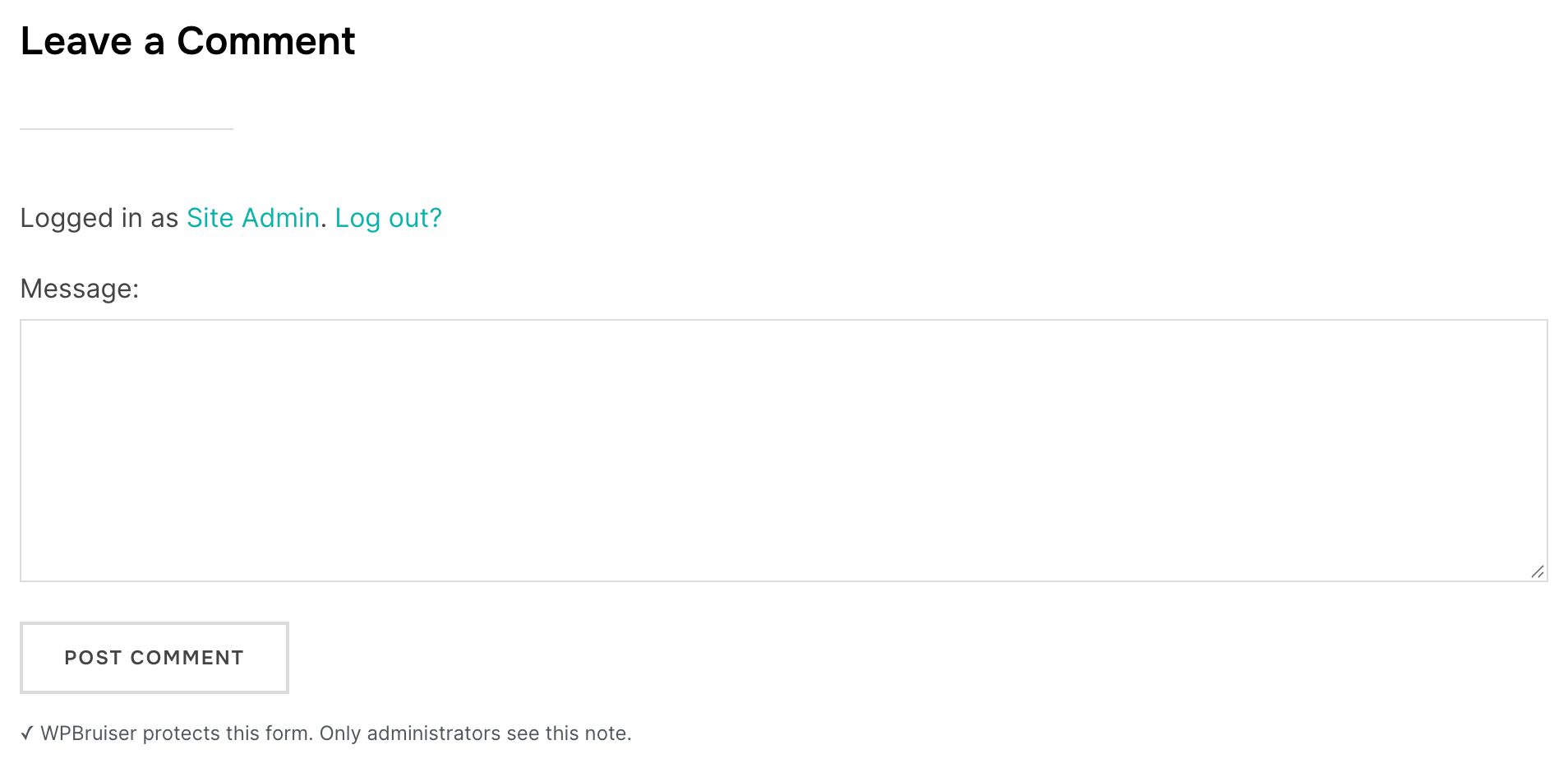
✓ WPBruiser protects this form. Only administrators see this note.
Visitors and other users never see it, and it isn’t stored in cached pages. If a form you expect to be protected has no note, check that its switch is on under WPBruiser → WordPress or WPBruiser → Integrations.
To hide the note for administrators too, go to WPBruiser → Settings, check Hide the Protected Note on Forms and click Save Changes.
Test Mode lets you try your own forms safely. While it’s on, nothing is blocked; instead WPBruiser emails you the result of each check.
In Test Mode your own IP address is checked like anyone else’s, even if it’s on the allow list.
Once Test Mode is off, every rejected submission is logged. Open WPBruiser → Reports after a day or two: the Latest attempts table shows what was blocked, on which form and why. See Reviewing Blocked Attempts in Reports.
