Every submission WPBruiser rejects is logged. The Reports screen turns that log into charts, a table of the latest attempts, a world map and a breakdown per form, and lets you block an IP address with one click. A Dashboard widget gives you the headline numbers without opening the plugin.
Table of Contents
Go to WPBruiser → Reports. The Dashboard box at the top shows blocked attempts per day for the last 30 days (left) and the total per form (right).

The Latest attempts table lists the most recent rejected submissions:
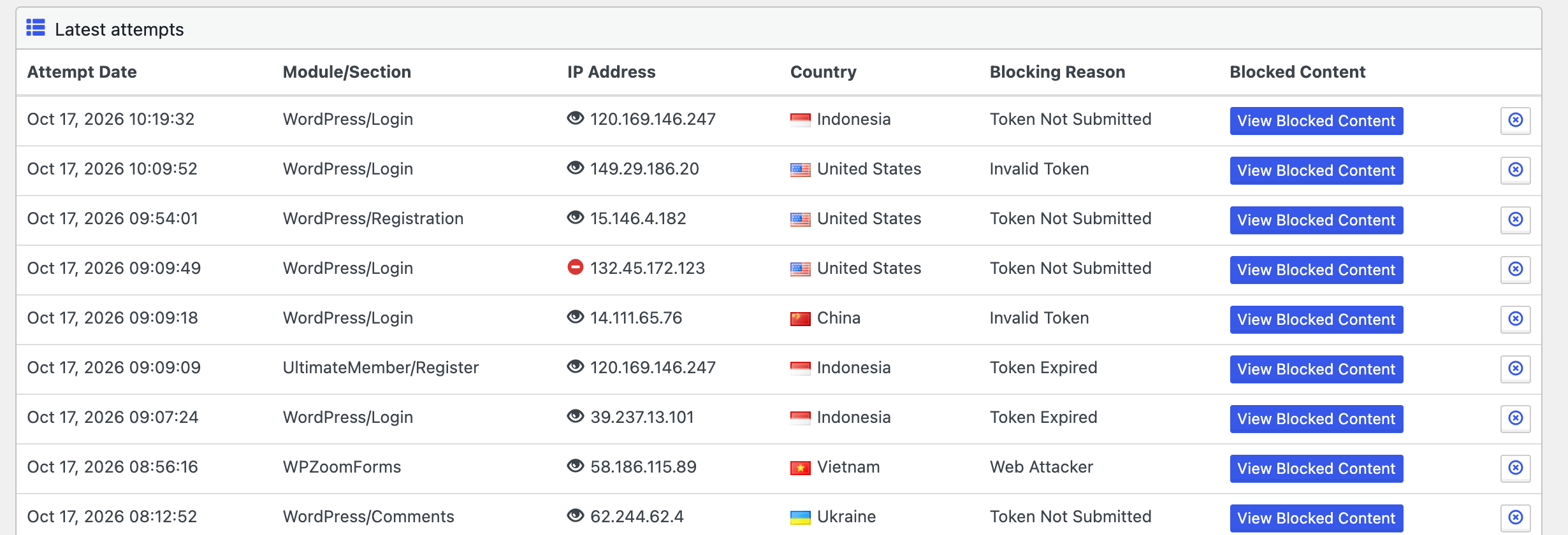
| Column | Shows |
|---|---|
| Attempt Date | When it happened |
| Module/Section | The integration and form, e.g. WordPress/Login or WordPress/Comments |
| IP Address | Where it came from. A red icon means the address is on your block list. |
| Country | Looked up on your server from the IP address |
| Blocking Reason | Why it was rejected — see below |
| Blocked Content | A button to see what was submitted |
Click View Blocked Content on a row to see the fields that were submitted, for example the name, email, website and text of a spam comment:
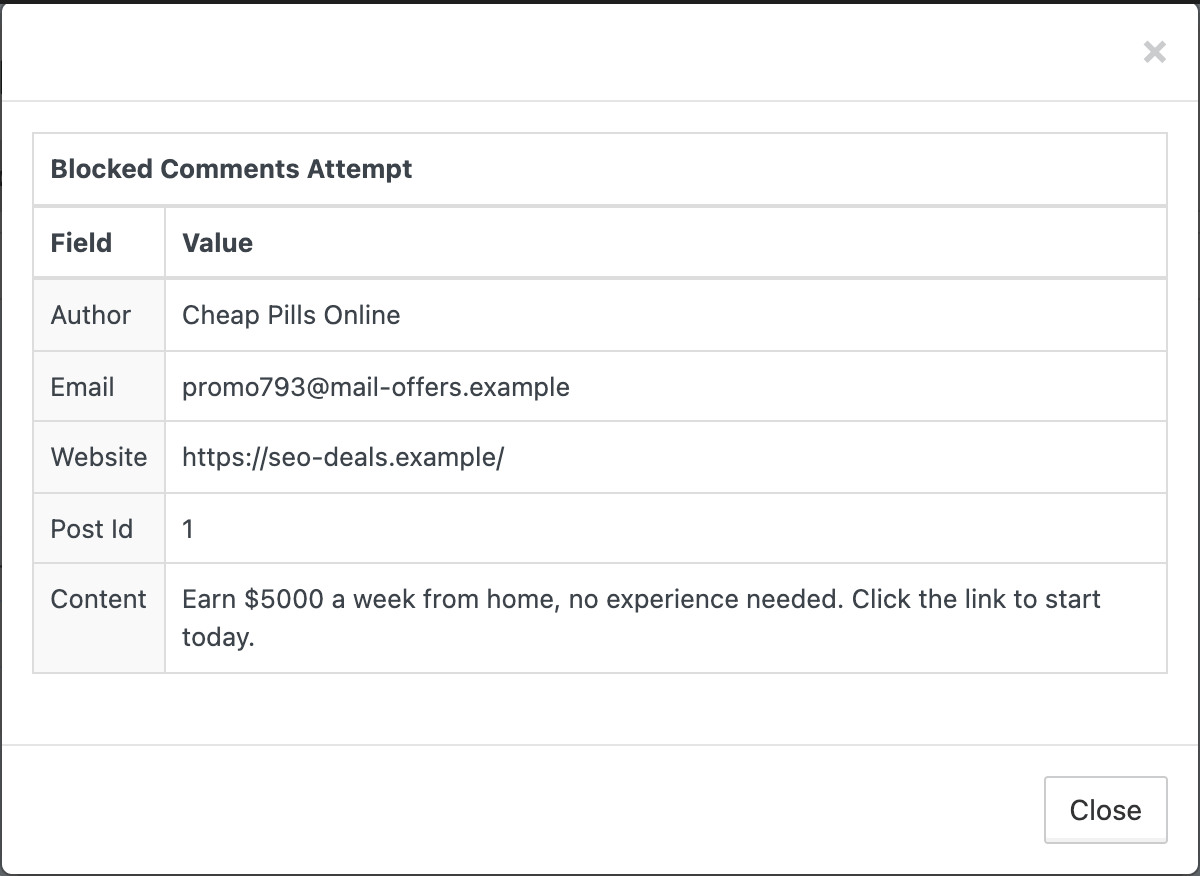
Submitted content is kept for the number of days set in WPBruiser → Settings → Keep Blocked Submitted Content For (10 days by default). Set it to 0 days to keep no content at all; the attempt itself is still logged.
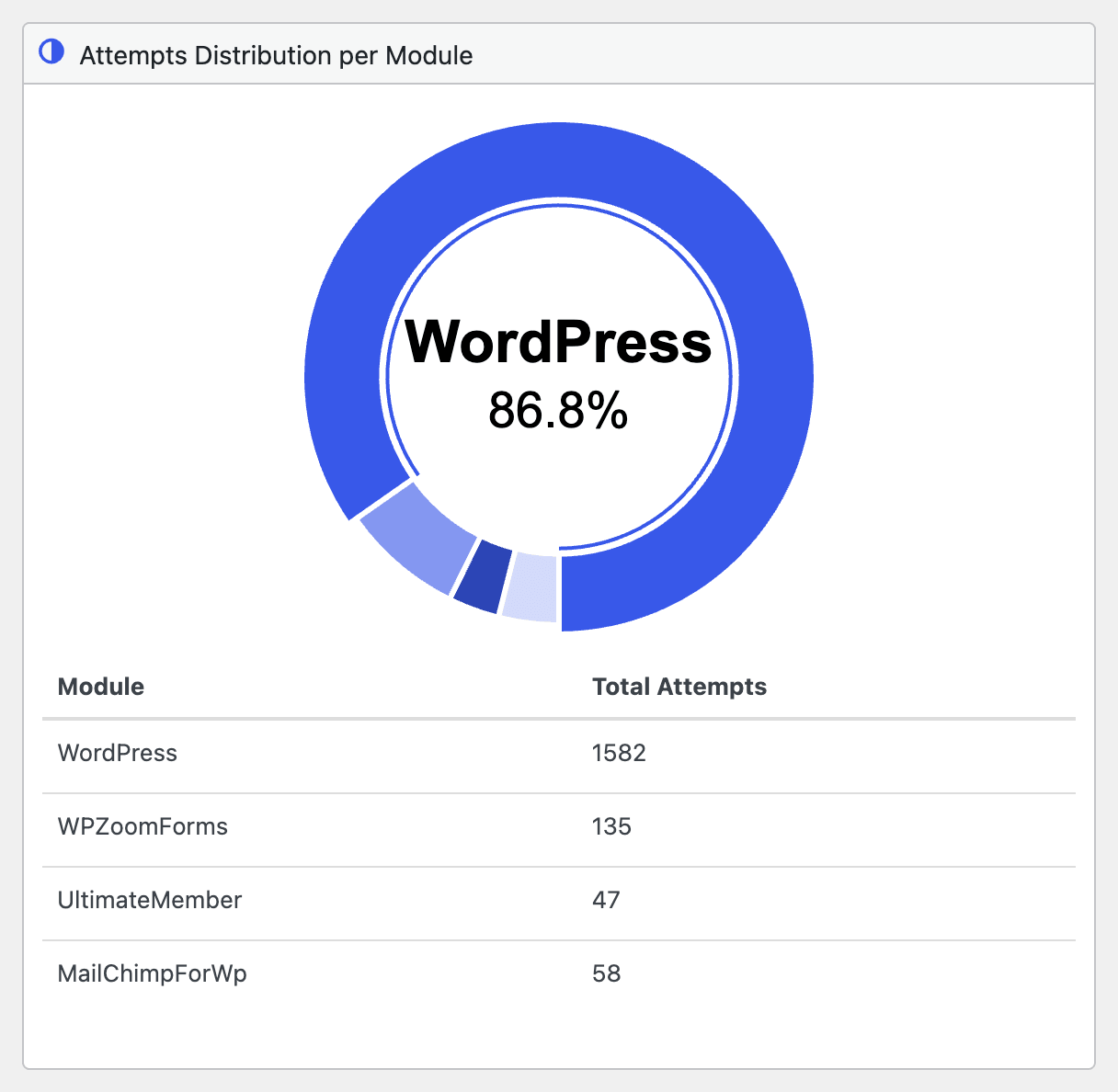
Further down, Attempts By Locations shows a world map shaded by the number of attempts, with a table of the addresses that tried most often. Attempts Distribution per Module shows which integrations are targeted.
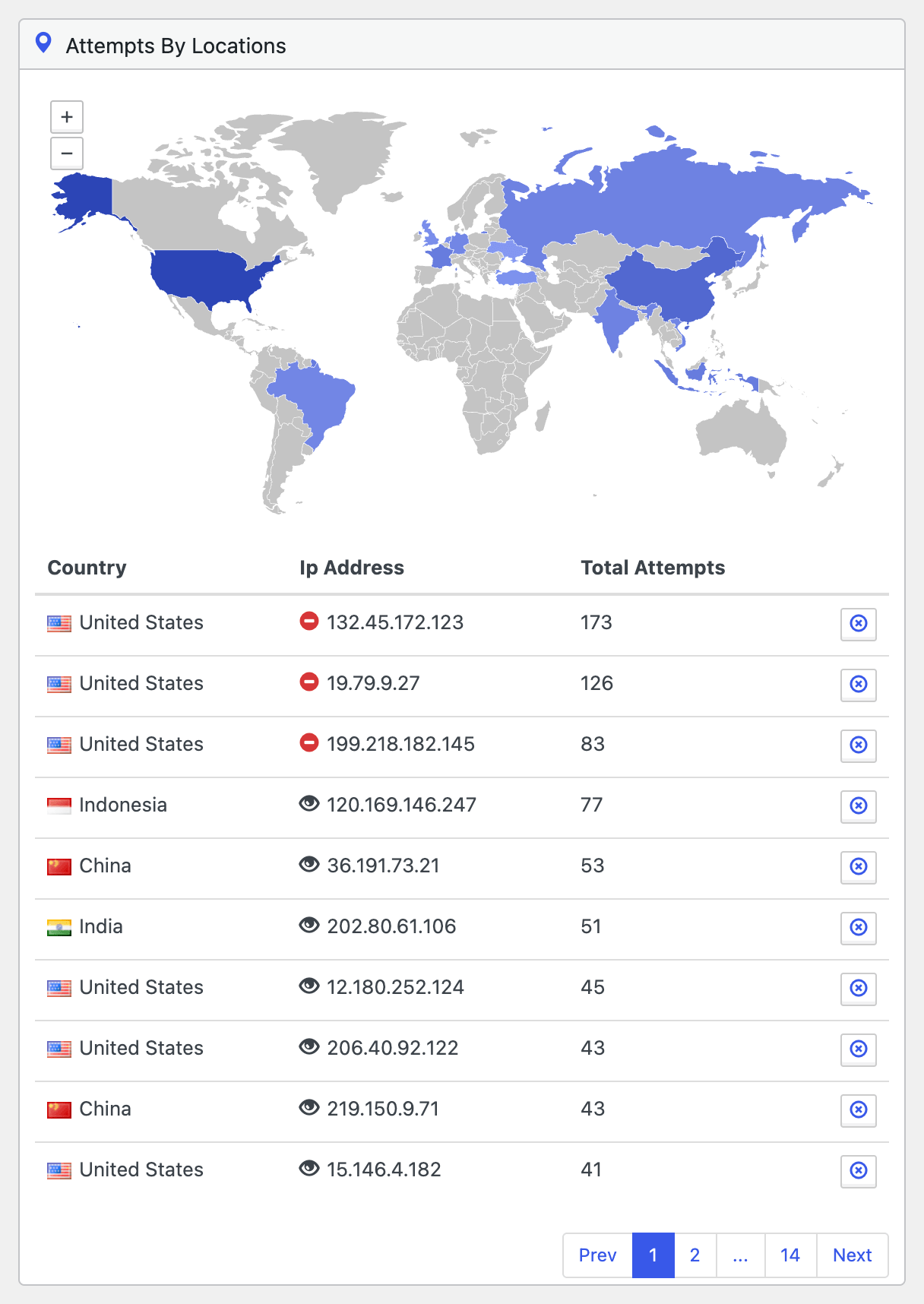
The country lookup uses data that ships inside the plugin, so no IP address is sent anywhere.
Next to every address in Latest attempts and Attempts By Locations there’s a round button. Click it and choose Block Ip Address to add the address to your block list; every protected form then rejects it. To undo, remove the address under WPBruiser → Security → Black Listed IPs — see Allowing and Blocking IP Addresses.
The WPBruiser Spam Protection widget on your WordPress Dashboard shows the blocked attempts for the last 24 hours, 7 days and 30 days, and the five forms bots targeted most in the last 30 days, with links to the reports and the Integrations screen.
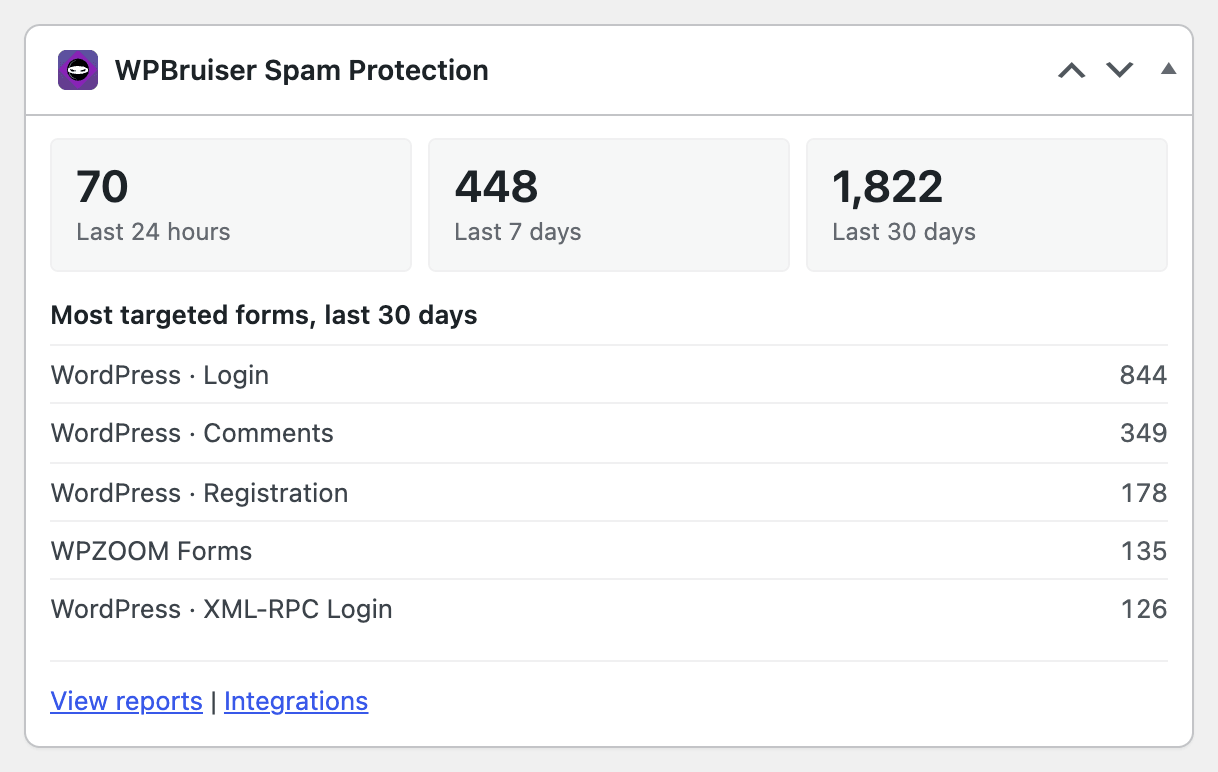
Like any Dashboard widget, you can move it or hide it with Screen Options at the top of the Dashboard.
| Reason | Meaning |
|---|---|
| Token Not Submitted | The submission had no token. Almost always a bot posting directly to the form’s address. |
| Invalid Token | The token was forged, damaged or belongs to a different site. |
| Token Expired | The token was too old. Usually a bot replaying a token it collected earlier. |
| Token Submitted Early | The form was sent faster than the Minimum Form Submission Time (3 seconds by default). |
| Client IP Blocked | The address is on your block list. |
| Web Attacker / Proxy Anonymizer | A login from an address on the bundled attacker or anonymous proxy lists (when those options are on). |
| User Enumeration | A bot tried to list your usernames. |
| Comment Field Too Long | A comment field exceeded its limit. |
| Blocked Country | Rejected by country blocking (Pro). |
| Too Many Submissions | Rejected by submission rate limits (Pro). |
Old entries are deleted automatically after the number of days set in WPBruiser → Settings → Automatically Purge Logs Older Than (30 days by default, up to 180). Choose 0 days to turn logging off; protection keeps working, but Reports, the Dashboard widget and brute-force detection have no data to work with.
