New Inspiro AI Demo Generator — can't find the perfect demo? Describe your website and AI builds a custom one in about 2 minutes. Learn more →

Knowledge Base

Documentation

Theme Documentation


Plugin Documentation


Resources

Protecting the WordPress Login, Registration and Comment Forms

This article refers to WPBruiser

The WordPress screen controls protection for the forms that come with WordPress itself, plus a few optional hardening tweaks. All four core forms are protected on a new install; this article explains each option so you can adjust them.


Table of Contents

  1. Choosing which forms to protect
  2. Comment field limits
  3. XML-RPC logins
  4. Hardening tweaks
  5. Forms of other login plugins

Choosing which forms to protect

Go to WPBruiser → WordPress. The WordPress Standard Forms Settings box has one checkbox per form:
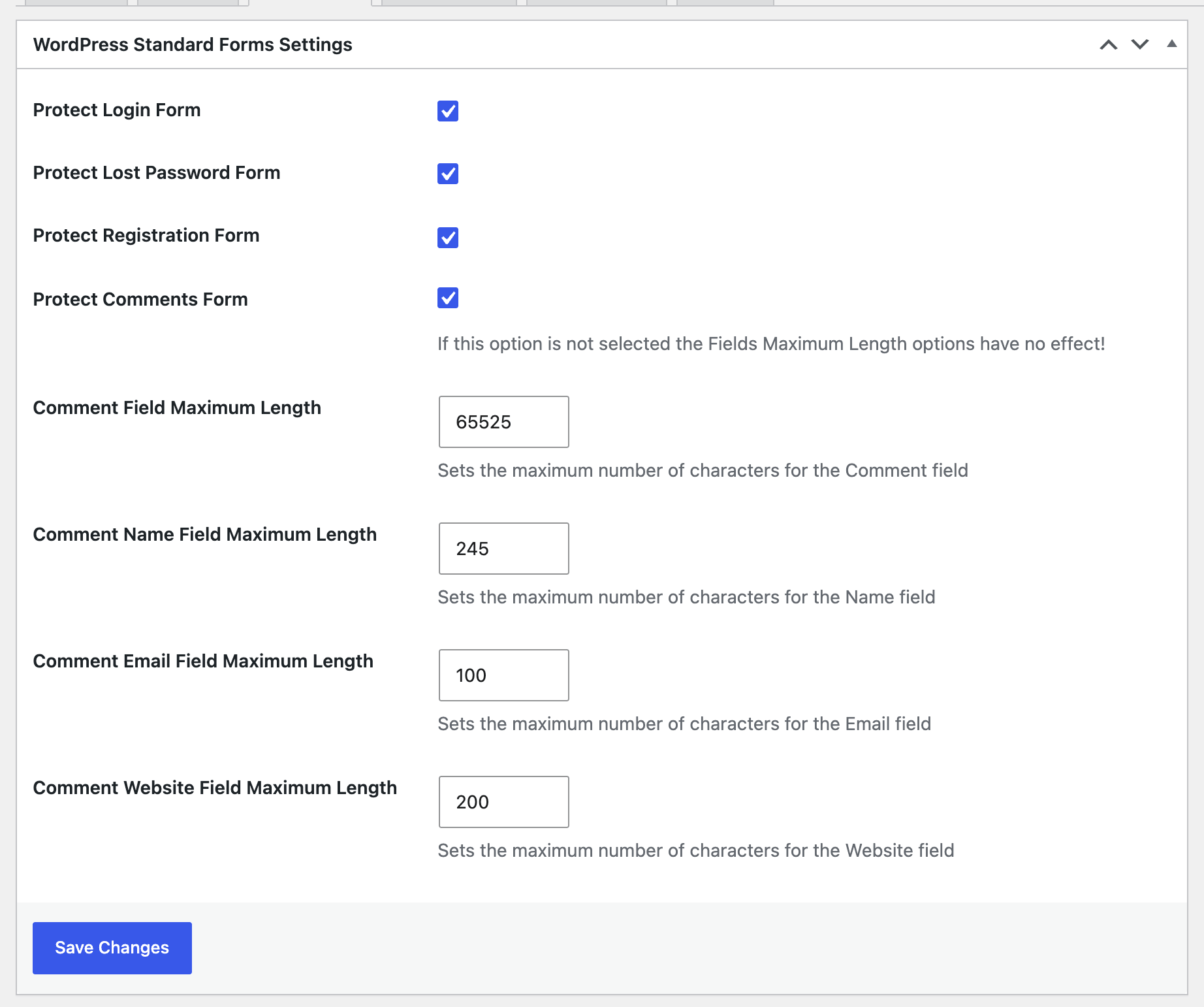
WordPress Standard Forms Settings
  • Protect Login Form — the wp-login.php login form, and login forms that use WordPress’s own login form hooks.
  • Protect Lost Password Form — the “Lost your password?” form.
  • Protect Registration Form — the new user registration form (shown only when Settings → General → Anyone can register is on).
  • Protect Comments Form — the comment form on posts and pages.

Click Save Changes after changing a checkbox.

A login that fails WPBruiser’s check is rejected even when the username and password are correct, so a bot that guesses a password still can’t sign in through the protected form.


Comment field limits

When comment protection is on, you can also cap the length of each comment field. Submissions that exceed a limit are rejected and appear in Reports as Comment Field Too Long.

Option Default
Comment Field Maximum Length 65525 characters
Comment Name Field Maximum Length 245 characters
Comment Email Field Maximum Length 100 characters
Comment Website Field Maximum Length 200 characters

The limits only apply while Protect Comments Form is checked.


XML-RPC logins

Apps and scripts can also sign in through WordPress’s XML-RPC interface, which has no form to protect. When login protection is on, WPBruiser logs failed XML-RPC logins in Reports (as XML-RPC Login) and counts them towards brute-force detection. If nothing on your site uses XML-RPC, you can turn it off completely with the tweak below.


Hardening tweaks

The Tweaking WordPress box below the forms holds small options that reduce what your site gives away:
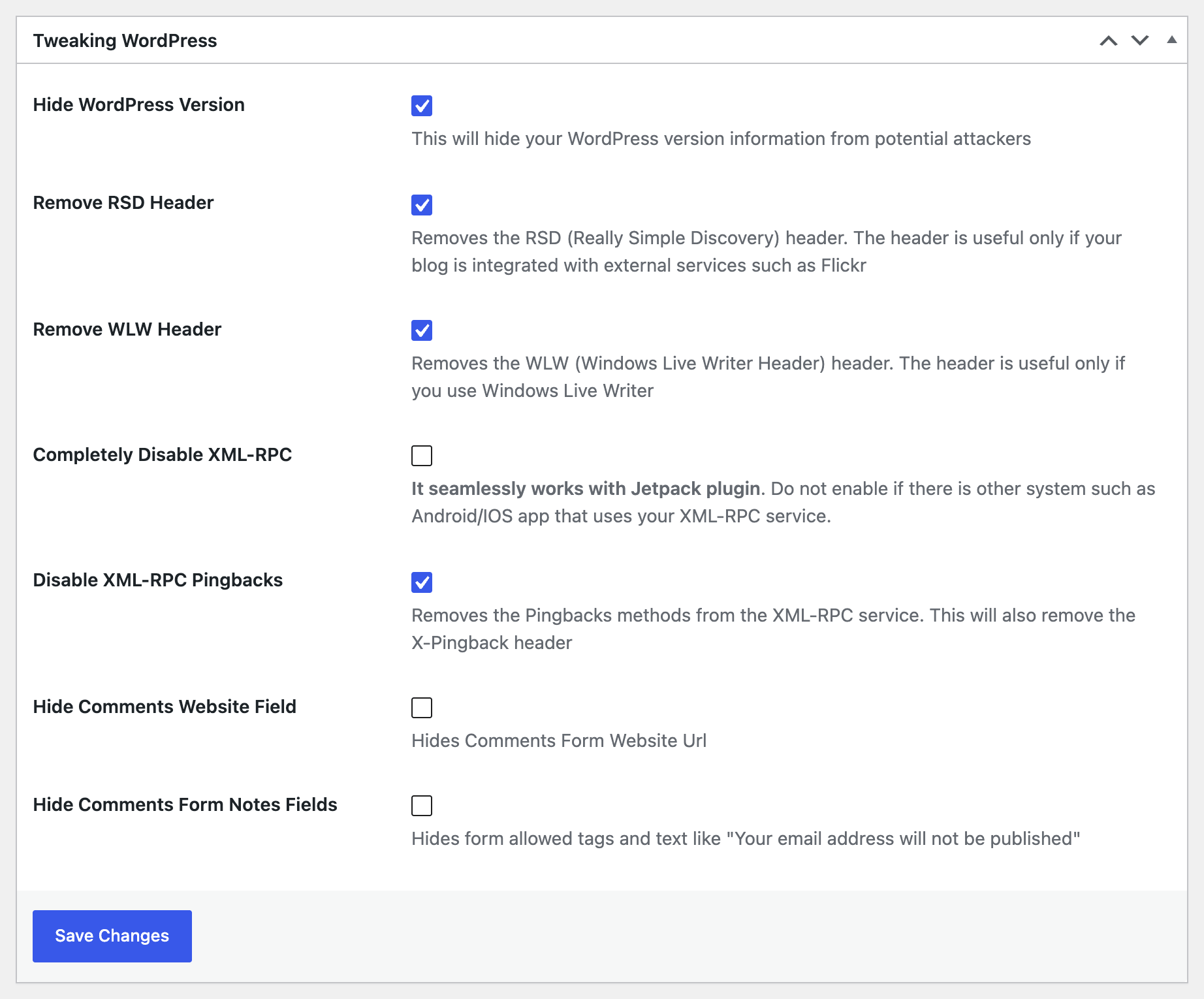
Tweaking WordPress
  • Hide WordPress Version — removes the WordPress version from your pages’ source.
  • Remove RSD Header — removes the Really Simple Discovery link, only needed by some external publishing services.
  • Remove WLW Header — removes the Windows Live Writer manifest link.
  • Completely Disable XML-RPC — turns XML-RPC off. Jetpack’s own XML-RPC requests keep working, but don’t enable it if you use the WordPress mobile app or another tool that connects over XML-RPC.
  • Disable XML-RPC Pingbacks — removes only the pingback methods (often abused for DDoS attacks) and the X-Pingback header. Has no effect when XML-RPC is fully disabled.

  • Hide Comments Website Field — removes the Website field from the comment form.
  • Hide Comments Form Notes Fields — removes the notes above and below the comment form, such as “Your email address will not be published”.

Forms of other login plugins

  • Login With Ajax and wpDiscuz need no switch of their own: their AJAX login, registration, lost password and comment forms are covered by the options above.
  • Ultimate Member, WP-Members and WooCommerce login forms are switched on separately on the Integrations screen (WooCommerce requires WPBruiser Pro).

What’s Next?

Last updated on October 17, 2026