To get quickly the same look of the theme as in the demo see here instructions to Import the Demo Content.
Recommended Plugins (free)
Social Icons Widget – free plugin that allows you to create a list of your social profiles.
Instagram Widget – another free plugin created by us which you can use to add a gallery with your Instagram photos.
Jetpack – a free plugin that includes numerous features that you can active to add extra functionalities in the theme. Recommended features to activate: Related Posts, Tiled Galleries, Sharing Icons, Carousel.
Yoast SEO – a free and useful plugin that adds breadcrumbs navigation to your theme. Just make sure to enable this option in SEO > Advanced > Breadcrumbs.
Customize Colors, Logo, Fonts and other
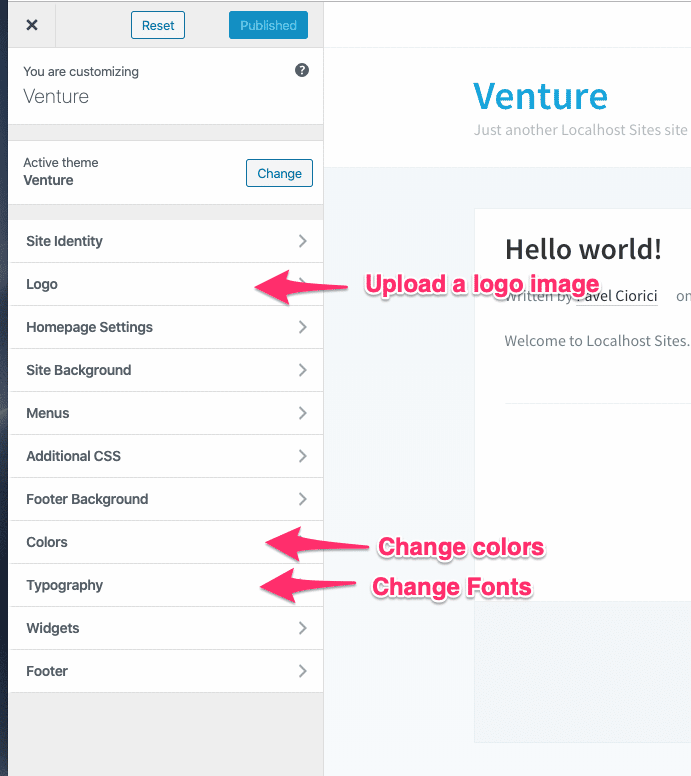
To Customize different elements of the theme, go to the Appearance > Customizer page.
Newsletter Widget
You can add a newsletter subscription form in widget areas by installing the MailPoet Newsletters plugin (formerly Wysija Newsletters). The plugin is free and also includes a widget called MailPoet Subscription Form
In Venture 2.0 theme many options can be changed and customized from Theme Customizer. You can access the Customizer from Themes Page.
In Logo you can upload your own logo image.
In Footer you can change the number of widget columns in the Footer.
Setting-up the Homepage (Widgetized) Template
Default homepage layout in Venture theme shows your latest blog posts, but if you want to change this to the similar layout from the demo, which is based on the Page Template called Homepage (Widgetized), you’ll have to follow these instructions:
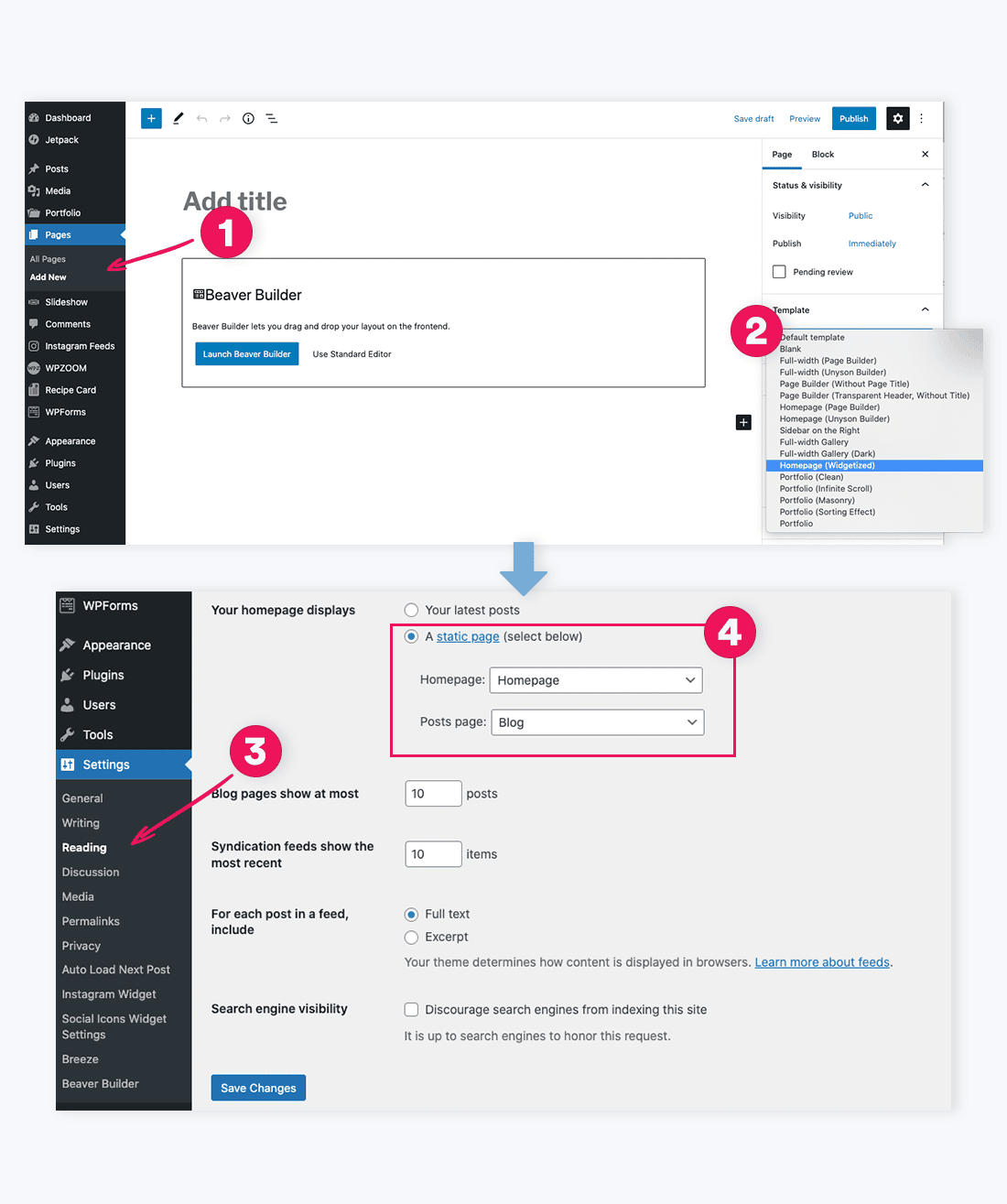
Go to WordPress Dashboard and create a new page.
Assign the Homepage (Widgetized) template to your new page from the Template box, then publish the page.
Navigate to Settings -> Reading in your WordPress Dashboard
Find the Front page displays option, and change it to A static page, and then from the Front page dropdown, select your newly create page in step 2. Additionally you can select on which page you want to display your blog posts
Configure Homepage Slider
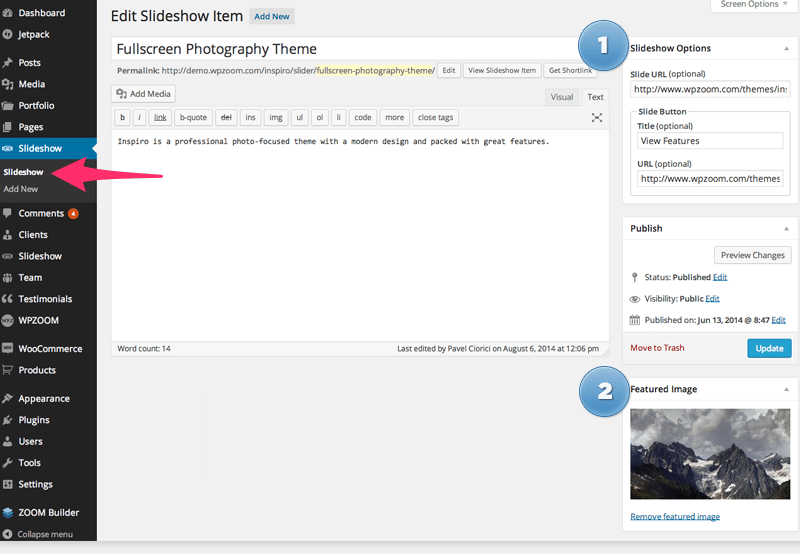
Each slide from the homepage slideshow is an individual Slideshow post.
To add a new slide, navigate to Slideshow > Add New menu.
Optionally you can assign a link to the slide to any page you want from your website or other external sites. You can also add content in the main area.
It’s also required to upload a Featured Image
Additional slider settings can be configured in Theme Options > Homepage > Homepage Slider.
Widget: Single Page
This widget can be added in the Homepage (Widgetized) template via Widgets page, and it allows to feature the content from individual pages.
If a page has a Featured Image then it will be displayed in the widget, in case you have enabled this options in widget settings.
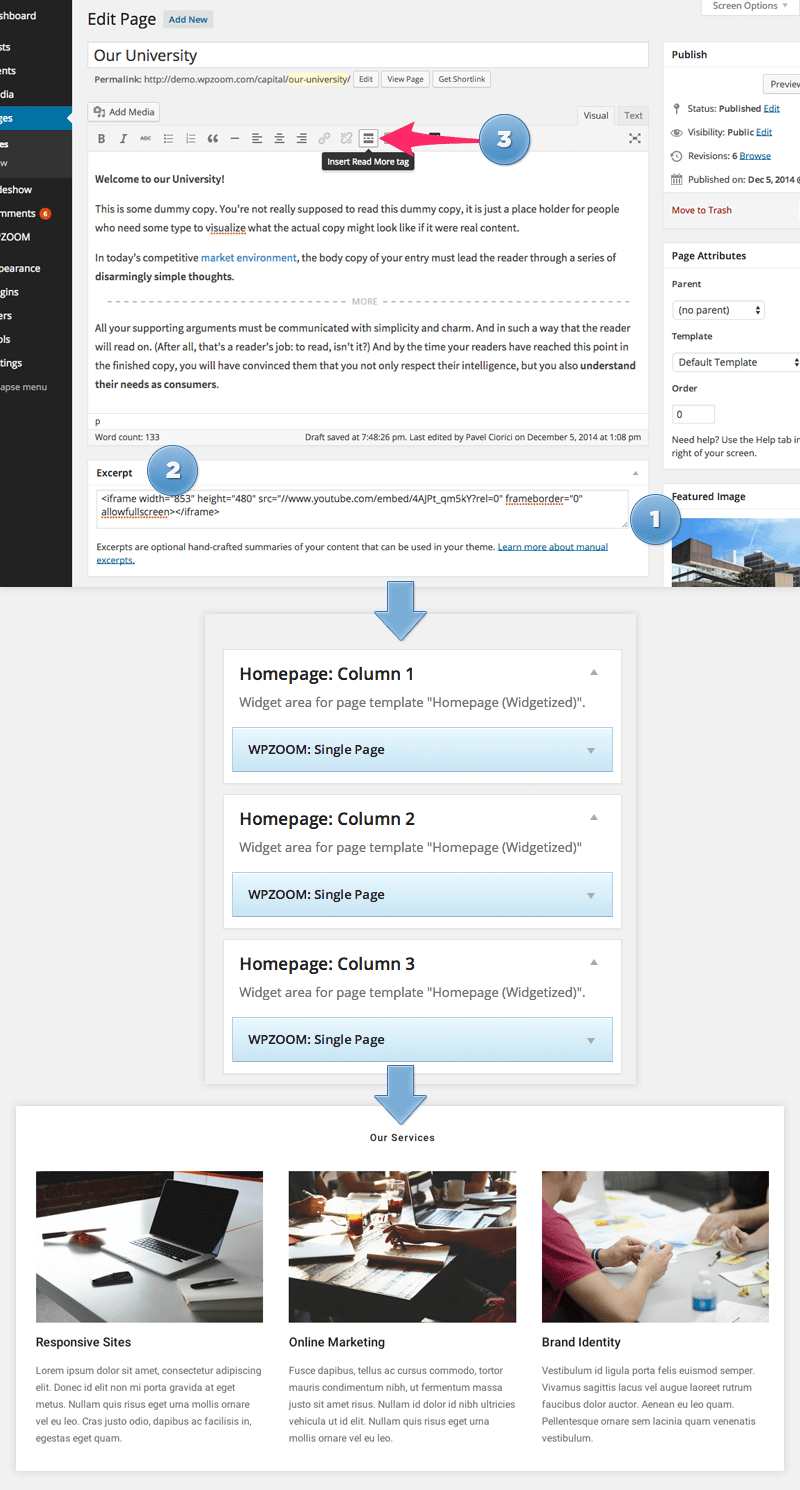
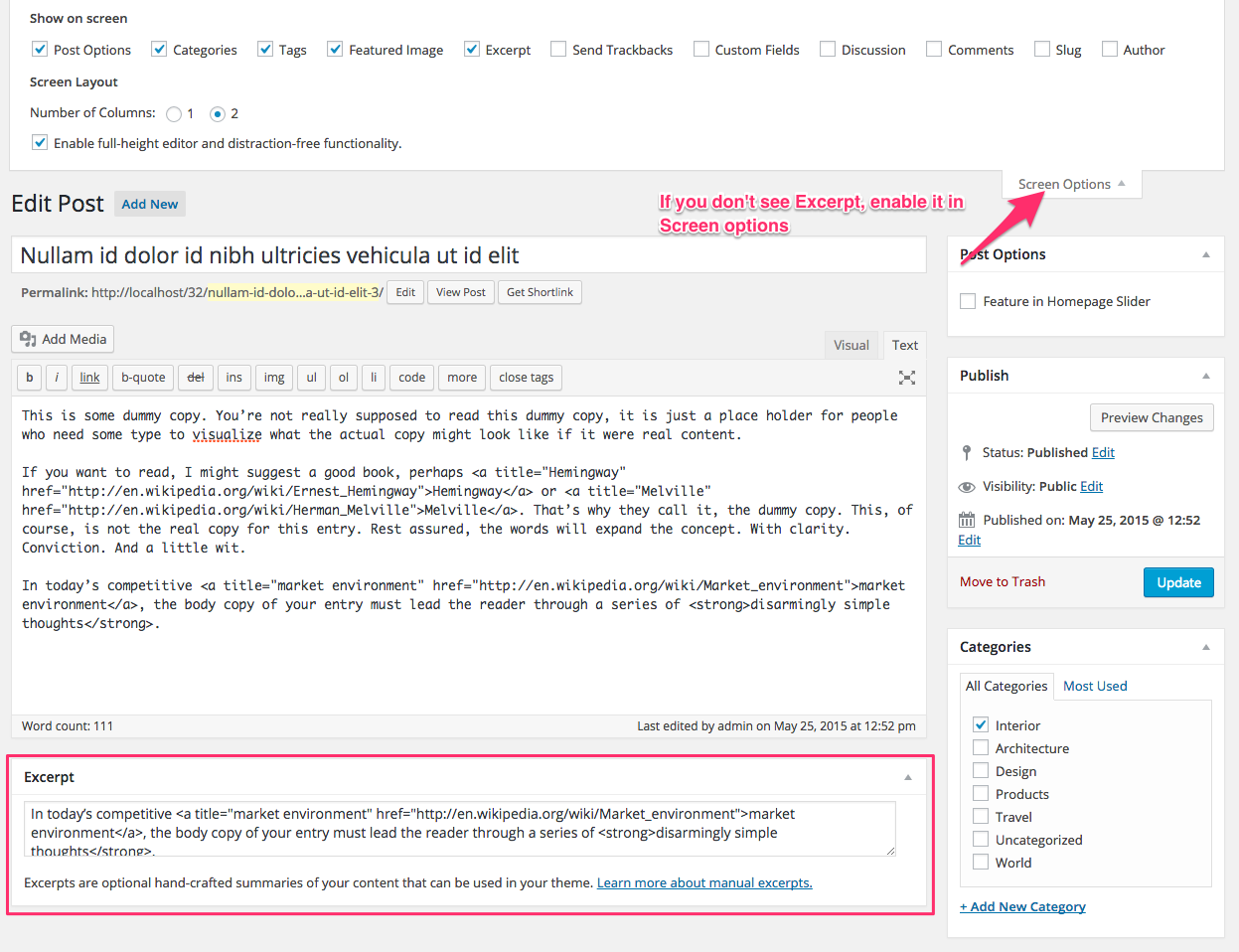
You can also display a video instead of the Featured Image, but you’ll have to insert the embed code in the Excerpt field when editing the page. If you don’t see the Excerpt metabox, make sure that it’s enabled from the Screen Options from top-right.
This widget will display the full content of a page, but you can easily make use of the <!--more-->Read More tag and insert it anywhere you want in the content.
Create “Our Team” section using WPZOOM: Sub-Pages widget
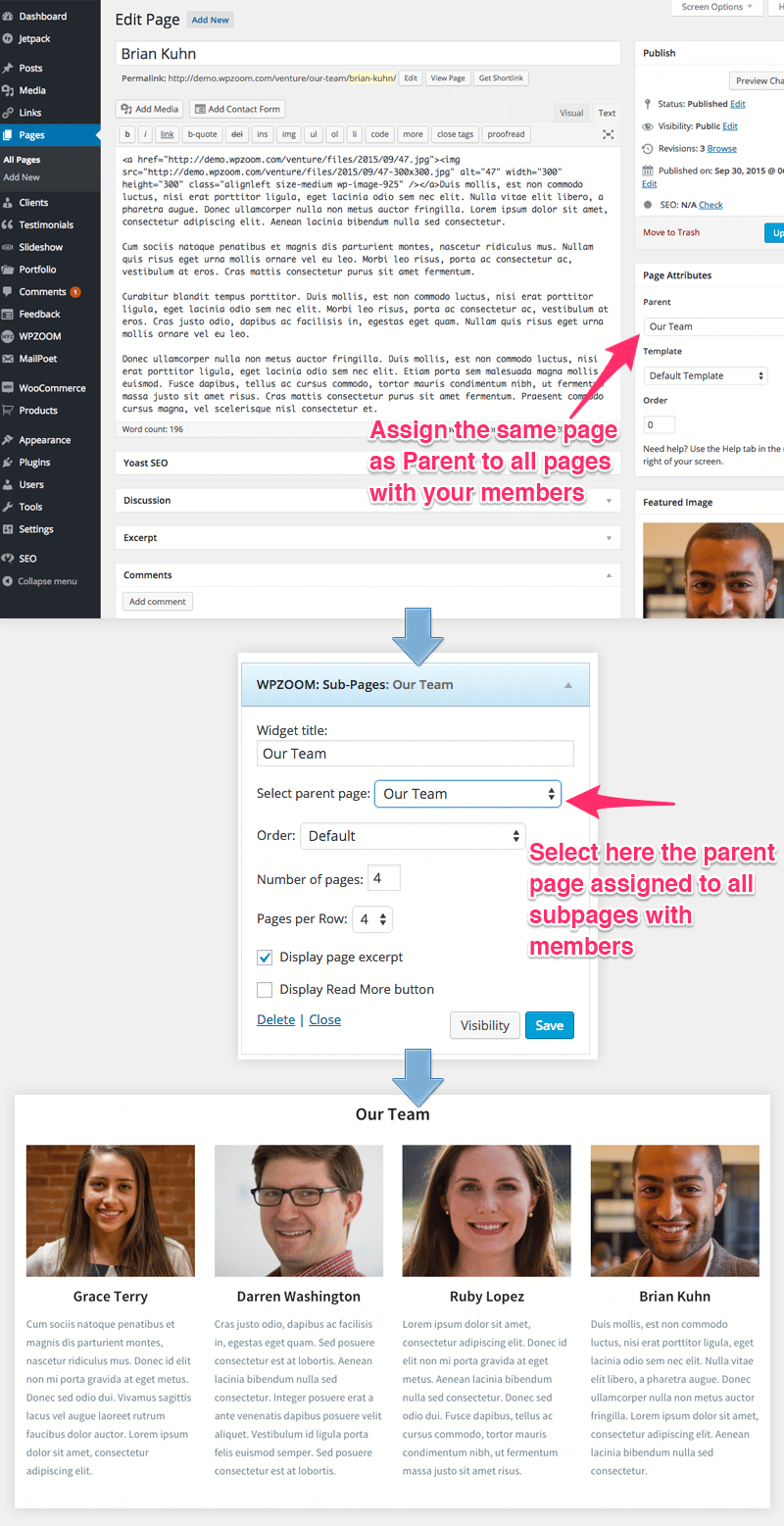
WPZOOM: Sub-Pages widget can be used to display on homepage multiple subpages of a specific parent page. In the demo we use it to create the Our Team area. Here’s how you can create one in your site too:
Create a new page called Our Team
Create multiple pages with information for each members and assign to all of them the same Parent page that we’ve created in the first step – Our Team
Add the WPZOOM: Sub-Pages widget to the homepage areas and select in its settings to display all subpages of Our Team parent page.
Setting-up the Portfolio Page
Venture theme includes 2 different page templates for Portfolio page:
Portfolio – this is the default template that will display all Portfolio posts on one page.
Portfolio (Paginated) – in this template you can display a specific number of portfolio posts per page. You can change how many posts appear per page in Theme Options > General > Portfolio Template
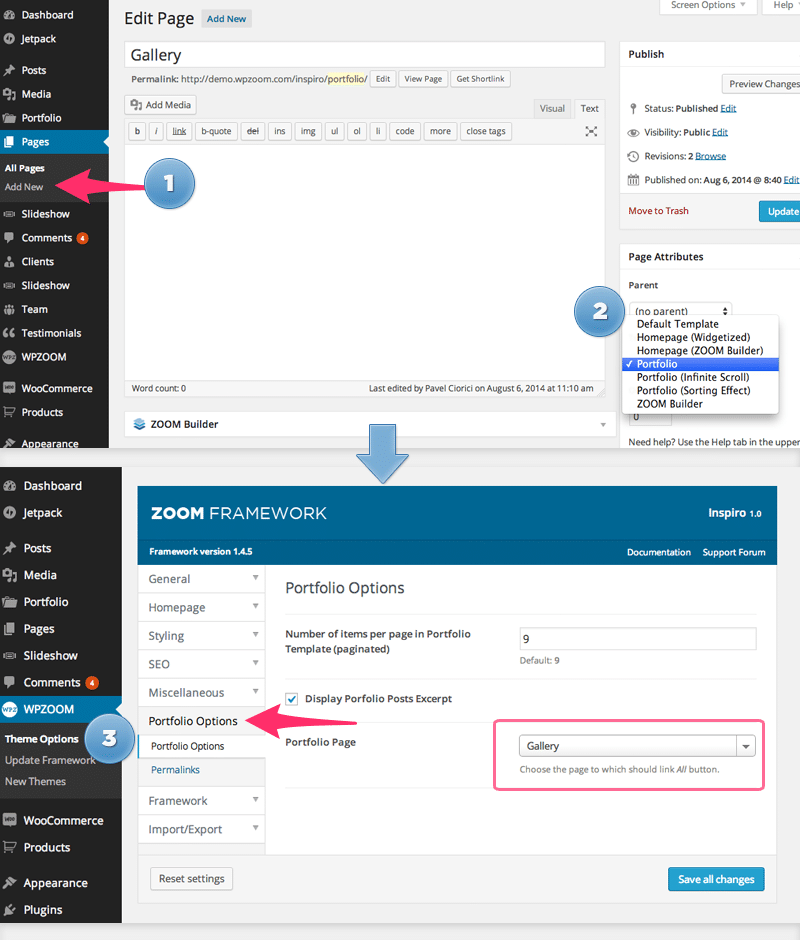
To create a Portfolio page, in which you will show off all your Portfolio posts, navigate to WordPress Dashboard -> Pages -> Add New
Look for the Template box in the right side, and select any of the 2 available Portfolio templates from the drop-down.
Once you created your Portfolio page, navigate to WPZOOM -> Theme Options.
In Portfolio Options select the your newly created page in the dropdown for the Portfolio Page option.
Setting up the Blog page
To create a page with all your blog posts, navigate to WordPress Dashboard -> Pages -> Add New
Create a new Page called Blog.
Go to Settings > Reading and select the Blog page in the option Posts Page.
Widgets
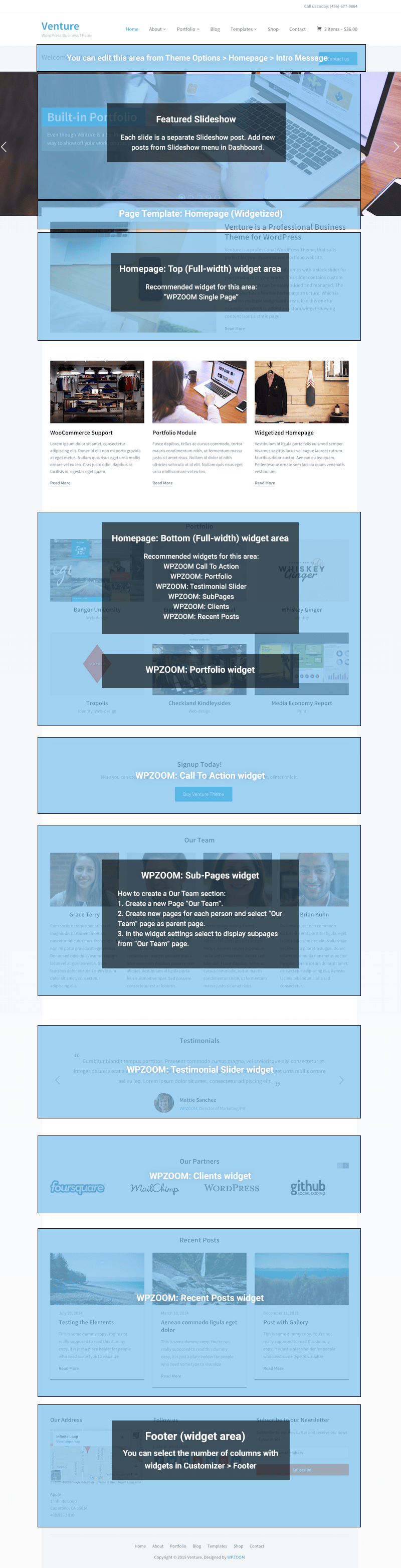
To add widgets in this theme, access Appearance -> Widgets menu, and drag widgets to your widgetized areas to activate them.
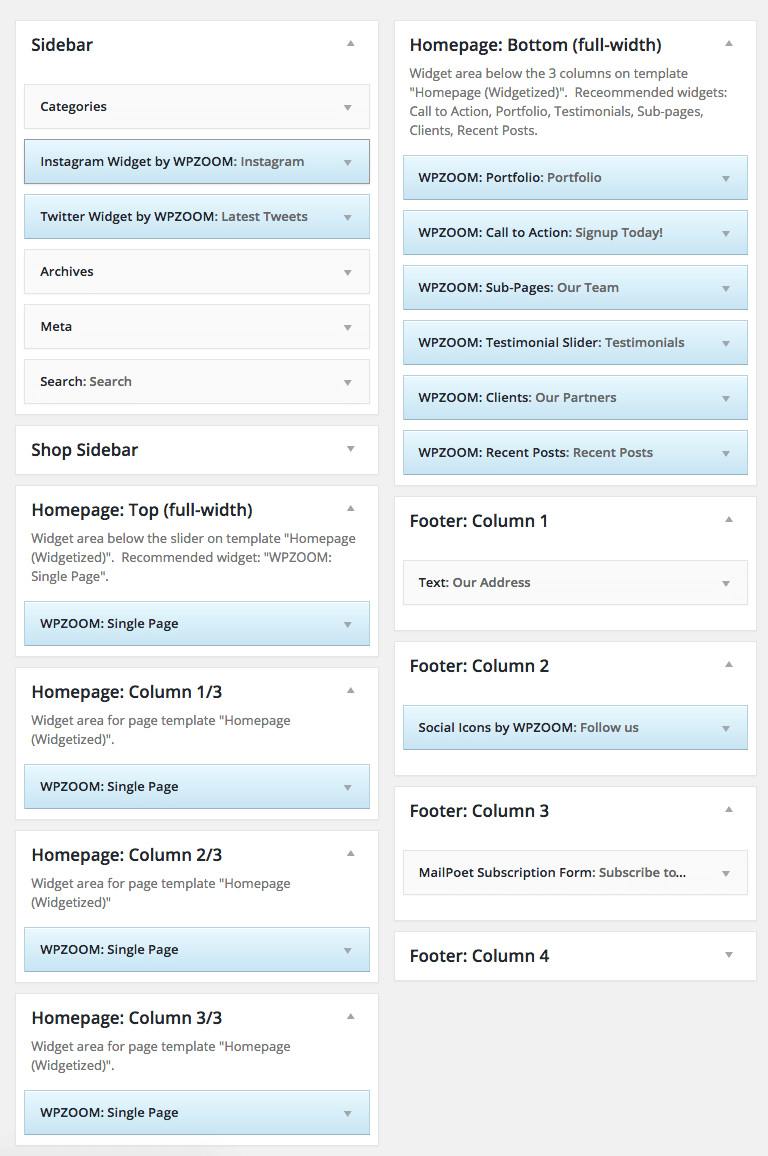
Widgets Structure in Demo
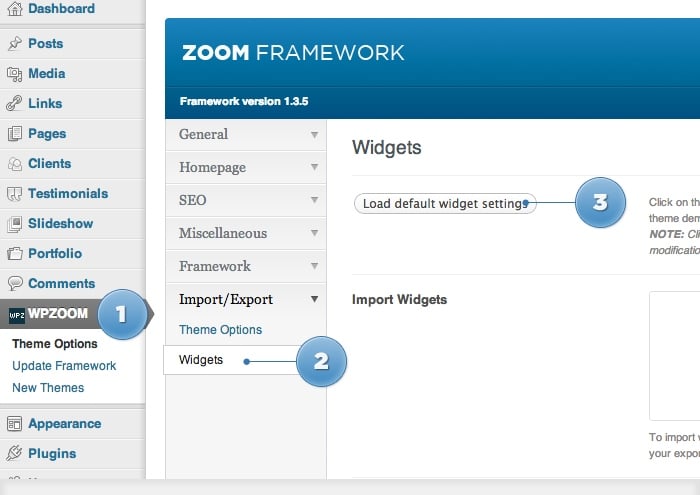
Load Default Widgets
From Theme Options you can load automatically default widgets, exactly as in theme demo. All you have to do is to navigate to Theme Options -> Import/Export -> Widgets and click the button Load default widget settings
FAQ
How do I change summary content (Excerpt) for a post?
On editing page of a post, look for a field called Excerpt. You can add here summaries for your posts each time you want to adjust manually the length of text which appears in Slider, Recent Articles, Post Archives or when you simply want to have a different text than the automatically picked excerpt.
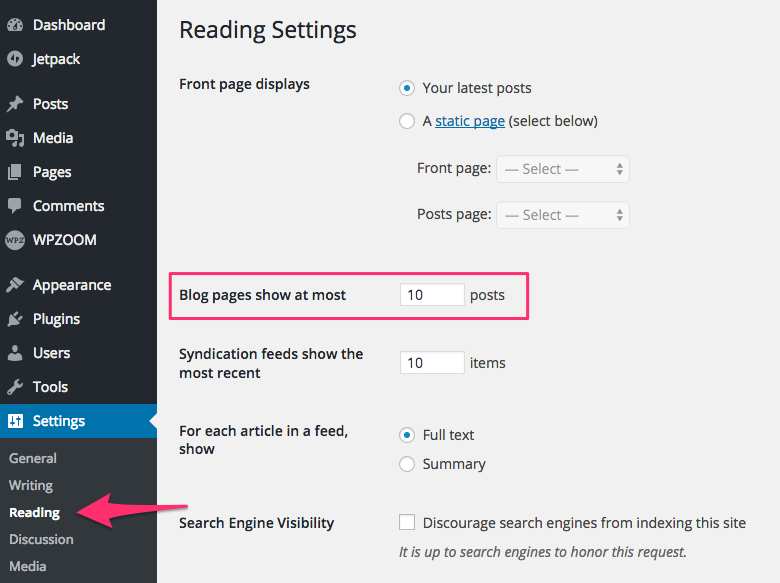
How can I change the number of posts on homepage?
Go to Settings > Reading
Find Blog pages show at most option, and change the number of posts.
Last updated on June 24, 2025
Manage Consent
To provide the best experiences, we use technologies like cookies to store and/or access device information. Consenting to these technologies will allow us to process data such as browsing behavior or unique IDs on this site. Not consenting or withdrawing consent, may adversely affect certain features and functions.
Functional
Always active
The technical storage or access is strictly necessary for the legitimate purpose of enabling the use of a specific service explicitly requested by the subscriber or user, or for the sole purpose of carrying out the transmission of a communication over an electronic communications network.
Preferences
The technical storage or access is necessary for the legitimate purpose of storing preferences that are not requested by the subscriber or user.
Statistics
The technical storage or access that is used exclusively for statistical purposes.The technical storage or access that is used exclusively for anonymous statistical purposes. Without a subpoena, voluntary compliance on the part of your Internet Service Provider, or additional records from a third party, information stored or retrieved for this purpose alone cannot usually be used to identify you.
Marketing
The technical storage or access is required to create user profiles to send advertising, or to track the user on a website or across several websites for similar marketing purposes.
To provide the best experiences, we use technologies like cookies to store and/or access device information. Consenting to these technologies will allow us to process data such as browsing behavior or unique IDs on this site. Not consenting or withdrawing consent, may adversely affect certain features and functions.
Functional
Always active
The technical storage or access is strictly necessary for the legitimate purpose of enabling the use of a specific service explicitly requested by the subscriber or user, or for the sole purpose of carrying out the transmission of a communication over an electronic communications network.
Preferences
The technical storage or access is necessary for the legitimate purpose of storing preferences that are not requested by the subscriber or user.
Statistics
The technical storage or access that is used exclusively for statistical purposes.The technical storage or access that is used exclusively for anonymous statistical purposes. Without a subpoena, voluntary compliance on the part of your Internet Service Provider, or additional records from a third party, information stored or retrieved for this purpose alone cannot usually be used to identify you.
Marketing
The technical storage or access is required to create user profiles to send advertising, or to track the user on a website or across several websites for similar marketing purposes.