With WPZOOM Connect Pro you can upload SVG files as a Custom Icons set. Uploaded icons appear in every icon picker (the block, the widget, icon sets and menus) next to the built-in sets, and pasting a link to a network whose icon you uploaded picks it.
Table of Contents
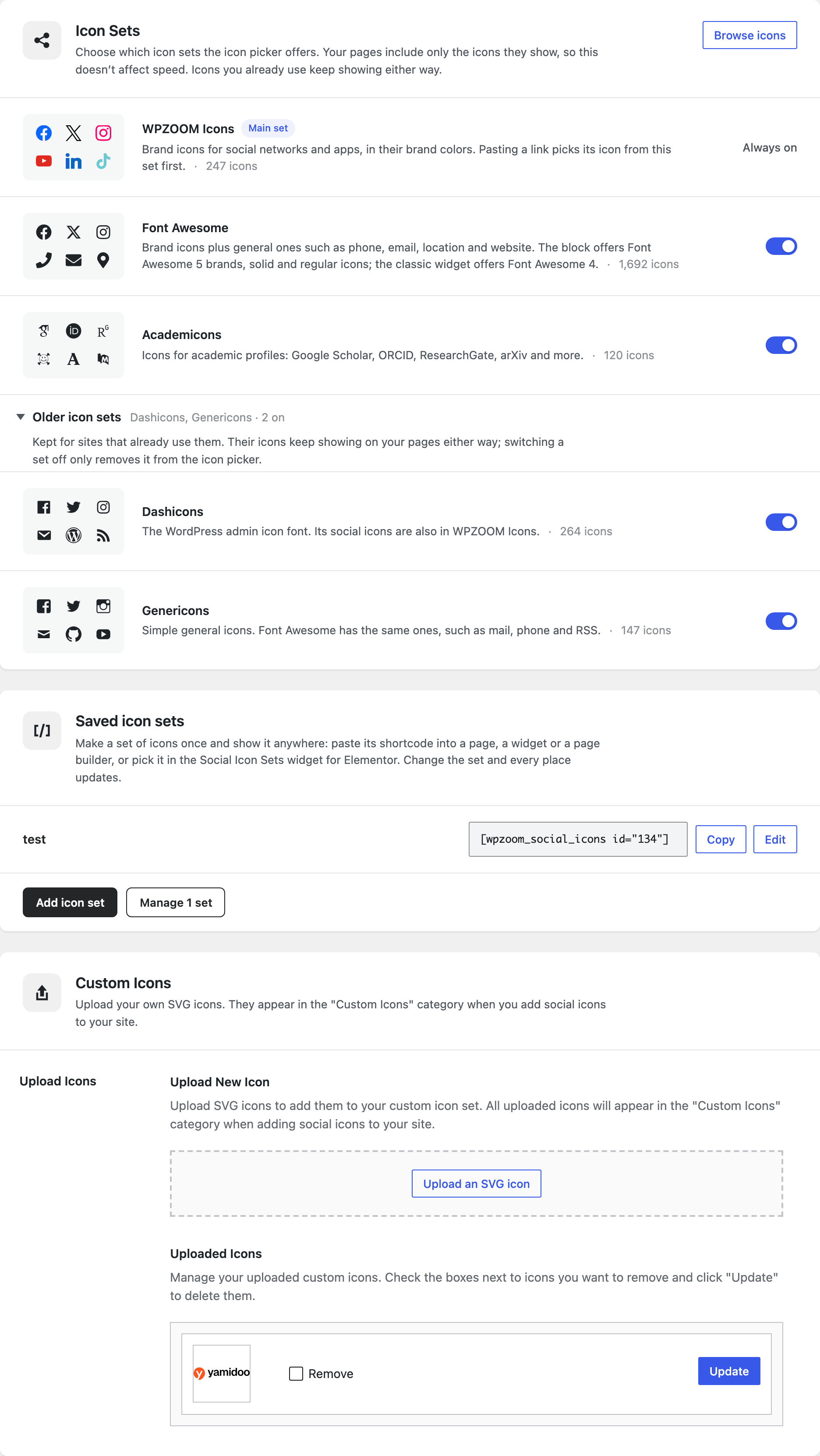
Repeat for every icon, then click Update at the bottom of the page.
In any icon picker, choose the Custom Icons set. Uploaded icons take the colors you set like any other icon, so a single-color SVG is the most flexible. The Overview’s Custom icons tile shows how many you have uploaded.
Under Uploaded Icons, tick the icons to remove and click Update. Icons already placed on your site keep showing until you change them. Reset All Settings at the bottom of the Settings page keeps your custom icons.
viewBox, at any size; it is scaled to the icon size you choose.currentColor, so the plugin’s color options work. Hard-coded fills stay as they are.