The Settings page is where you choose which icon sets the pickers offer, manage your icon sets and custom icons, and configure the share buttons, the Google Preferred Sources button and the Pinterest Save button. It is reached from the plugin’s own sidebar: Social Icons, Share Buttons, Google Preferred Sources and Pinterest are its tabs. There is no “Settings” item in the WordPress menu anymore.
Table of Contents
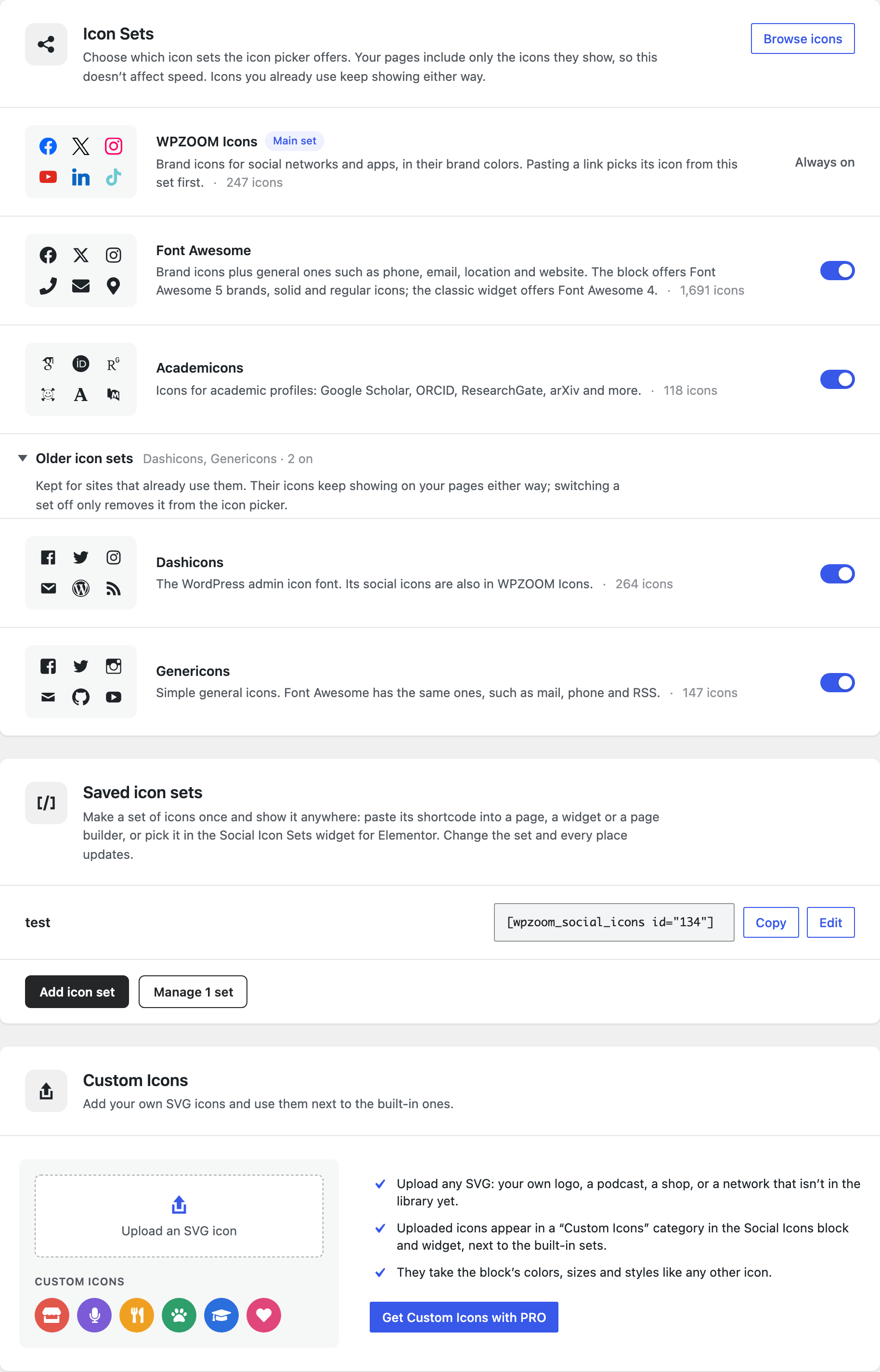
The Icon Sets card lists the sets of icons the plugin can draw from, with sample icons and the number of icons in each:
| Set | What’s in it | Free default |
|---|---|---|
| WPZOOM Icons | Social networks, apps and stores in their brand colors; the main set. Always on. (Older versions called it Socicons.) | On |
| Font Awesome | Brand icons plus general ones (phone, email, location, website) from Font Awesome Brands, Regular and Solid. | Off |
| Academicons | Google Scholar, ORCID, ResearchGate, arXiv and other academic profiles. | Off |
| Dashicons | The WordPress admin icon font. | Off |
| Genericons | Simple general icons. | Off |
The switches only change what the icon pickers offer. Icons already on your site keep showing whichever set they come from, and turning a set off removes nothing. Pages include only the icons they show, so the number of sets on doesn’t affect speed. Pro turns every set on by default.
Dashicons and Genericons are under Older icon sets; Font Awesome has the same icons, so they are there for sites that already use them.
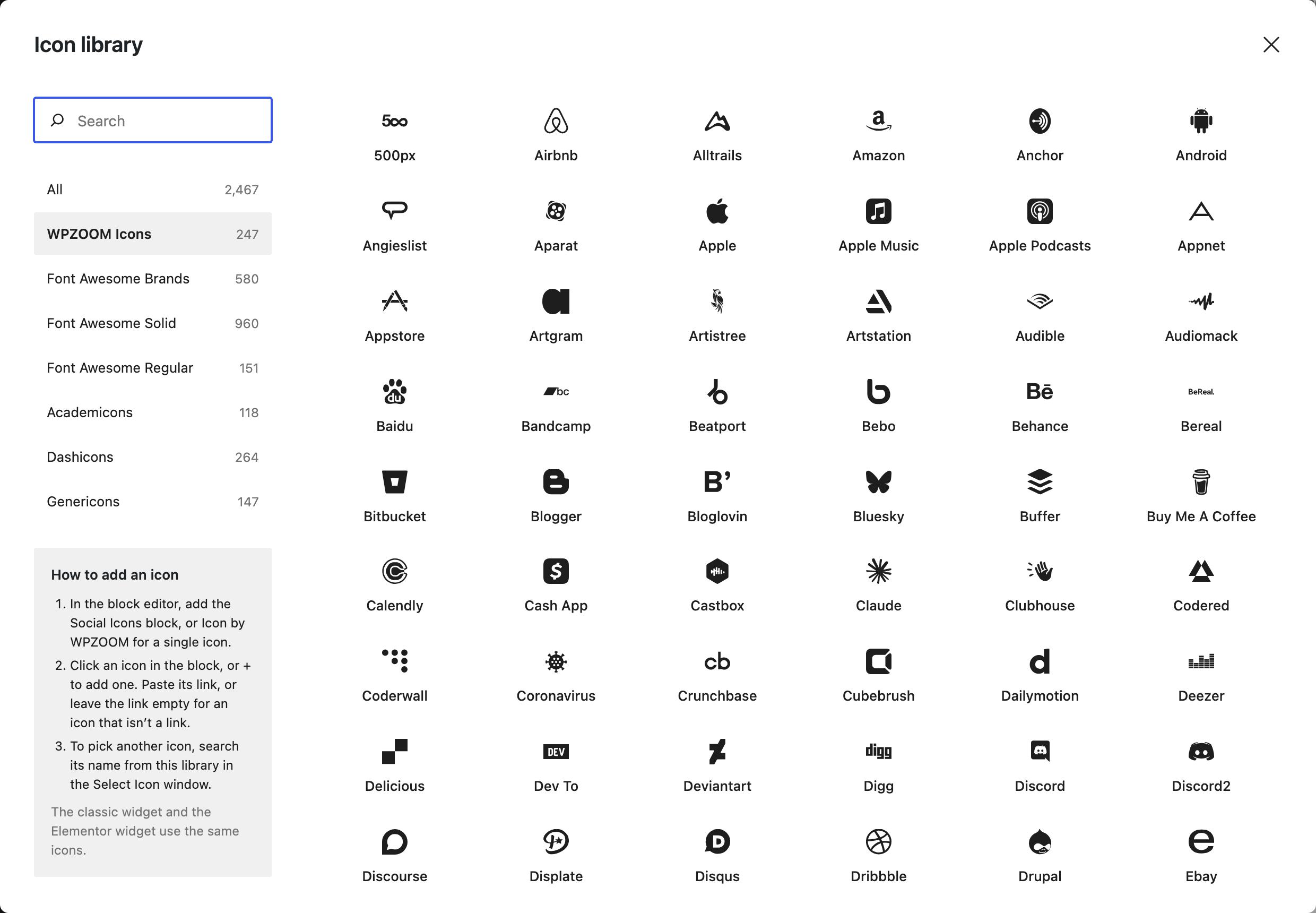
Browse icons opens the icon library: every icon of every set, with a search box and the list of sets on the left. Sets that are off are marked Off. It is the same library the block editor shows under Change icon.
Below the icon sets:
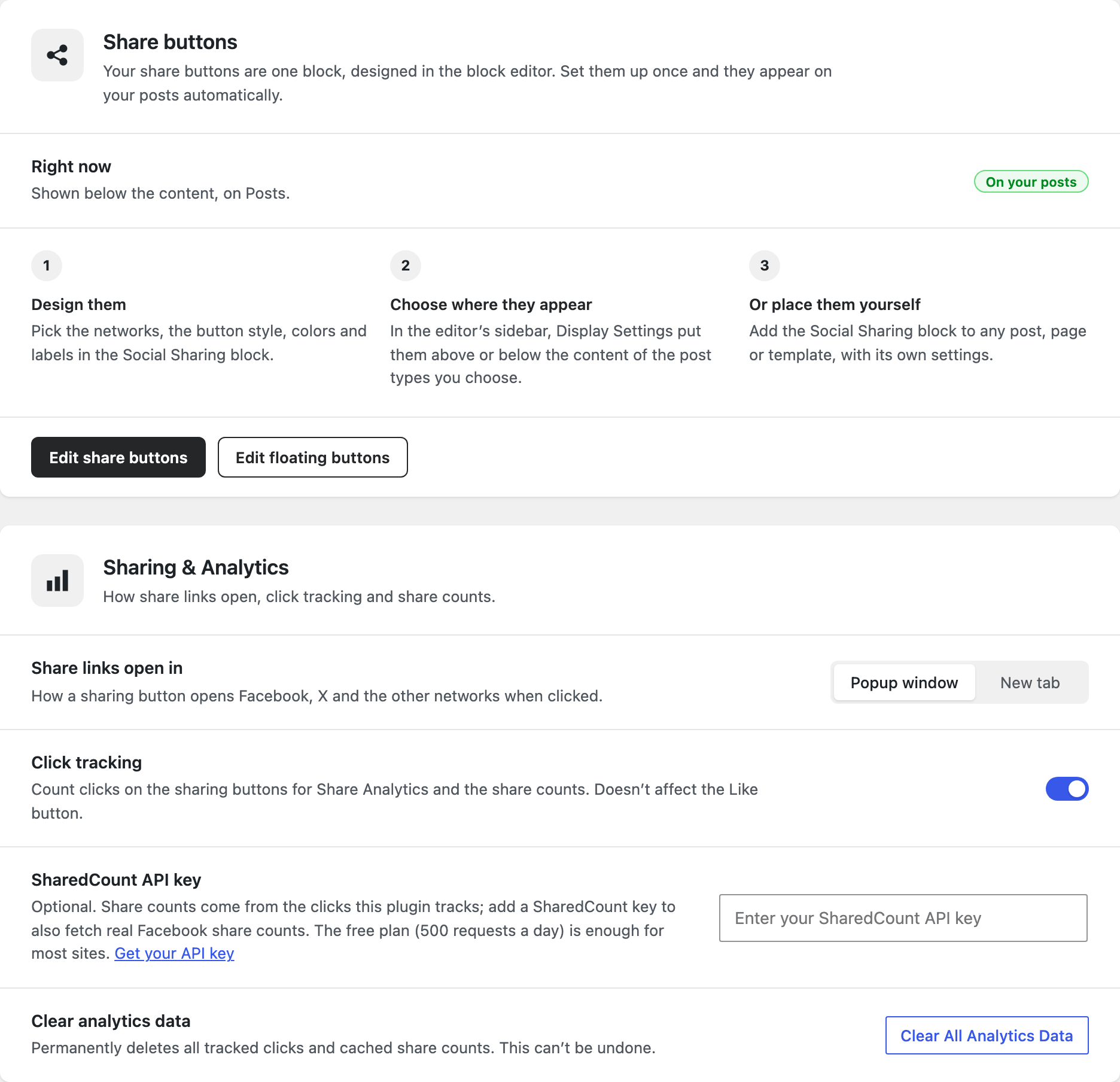
The Share buttons card shows where the buttons are right now (“On your posts”, “Block only”) and the steps to set them up, with the Edit share buttons button and, in Pro, Edit floating buttons. See Showing Share Buttons on Posts Automatically.
In Pro, the Sharing & Analytics card below has: (PRO)
Everything about the “Add to Preferred Sources” button: see Google Preferred Sources Button.
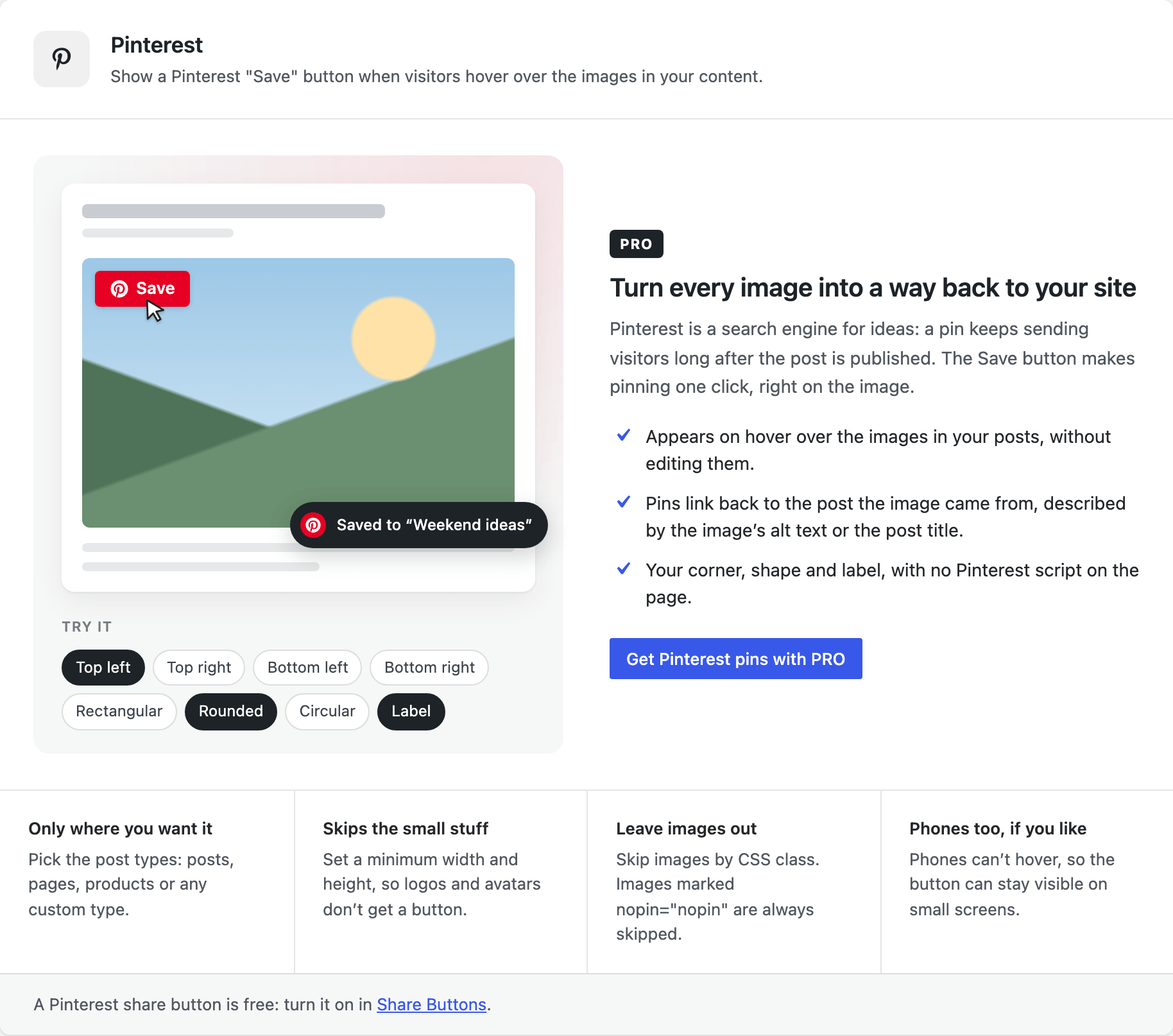
In Pro, the Pinterest Save button that appears on images in your content: see Pinterest Save Button on Images. The free plugin shows a preview of the feature; a plain Pinterest share button is free and is turned on in Share Buttons.
If you knew the plugin before version 5.0 (Pro 3.0):
Since 5.0 the Social Icons block and widget draw icons as inline SVG, so no icon-font CSS or font files are downloaded. If something on your site depends on the fonts, a custom CSS rule targeting the icon’s :before glyph for example, add this to a small plugin or your theme’s functions.php:
add_filter( 'wpzoom_social_icons_use_svg', '__return_false' );
The icon-font stylesheets are then loaded per enabled set again, and the Optimization tab with Preload icon fonts returns to the Settings page.
