New Inspiro AI Demo Generator — can't find the perfect demo? Describe your website and AI builds a custom one in about 2 minutes. Learn more →

Knowledge Base

Documentation

Theme Documentation


Plugin Documentation


Resources

Google Preferred Sources Button

This article refers to WPZOOM Connect

Google lets readers mark a site as a preferred source. When they do, Google shows more of that site’s articles to them in Top Stories and in AI-generated results. Readers have to find the setting themselves, so WPZOOM Connect adds an Add to Preferred Sources button to your posts that takes them straight there. It is a plain link to Google’s preferences page; no Google script is loaded on your site.


Table of Contents
  1. Showing the button on every post
  2. Placing it with the block or the shortcode
  3. Checking your site on Google

Showing the button on every post

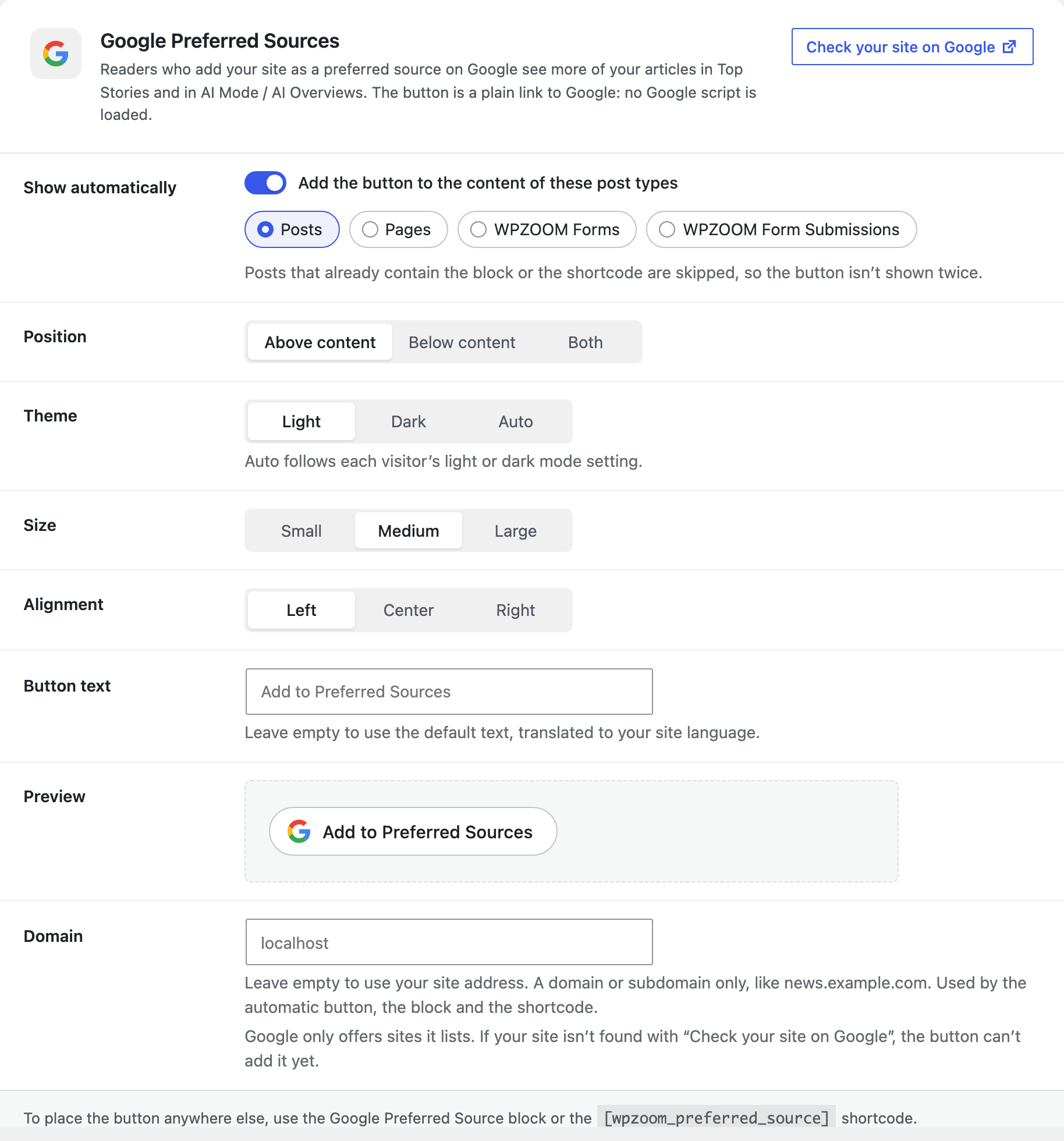
  1. Open the plugin sidebar and click Google Preferred Sources (the Settings page opens on that tab).
  2. Turn on Add the button to the content of these post types and tick the post types (Posts by default).
  3. Choose the Position (above the content, below it, or both), the Theme (Light, Dark, or Auto, which follows each visitor’s light or dark mode), the Size and the Alignment.
  4. Optionally change the Button text. Leave it empty for the default, which is translated into your site’s language.
  5. The Preview shows the result. Click Save Changes.
The Google Preferred Sources settings tab

When share buttons are also set to appear automatically, the Preferred Sources button is added right after them. Posts that already contain the block or the shortcode are skipped, so the button never shows twice.

Placing it with the block or the shortcode

To put the button somewhere specific, in a template, a sidebar or the middle of a post, add the Google Preferred Source block from the inserter. Its sidebar has the same options: button text, theme, size, and whether the link opens in a new tab.
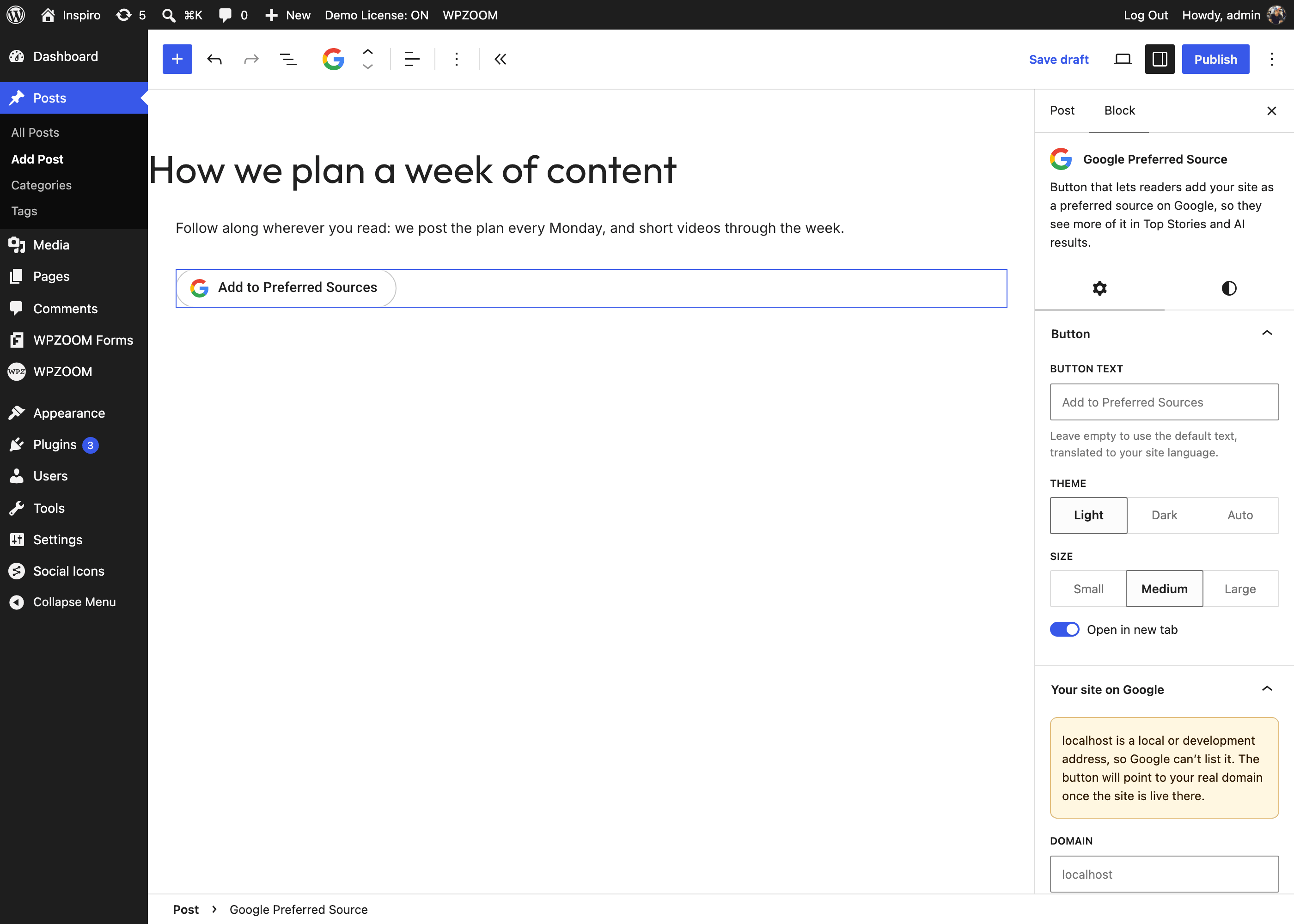
The Google Preferred Source block

The shortcode does the same in any field that accepts shortcodes:

[wpzoom_preferred_source theme="auto" size="medium" align="center"]

Attributes: label, theme (light, dark, auto), size (small, medium, large), align (left, center, right), domain, and new_tab (yes or no).

Checking your site on Google

The button sends readers to Google’s preferences page with your domain pre-filled. Google only offers sites it already lists as a source, and only public domains or subdomains, so:

  • The Check your site on Google button at the top of the settings tab opens that page as a reader would see it. If Google says it can’t find the site, there is nothing the button can do yet; keep publishing and check again later.
  • Leave Domain empty to use your site address. Set it only when the site Google lists differs from the WordPress address, for example when WordPress runs on a subdomain.
  • The settings warn when the site runs on a local or development address or in a subfolder, since Google can’t list those.

What’s Next?

Last updated on October 27, 2026