Click to Chat adds one floating button to your site. A visitor taps it and gets one-tap links to the channels you use: WhatsApp, Telegram, Facebook Messenger, Viber, and the AI Chat if you have connected it. On phones the links open the apps directly.
Table of Contents
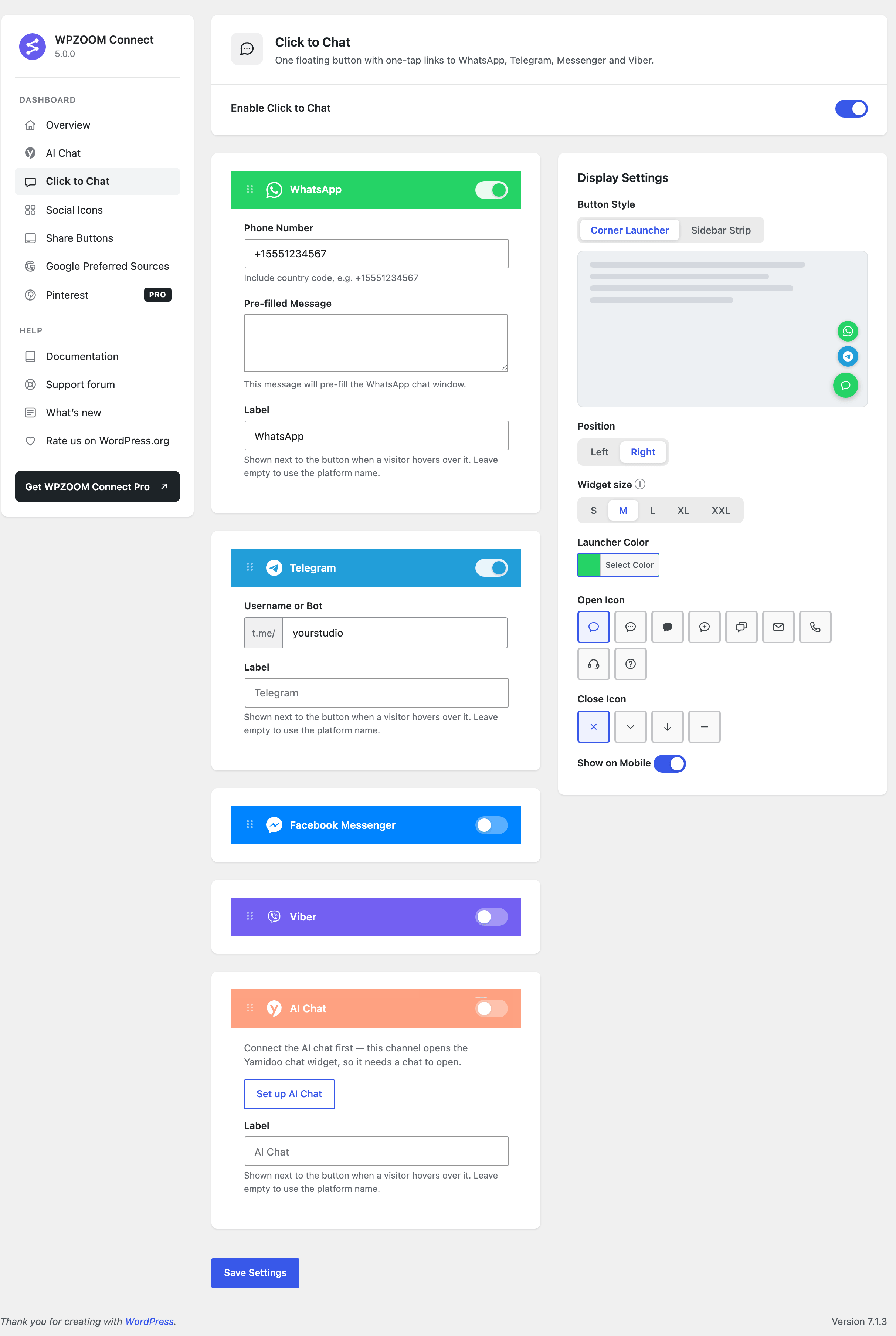
Each channel is a card with a switch. Turn on the ones you use and fill in:
| Channel | What to enter |
|---|---|
Phone Number with the country code, e.g. +15551234567, and an optional Pre-filled Message that the visitor’s chat starts with. The button opens a wa.me link, which works on phones and computers. |
|
| Telegram | Your Username or Bot (what comes after t.me/). |
| Facebook Messenger | Your Facebook Page Username (what comes after m.me/). |
| Viber | Your Phone Number. |
| AI Chat | No details to enter: the channel becomes available once AI Chat is connected (see below). Pick a Button Icon for it. |
Every channel has a Label, shown next to its button when a visitor hovers over it and read by screen readers. Leave it empty to use the platform name.
Drag the cards to change the order of the buttons.
The preview on the right updates as you change these.
With the corner launcher and a single channel switched on, the plugin skips the launcher and shows that channel’s button directly: one tap opens WhatsApp.
AI Chat (see AI Chat) has its own chat bubble. So that visitors never see two floating buttons:
If both would show at once, the Click to Chat tab warns you and offers Add AI Chat to this launcher, which does the first option in one click.
