AI Chat turns the chat button into an assistant that answers visitors’ questions from your own pages, and hands the conversation to you when it can’t. It is powered by Yamidoo, a WPZOOM product, and needs a Yamidoo account; the free plan needs no card. AI Chat is included in both the free and the Pro plugin.
Table of Contents
Go to Social Icons → AI Chat. Before anything is connected, the tab explains what AI Chat does and offers a readiness scan:
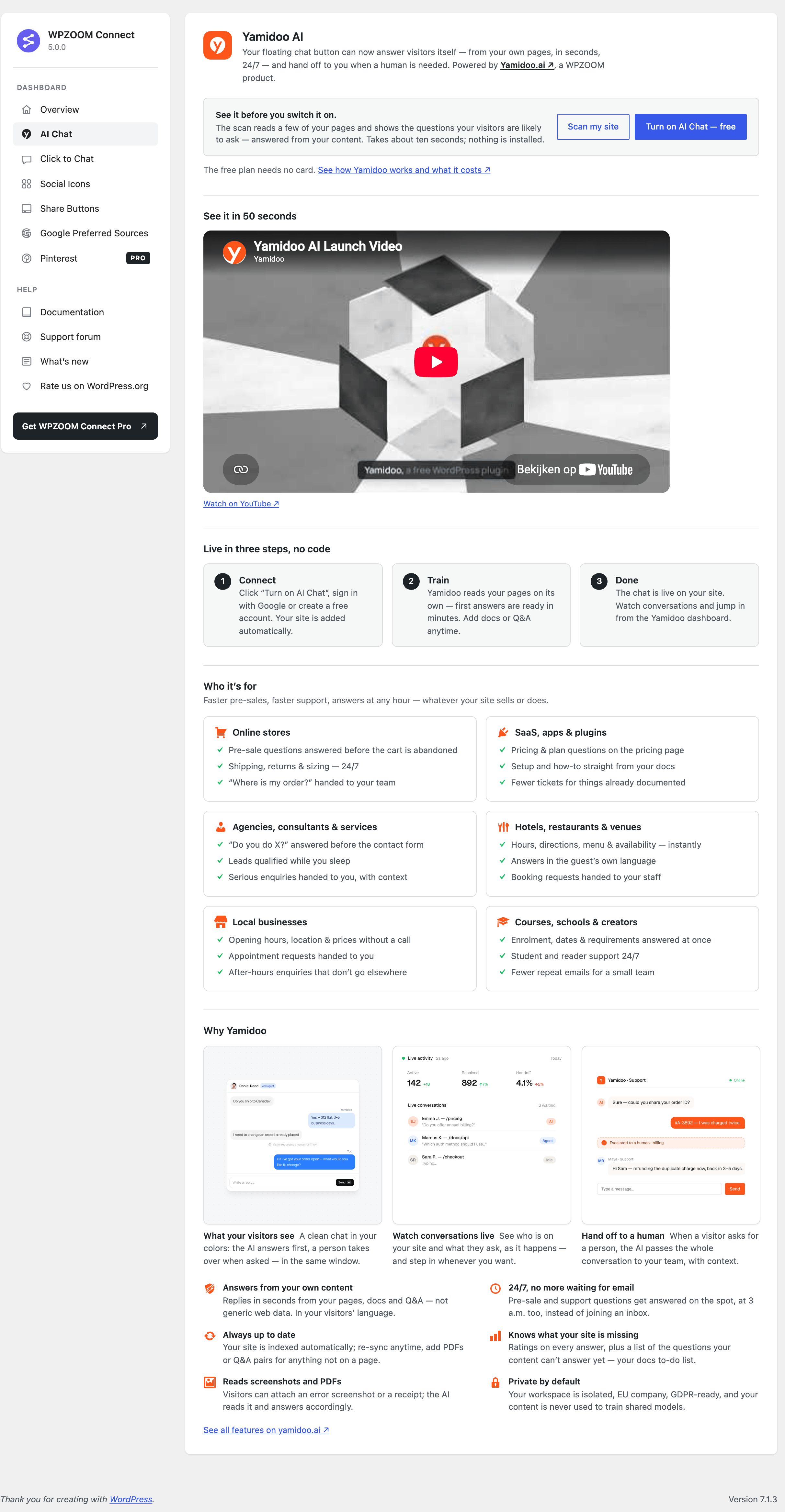
Click Scan my site. The scan reads your sitemap and pages in the browser and reports the share of likely visitor questions your pages already answer, by category (pre-sale, how-to, policy, technical, general), plus the questions your site doesn’t answer yet. Nothing is changed on your site.
If the standalone Yamidoo plugin is also installed and connected, its connection is used and the tab points you to Settings → Yamidoo.
Click Save changes after changing a switch.
When Easy Digital Downloads or WooCommerce is active, an extra switch, Show customer data in my Yamidoo inbox, shows the visitor’s orders, licenses and subscriptions next to the conversation in Yamidoo, and lets the assistant answer account questions for logged-in customers. The connection is signed, and the credentials are stored encrypted on your site.
The plugin adds suggested wording for your privacy policy under Settings → Privacy → Policy Guide, in the “AI Chat (Yamidoo)” section.
Click Disconnect at the bottom of the tab. The chat is removed from your site; your Yamidoo account and its training data stay as they are, so you can connect again later.
Caching plugins. The chat script is excluded from WP Rocket, LiteSpeed Cache, Perfmatters, Autoptimize and SG Optimizer automatically. With another optimizer, exclude app.yamidoo.ai/widget.js from JavaScript delay or combination if the chat doesn’t load.
