WPZOOM Connect Pro needs an active license to receive updates from your WordPress dashboard. Activation takes a minute: copy the key from your WPZOOM account and paste it into the plugin’s License Key page.
Table of Contents

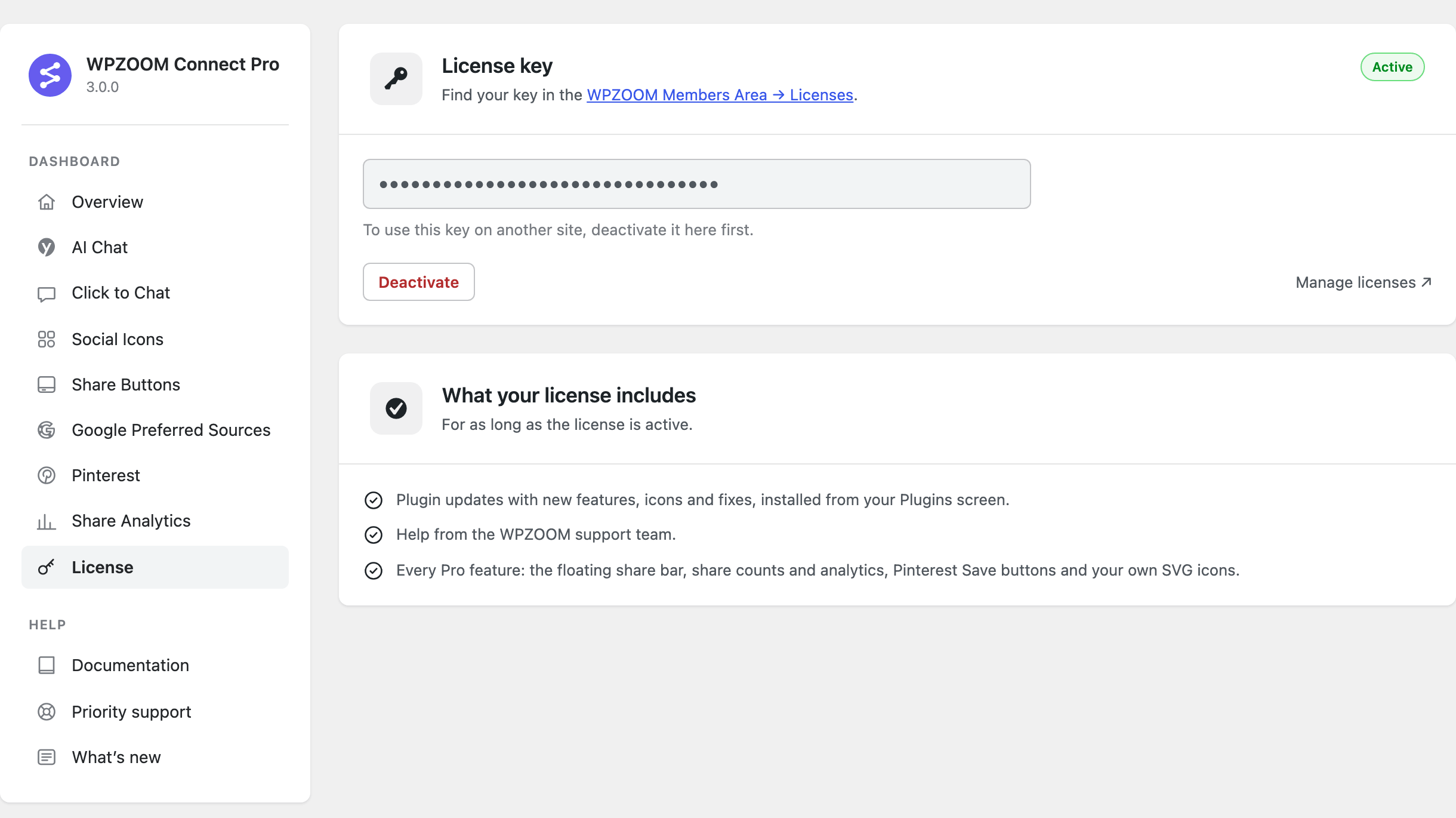
The status pill at the top turns to Active and the page shows the expiry date. The plugin sidebar’s License item loses its warning dot.
| Status | Meaning |
|---|---|
| Active | The license is valid and activated on this site. Updates are delivered. |
| Not active | The key is saved but not activated here. Click Activate. |
| Expired | The license period has ended. Click Renew license to renew it, then Activate again. Your site keeps working; only updates stop. |
| Not valid | The key isn’t recognized. Check it against your account. |
The dot next to License in the plugin sidebar reflects the same status, so you notice an expired or missing license from any plugin screen.
A license is tied to the number of sites in your plan. To use it on another site, go to Social Icons → License Key and click Deactivate; the key stays in the field and the site is released. Manage licenses opens your account, where you can see and release activations for all your sites.
“License key not valid”. Check for spaces before or after the key, and make sure it is the key for WPZOOM Connect Pro (or a package that includes it), not for another product.
The Activate button does nothing. Your server must reach www.wpzoom.com over HTTPS. A firewall plugin or hosting rule that blocks outgoing connections prevents the check; ask your host to allow it.
Updates don’t show. The Plugins screen shows “To download this update, please activate your license key” when the license isn’t active. Activate it, then go to Dashboard → Updates and click Check again.
I updated from an older version and my key is gone. Keys saved in the old Settings page are moved to the License Key page automatically. If the field is empty, paste the key from your account again.
