On pages with a slideshow, a video background or a featured image, Inspiro’s header is transparent and sits over the cover. Once the visitor scrolls, the sticky header gets its own background. Since Inspiro Premium 9.8.5 the two states can use different colors and a different logo — the classic combination is white text over the cover that turns into dark text on a white bar after scrolling.
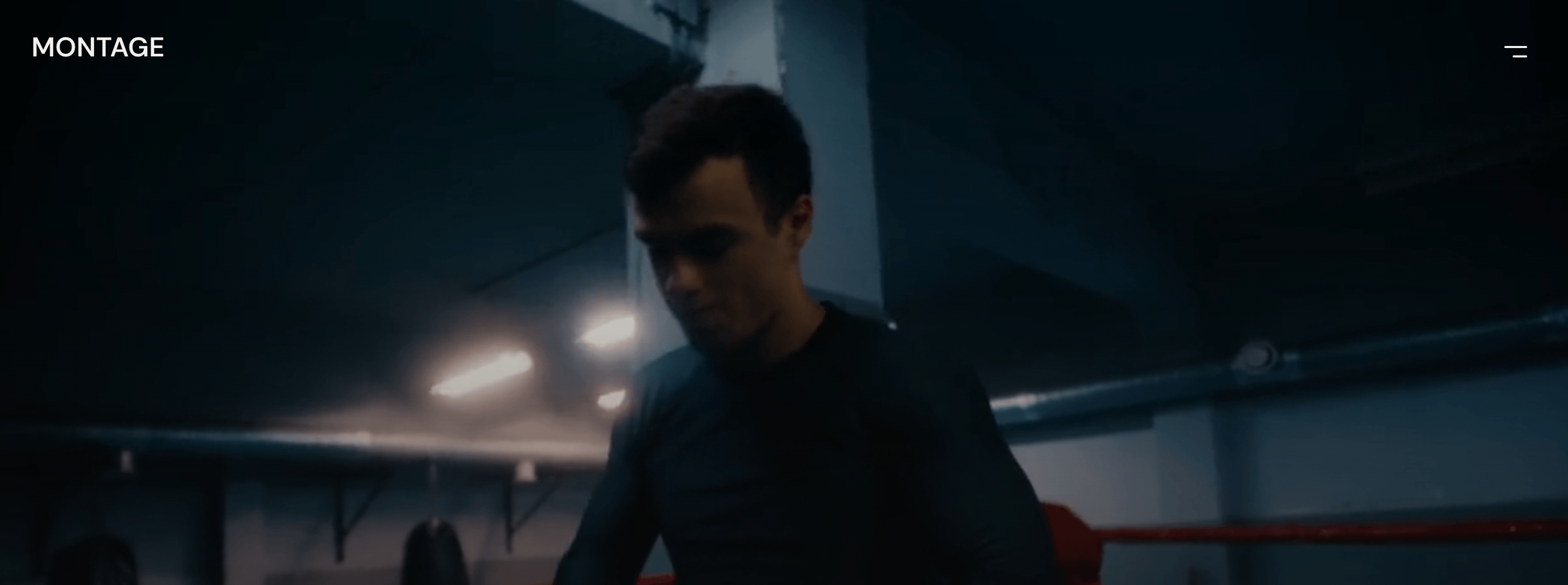
Table of Contents
Go to Appearance → Customize → Colors → Main Menu and scroll to the Over Cover Image group:
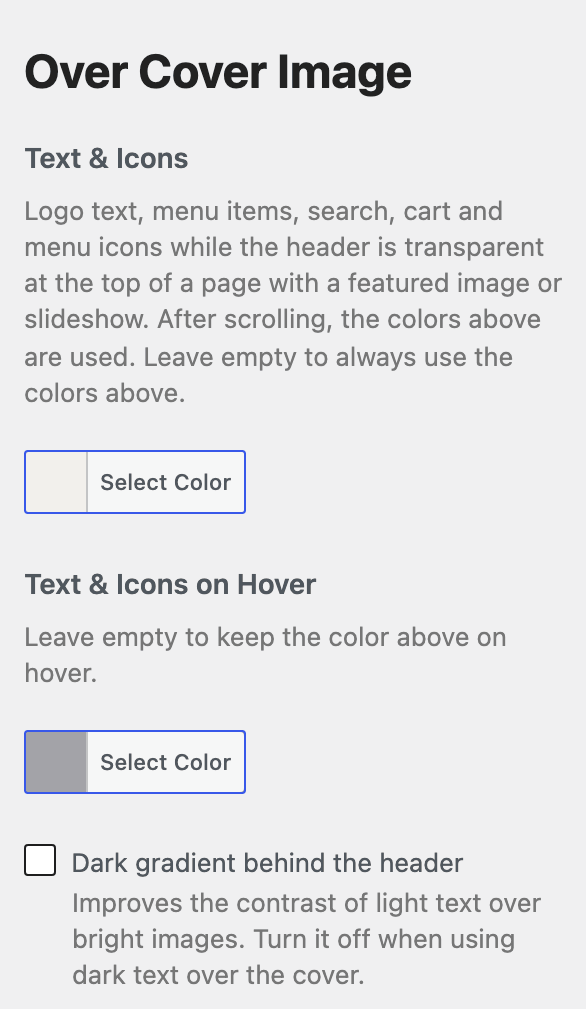
Tip: the Hamburger Icon, Cart Icon and Logo colors follow the Menu Item color when left empty, so a dark menu on a white header no longer needs a separate icon color (9.8.5+).
In the same Main Menu section, right below Menu Background on Scroll:
Together with the cover colors above this gives you, on any design: a transparent header with white text at the top of the page, and a white sticky header with dark text once the visitor scrolls.
If your logo is dark, it will not be readable over a dark cover video. Go to Appearance → Customize → Site Identity and upload a second image under Logo on Transparent Header — for example a white version of your logo.
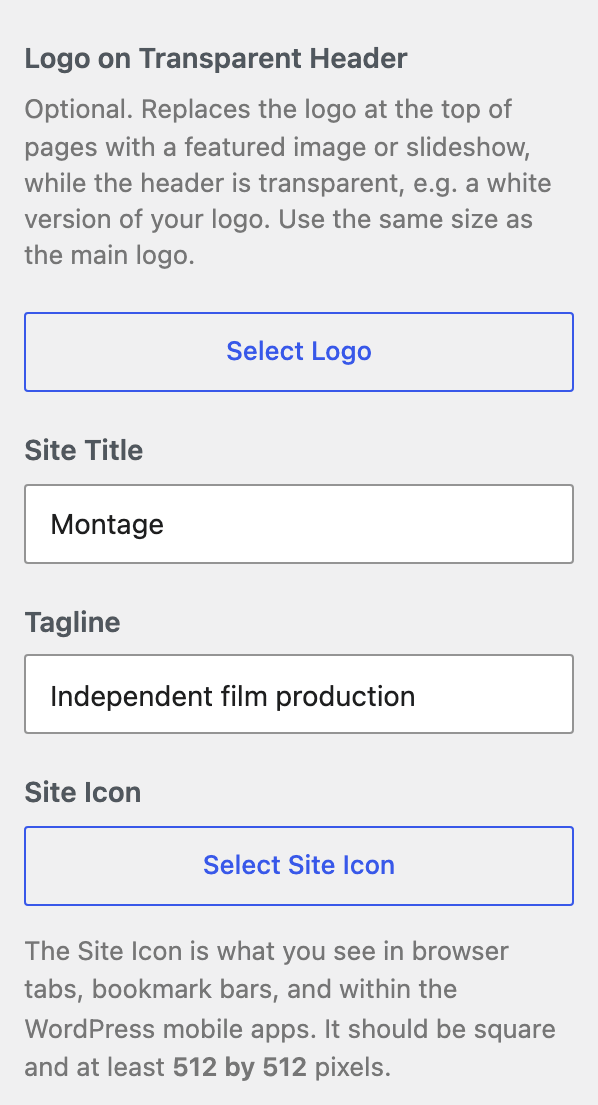
The alternative logo replaces the regular one only while the header is transparent, and switches back after scrolling. It is scaled like the main logo (Logo Size and Retina Ready apply to both), so use an image with the same dimensions as the main logo.
(Inspiro 9.8.7+) When Stick Menu at the Top is enabled in Customize → Header → Header Options, the sticky header normally becomes smaller after scrolling: reduced height and logo, and the tagline and top bar are hidden.
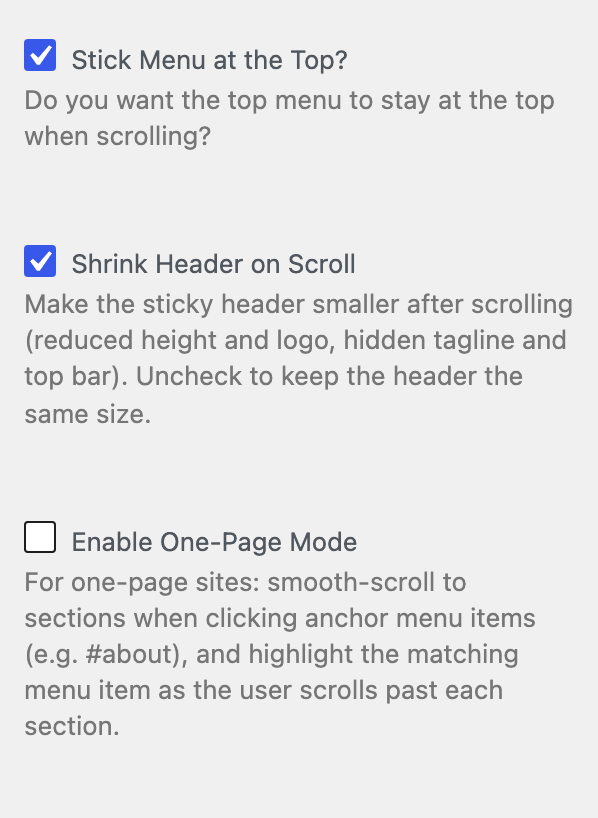
Uncheck Shrink Header on Scroll to keep the sticky header at the same size as at the top of the page. The option works with and without the Header Builder.
See also:
