New Inspiro AI Demo Generator — can't find the perfect demo? Describe your website and AI builds a custom one in about 2 minutes. Learn more →

Knowledge Base

Documentation

Theme Documentation


Plugin Documentation


Resources

Inspiro – Portfolio Index: a Project List with Video Preview

This article refers to Inspiro Premium

The Portfolio Index shows your projects as a numbered list of titles. Hovering a title previews that project beside the list — its hover video or featured image, year, director and client, and a short excerpt — and the preview stays while you move the cursor over to the panel, where a play button plays the project’s full video. Titles crossed on the way to the panel are not previewed, so the list behaves like a well-made menu rather than flickering through projects. It is the layout used by the Index starter site, and a good fit for directors, studios and film production companies who want a quiet, text-first home page.
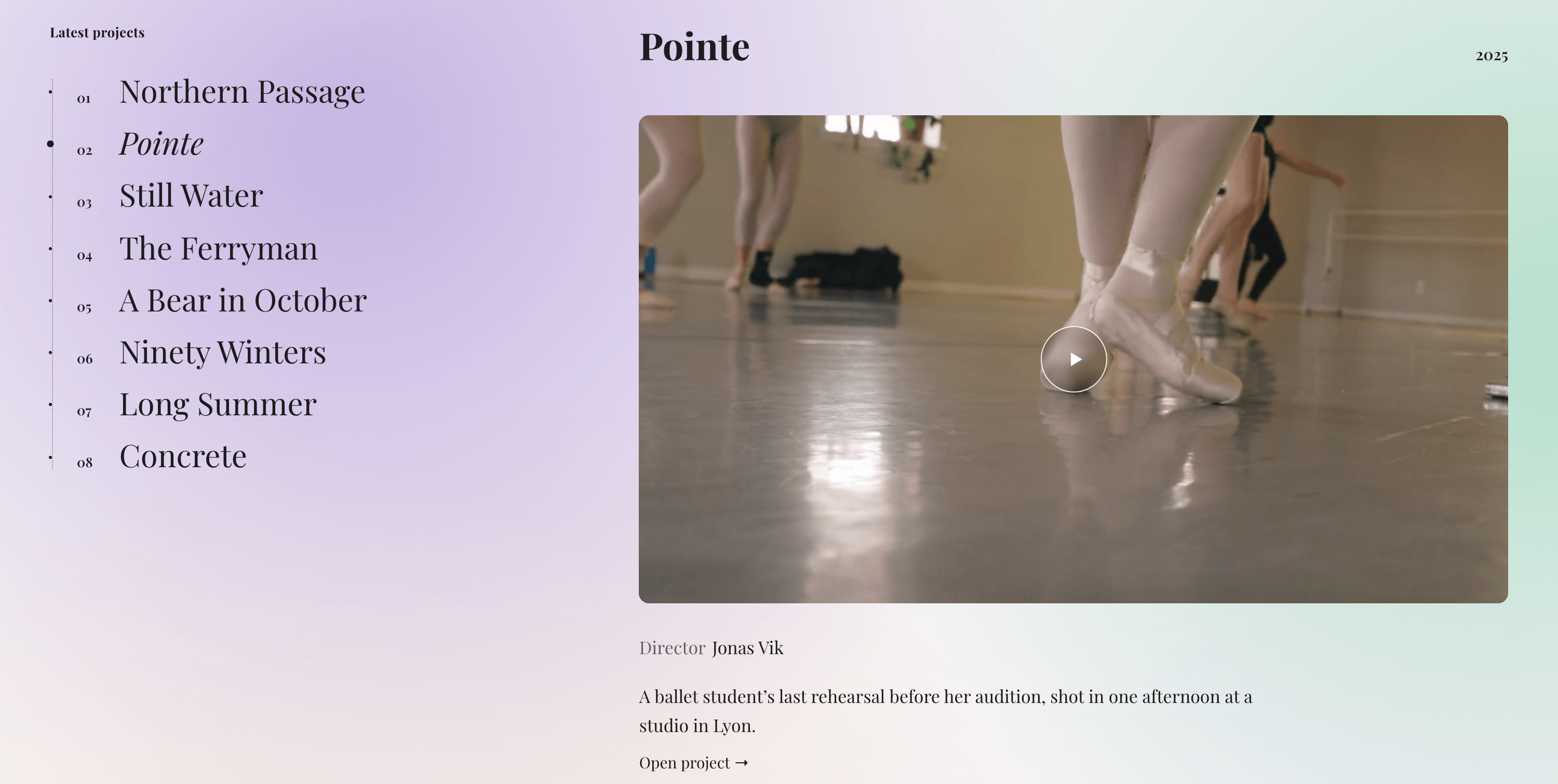
The Portfolio Index on the Index starter site: the list on the left, the previewed project on the right

It is available as an Elementor widget (WPZOOM Elementor Addons) and as a block (WPZOOM Portfolio plugin).


Table of Contents

  1. What each project needs
  2. Adding the Elementor widget
  3. Adding the block
  4. On phones and tablets

What each project needs

The index reads the two videos a portfolio post already has (see Add Portfolio Posts):

  • Video Background on Hover — the short, silent clip that plays in the panel while the title is hovered. Projects without one show their featured image.
  • Video Lightbox — the full video played by the play button in the panel. Self-hosted MP4 files, YouTube and Vimeo links all work; self-hosted videos play in the WordPress player, styled by the theme’s Video Player Style option.

The year, director and client come from the project details of the post, the text from its excerpt (or the beginning of the content).

Adding the Elementor widget

  1. Edit the page with Elementor and search for Portfolio Index in the widgets panel (WPZOOM Elementor Addons).
  2. Drag it into a full-width section — the list and the panel sit side by side, so it needs the width.
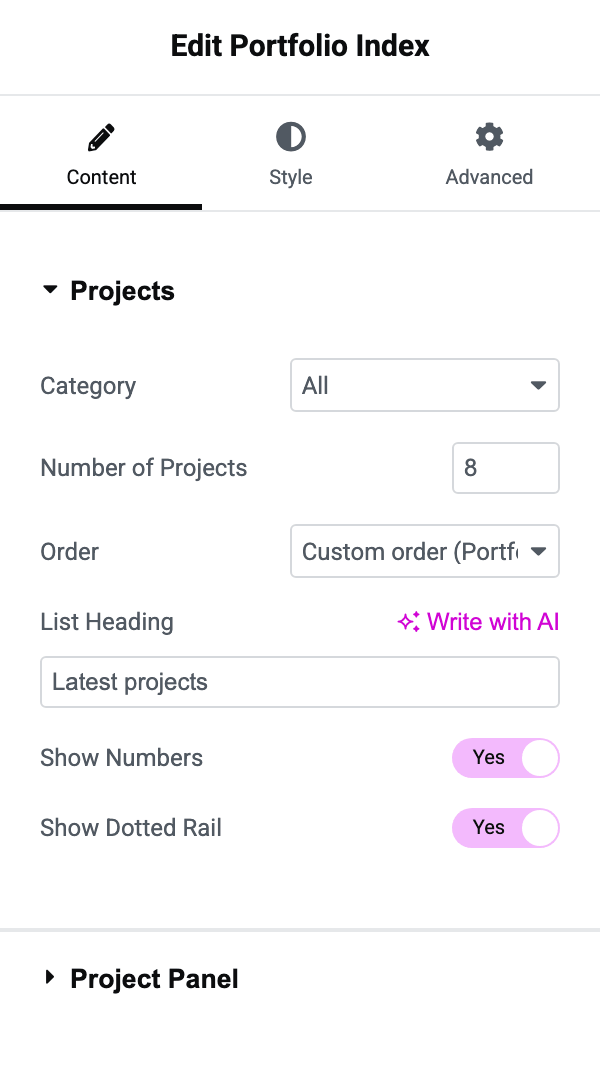
The Projects section of the Portfolio Index widget

Projects — which posts are listed:

  • Category — all projects or one portfolio category.
  • Number of Projects and Order — newest first, the custom order from Portfolio → Order, or by title.
  • List Heading — the small label above the list (Latest projects by default).
  • Show Numbers and Show Dotted Rail — the 01, 02… numbering and the dotted line with the marker of the current project.
The Project Panel section of the Portfolio Index widget

Project Panel — the preview beside the list:

  • On Title Click — Open the project in the panel keeps the hovered project open after a click; Go to the project page makes the title a link to the project (opened in the modal when Portfolio Post Style is set to Modal). Hovering always previews the project.
  • Show the First Project on Load — show the first project instead of an empty panel.
  • Play the Hover Video in the Panel — use the Video Background on Hover clip; turn it off to always show the featured image.
  • Media Aspect Ratio (16:9, Cinema 2.39:1, 4:3, Square) and Media Corner Radius.
  • Show Year, Show Director & Client, Show Excerpt and the Project Link Text (Open project by default).

The Style tab adds the list width, the gap between list and panel, the sticky offset of the panel, and colors and typography for the heading, titles (including the italic active title), numbers, rail and panel text.


Adding the block

In the block editor, add the Portfolio Index block — search for it in the block inserter. The sidebar holds the same options as the widget — Projects, Project panel, Layout — plus the regular block color and typography controls.
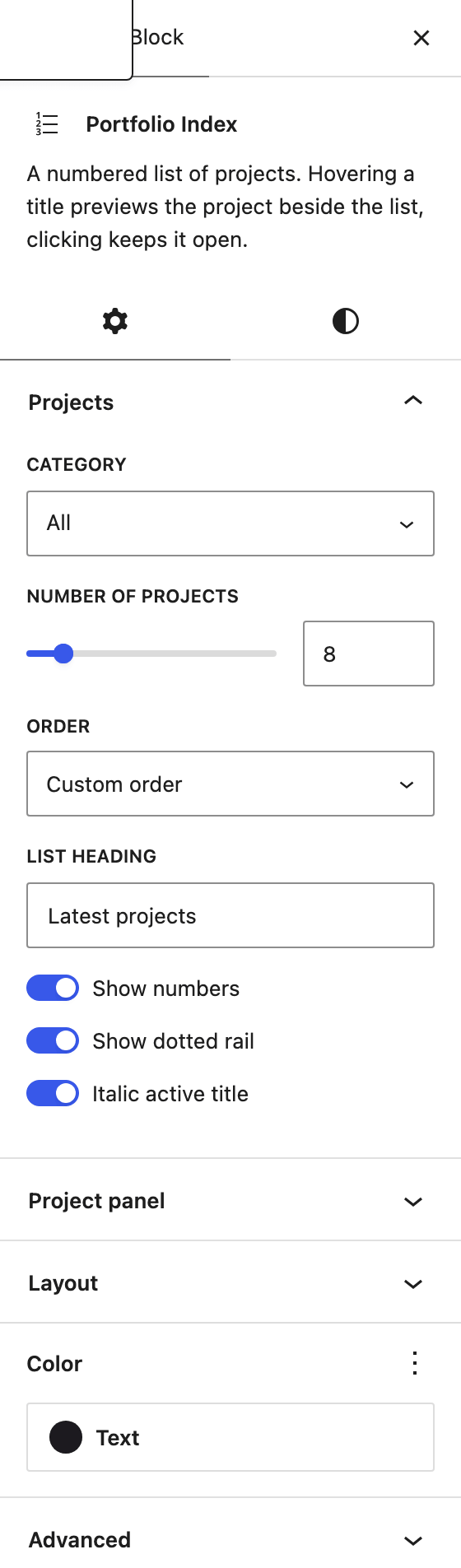
The Portfolio Index block settings in the block editor

The block ships with the free WPZOOM Portfolio plugin and uses Inspiro’s video fields when the theme is active.


On phones and tablets

Below 1025px there is no room for the panel beside the list, so the index becomes an accordion: tapping a title opens that project right under it — media, details and the project link — and tapping another title closes it and opens the new one.
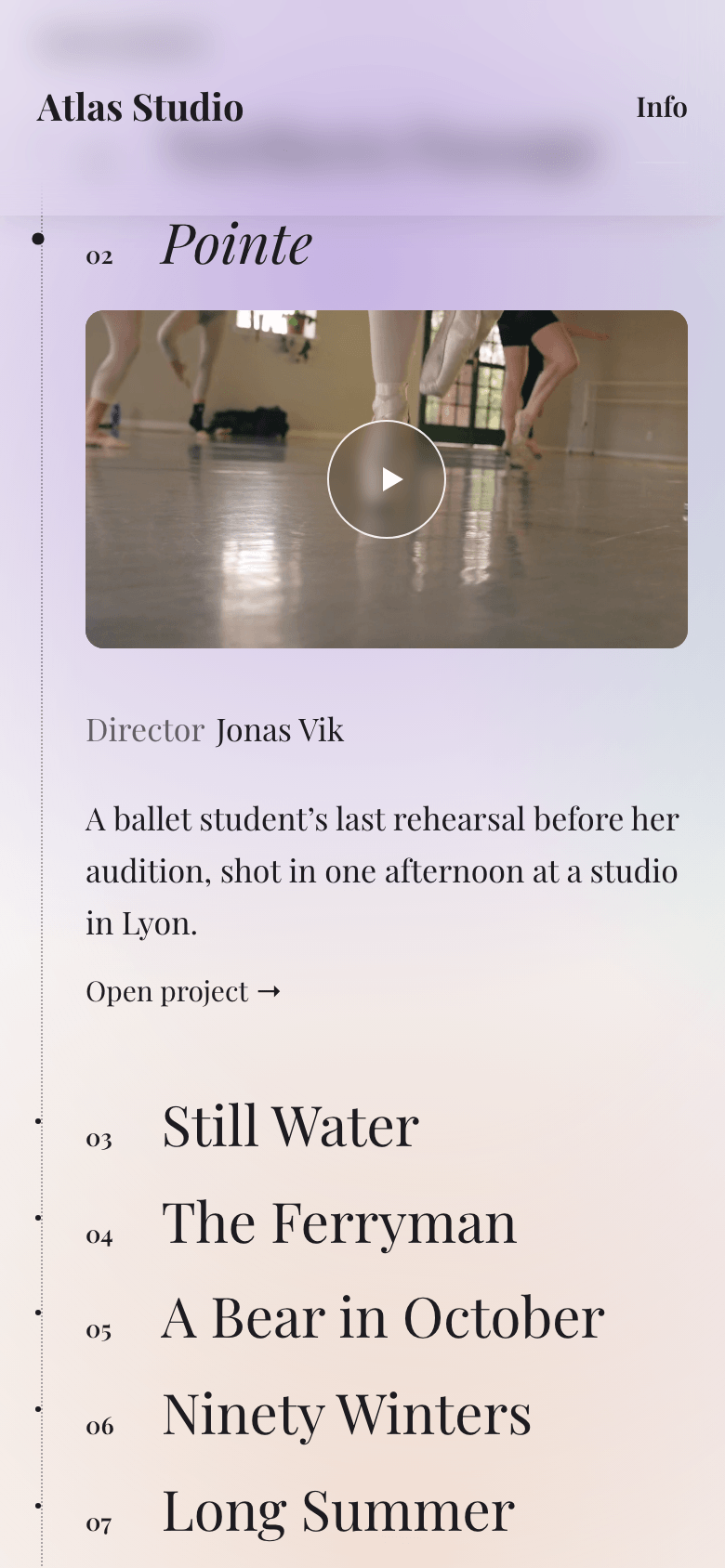
The Portfolio Index on a phone, with the second project expanded under its title

See also:

Last updated on November 3, 2026
