The hamburger icon in the header opens the menu panel: the slide-out area that holds the main menu on phones and tablets, and any widgets you add to the Sidebar widget area. Since Inspiro Premium 9.8.2 you can choose how that panel looks — the classic side panel or an app-style fullscreen menu — and which hamburger icon the header shows.

Table of Contents
Go to Appearance → Customize → Header → Menu Panel & Hamburger.
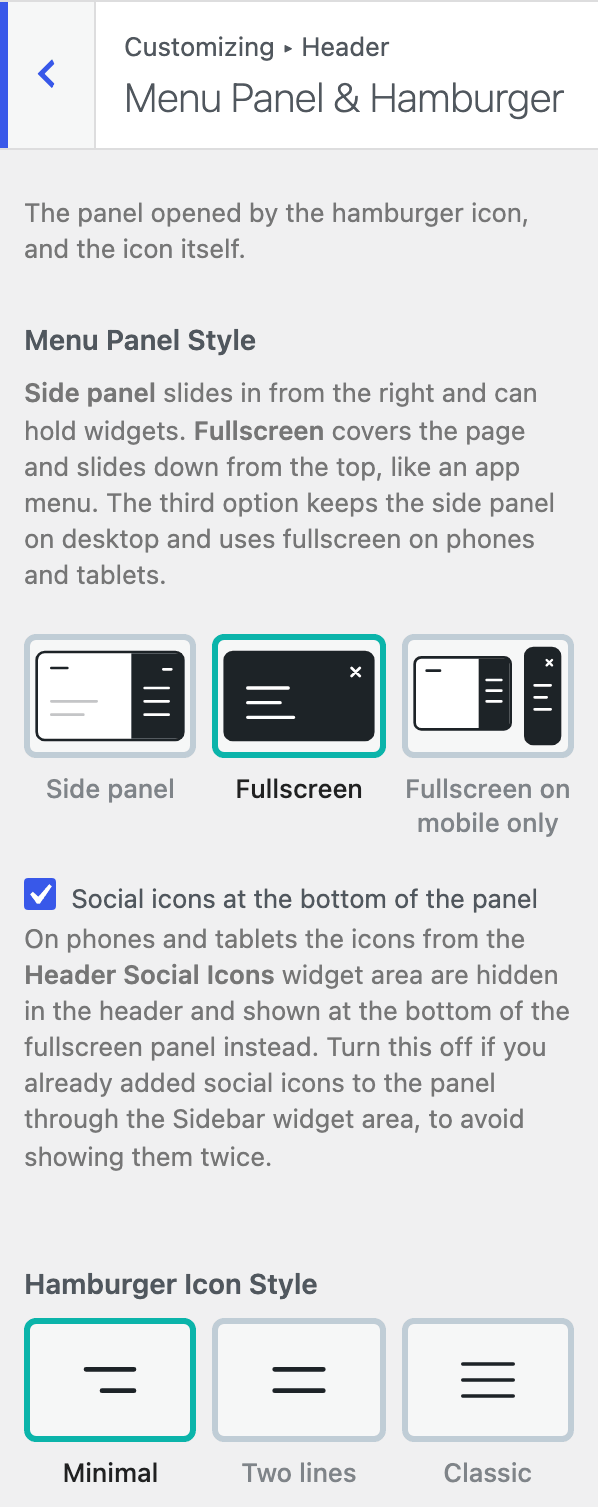
Menu Panel Style has three options, each with a small preview:
The panel is slightly translucent and blurs the page behind it. Its background color comes from Customize → Colors → Sidebar Panel → Sidebar Panel Background, which accepts semi-transparent colors.
When the fullscreen panel is used, the icons from the Header Social Icons widget area are hidden in the header on phones and tablets and shown at the bottom of the panel instead. (Inspiro 9.8.6+)
If you already added social icons to the panel yourself — through the Sidebar widget area — uncheck Social icons at the bottom of the panel to avoid showing them twice.
In the same section, Hamburger Icon Style switches the icon drawn in the header:
The icon is an inline SVG, so it looks the same in the classic header and in the Header Builder, and follows the Menu Item color (or the Hamburger Icon Color in Colors → Main Menu when set).
By default the hamburger icon appears on desktop only when the Sidebar widget area has at least one widget. To always show it — and move the main menu into the panel, like on Inspiro PRO — pick the Hamburger layout in Customize → Header → Header Options. Since 9.8.2 this layout works on its own, with no widgets required.
With the Header Builder enabled, use the Menu Toggle element instead; see How to Use the Header Builder.
(Inspiro 9.8.9+) A menu item can open its page in a full-screen layer on top of the current page instead of navigating away — handy for a short Info or Contact page on a portfolio site.
wpz-overlay in its CSS Classes field.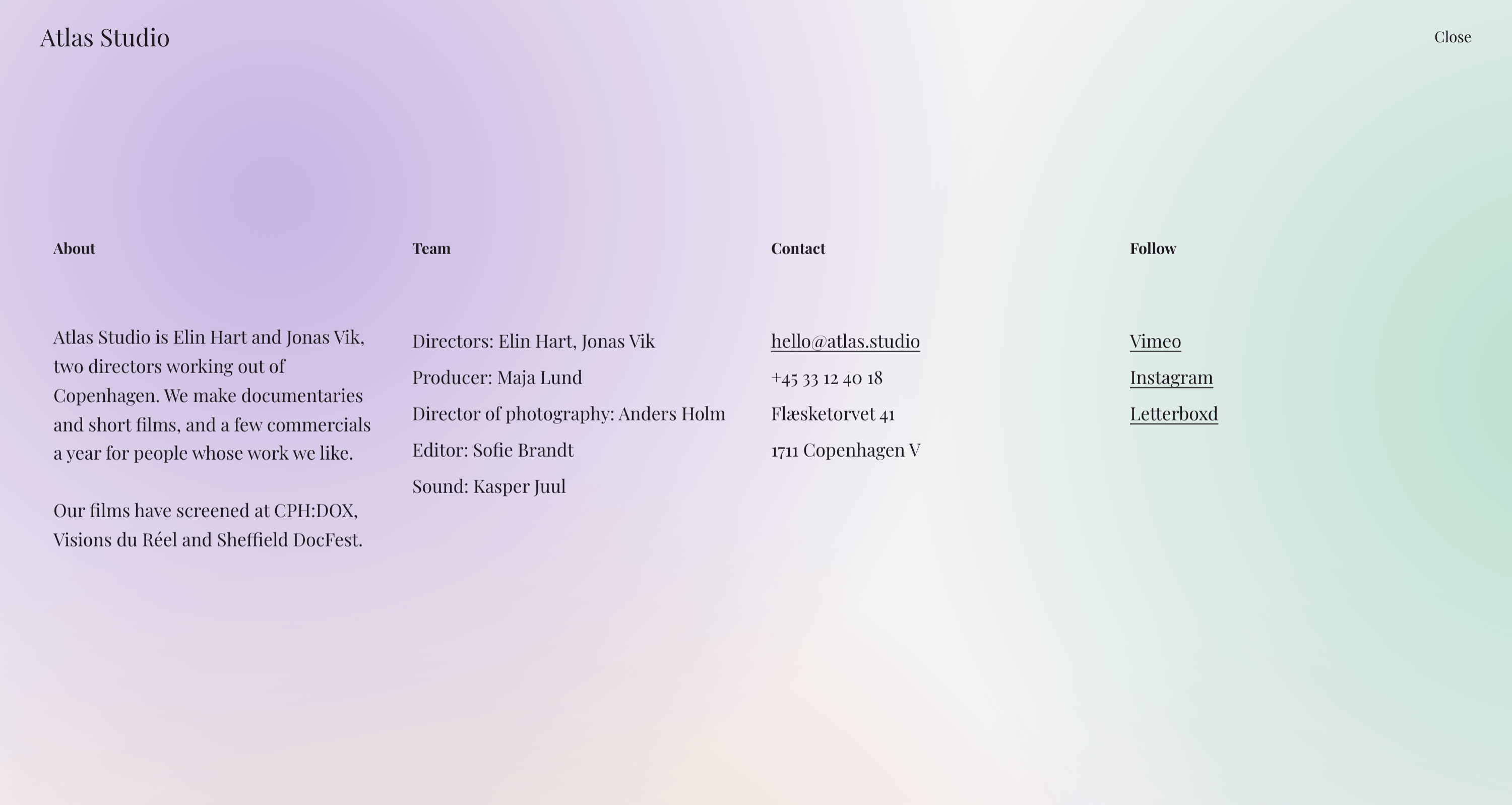
The overlay shows the site title and a Close button at the top and the page content below it. The address bar switches to the page’s URL, so a refresh or a shared link opens the page normally. Visitors close it with the Close button, the Esc key or the browser’s Back button. The page is also prefetched when the visitor hovers the menu item, so it opens instantly.
See also:
