Option 2: If you are not using a premium WPZOOM theme, you’ll need to upgrade to the PRO version of the WPZOOM Elementor Addons plugin to access the Video Slideshow widget.
Once you’ve chosen one of the options above:
Go to Plugins → Add New in your WordPress dashboard.
Search for WPZOOM Addons for Elementor.
Click Install and then Activate the plugin.
(Optional) Upload and activate the PRO version if you’ve purchased it.
Note: The free version of Elementor is required. You don’t need Elementor PRO for this widget to work.
2. Add the Video Slideshow Widget
1. Create or edit a page with Elementor.
2. In the Elementor sidebar, scroll to the WPZOOM PRO section.
3. Drag the Video Slideshow widget into your desired section on the page.
3. Customize the Slideshow
After adding the Video Slideshow widget to your page, the widget’s settings will appear in the Elementor sidebar. These settings are grouped into three tabs: Content, Style, and Advanced.
Content Tab
This is where you manage the content and behavior of your slideshow.
1. Slides
Click + Add Item to create a new slide.
Each slide includes:
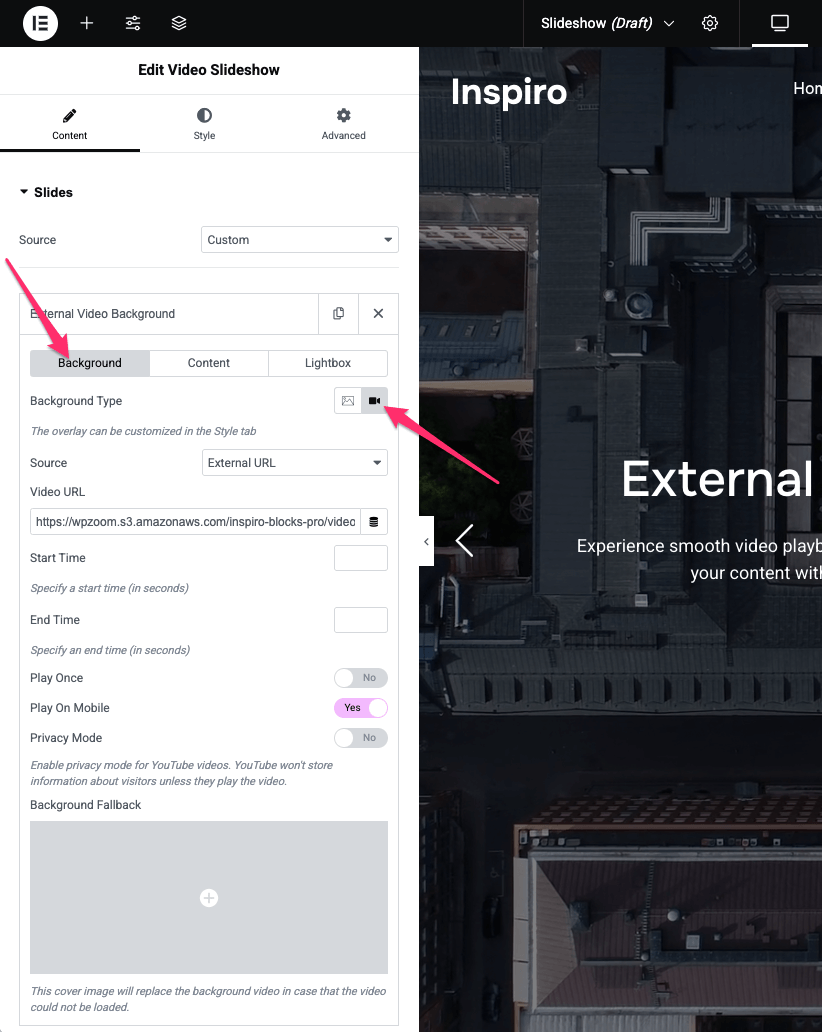
Background: Choose between an image or a video background. Supported video types: YouTube/Vimeo or other external URL or self-hosted MP4 video.
Content Options:
Title – Main heading shown over the slide.
Title Link – Optional link for the title.
Subtitle – Short description below the title.
Button – Option to show/hide a call-to-action button and set its text and URL.
Lightbox: Enable this to display a play icon on the slide. Clicking it opens the video in a lightbox overlay (works with YouTube, Vimeo, or self-hosted videos).
2. Settings
This section controls how the slideshow behaves:
Animation Speed – Adjust how fast slides transition.
Content Order – Change the order in which elements appear on the slide.
Navigation Type – Choose between arrows, dots, or both for slideshow navigation.
Style Tab
Use this tab to customize the design and layout of your slideshow elements.
Slider Height – Set a custom height for the slideshow.
Slider Items – Adjust spacing and border radius for each slide.
Slide Content – Control padding and alignment of all slide content.
Slide Title – Customize font size, color, and typography for titles.
Slide Text – Style the subtitle or description text.
Button – Change button colors, typography, spacing, and hover effects.
Play Icon – Style the lightbox play icon (size, color, etc.).
Navigation Arrows – Adjust position, color, and size of arrows.
Navigation Dots – Style the dots used for navigation under the slideshow.
Background Overlay – Add and style a semi-transparent overlay to improve text readability.
Advanced Tab
This tab includes standard Elementor controls for additional layout and behavior customizations:
Margins & Padding
Z-Index
Motion Effects
Responsive Visibility and others
4. Publish Your Slideshow
When you’re happy with the design:
1. Click Publish (or Update if editing).
2. Preview the page on the frontend to see your video background slideshow in action.
To provide the best experiences, we use technologies like cookies to store and/or access device information. Consenting to these technologies will allow us to process data such as browsing behavior or unique IDs on this site. Not consenting or withdrawing consent, may adversely affect certain features and functions.
Functional
Always active
The technical storage or access is strictly necessary for the legitimate purpose of enabling the use of a specific service explicitly requested by the subscriber or user, or for the sole purpose of carrying out the transmission of a communication over an electronic communications network.
Preferences
The technical storage or access is necessary for the legitimate purpose of storing preferences that are not requested by the subscriber or user.
Statistics
The technical storage or access that is used exclusively for statistical purposes.The technical storage or access that is used exclusively for anonymous statistical purposes. Without a subpoena, voluntary compliance on the part of your Internet Service Provider, or additional records from a third party, information stored or retrieved for this purpose alone cannot usually be used to identify you.
Marketing
The technical storage or access is required to create user profiles to send advertising, or to track the user on a website or across several websites for similar marketing purposes.
To provide the best experiences, we use technologies like cookies to store and/or access device information. Consenting to these technologies will allow us to process data such as browsing behavior or unique IDs on this site. Not consenting or withdrawing consent, may adversely affect certain features and functions.
Functional
Always active
The technical storage or access is strictly necessary for the legitimate purpose of enabling the use of a specific service explicitly requested by the subscriber or user, or for the sole purpose of carrying out the transmission of a communication over an electronic communications network.
Preferences
The technical storage or access is necessary for the legitimate purpose of storing preferences that are not requested by the subscriber or user.
Statistics
The technical storage or access that is used exclusively for statistical purposes.The technical storage or access that is used exclusively for anonymous statistical purposes. Without a subpoena, voluntary compliance on the part of your Internet Service Provider, or additional records from a third party, information stored or retrieved for this purpose alone cannot usually be used to identify you.
Marketing
The technical storage or access is required to create user profiles to send advertising, or to track the user on a website or across several websites for similar marketing purposes.