Social Icons Widget started in 2015 as a small widget that put a few social links in a sidebar. Over the years it grew share buttons, shortcodes, an Elementor widget, a floating contact launcher and, lately, an AI chat. The name stopped describing what the plugin does a while ago.
So with this release the plugin gets a new name: WPZOOM Connect. Version 5.0 is the free plugin on WordPress.org, version 3.0 is the Pro plugin. Nothing changes for your site: the update installs over the current version, your icons, share buttons and settings stay as they are, and your Pro license key keeps working.
The name is the smallest part of the update. Here is what’s new.
Icons are now SVG, not icon fonts
This is the change you won’t see, and it’s the one we’re happiest about.
Until now, the plugin shipped its icons as web fonts: Socicons, Font Awesome, Genericons, Academicons and Dashicons. To show three icons in a footer, a page had to download the CSS for every font that was turned on and then the font files themselves, up to 130 KB of CSS and 330 KB of fonts. Visitors on slow connections saw empty squares until the fonts arrived.
In 5.0 the Social Icons block and the widget draw each icon as inline SVG. A page includes only the icons it shows, so there’s nothing extra to download, no flash of missing icons, and the icons stay sharp at any size and zoom level. The block editor and the Settings page use SVG too, so the editor loads faster as well.
The icons look exactly as before and your saved content is untouched. If you have a reason to keep the fonts (a theme that reuses them, for example), the wpzoom_social_icons_use_svg filter switches back.
The same change fixed a long-standing annoyance: 15 Font Awesome 5 icons (LinkedIn, Vimeo, Facebook F, Calendar and others) could show a different icon on the site when Font Awesome 4 was also enabled. That no longer happens.
2,400+ icons and an icon library
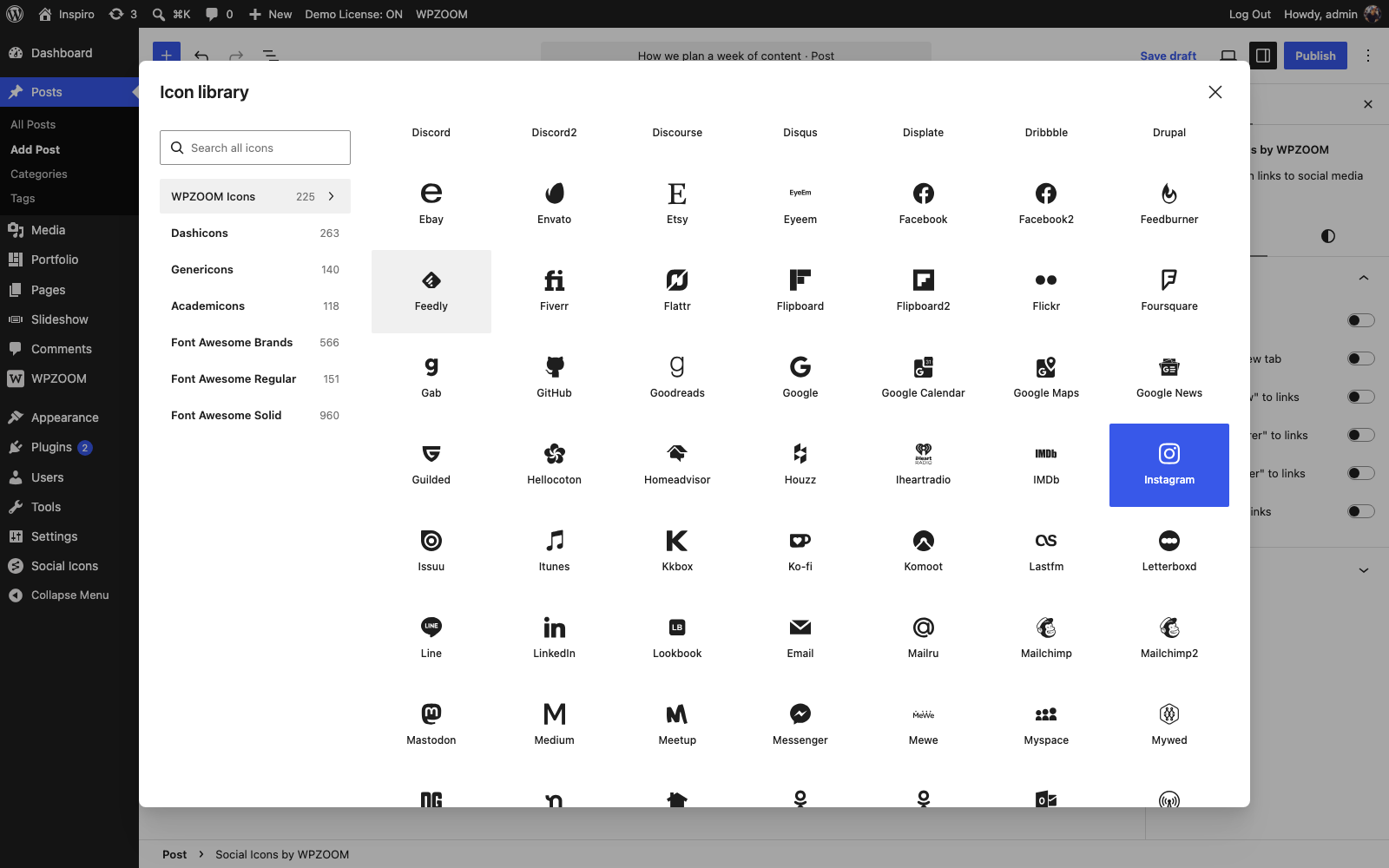
With fonts out of the way, adding icons became much cheaper, so we added a lot of them:
- 41 new networks in WPZOOM Icons: Twitch, Kick, Rumble, Linktree, Buy Me a Coffee, Cash App, Signal, Threema, KakaoTalk, Weibo, Quora, Farcaster, BeReal, Pixelfed, Zoom, Calendly, Notion, Product Hunt, Upwork, GitLab, Bitbucket, DEV, Hashnode, Apple Music, YouTube Music, Audiomack, Pandora, Audible, Google Play, itch.io, Epic Games and more, plus a plain Website icon. Paste a link to any of them and the icon is picked for you.
- 148 brand icons from Font Awesome 7 in the Font Awesome Brands set, including X, Threads, Bluesky, TikTok, Signal, Linktree and Substack.
- Updated logos and brand colors for Reddit (the current logo and #FF4500), GitHub, Instagram and Nextdoor.
- Networks that have shut down (Google+, Skype, Vine, StumbleUpon, Periscope, Pocket and others) are no longer offered in the pickers. Icons already on your site keep working.
All of them live in a new Icon library, a dialog where you browse every enabled icon set and search across all of them at once, with the results grouped by kit.
Pro users get an extra fix here: 136 icons that the free plugin had but Pro was missing (OpenAI, Midjourney, Figma, Elementor, Gutenberg, Discourse, Buffer, IMDb and more, plus the Genericons and Academicons sets) are now in Pro too. If you ever moved a site from Free to Pro and found an empty space where an icon used to be, that’s gone.
New: Social Profiles block
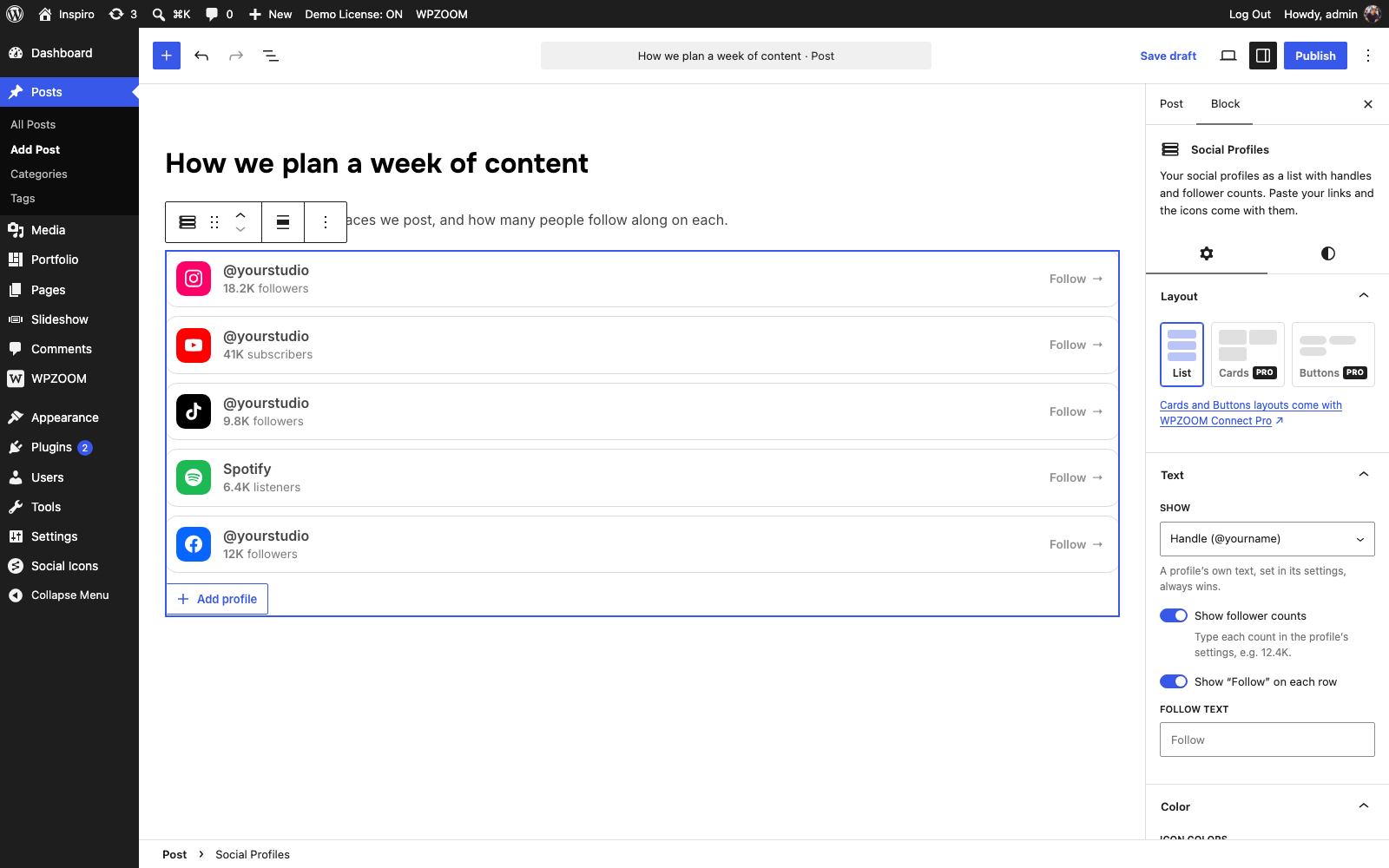
The Social Icons block is for a compact row of icons. The new Social Profiles block is for the opposite: a place where you want each profile to stand on its own, with its name, its handle and, if you like, how many people follow you there.
Paste your links and the block takes care of the rest: the network’s icon and brand color, and a handle read from the link itself (@yourname on Instagram, r/WordPress on Reddit, or the short link for networks that don’t use handles). Follower counts are a field you type in, labeled correctly per network: followers on Instagram, subscribers on YouTube, members on a Discord server.
The free plugin includes the List layout. Pro adds Cards, brand-colored tiles that work well on an About page or a link-in-bio page, and Buttons, a row of “Follow on Instagram”-style buttons for the end of a post.
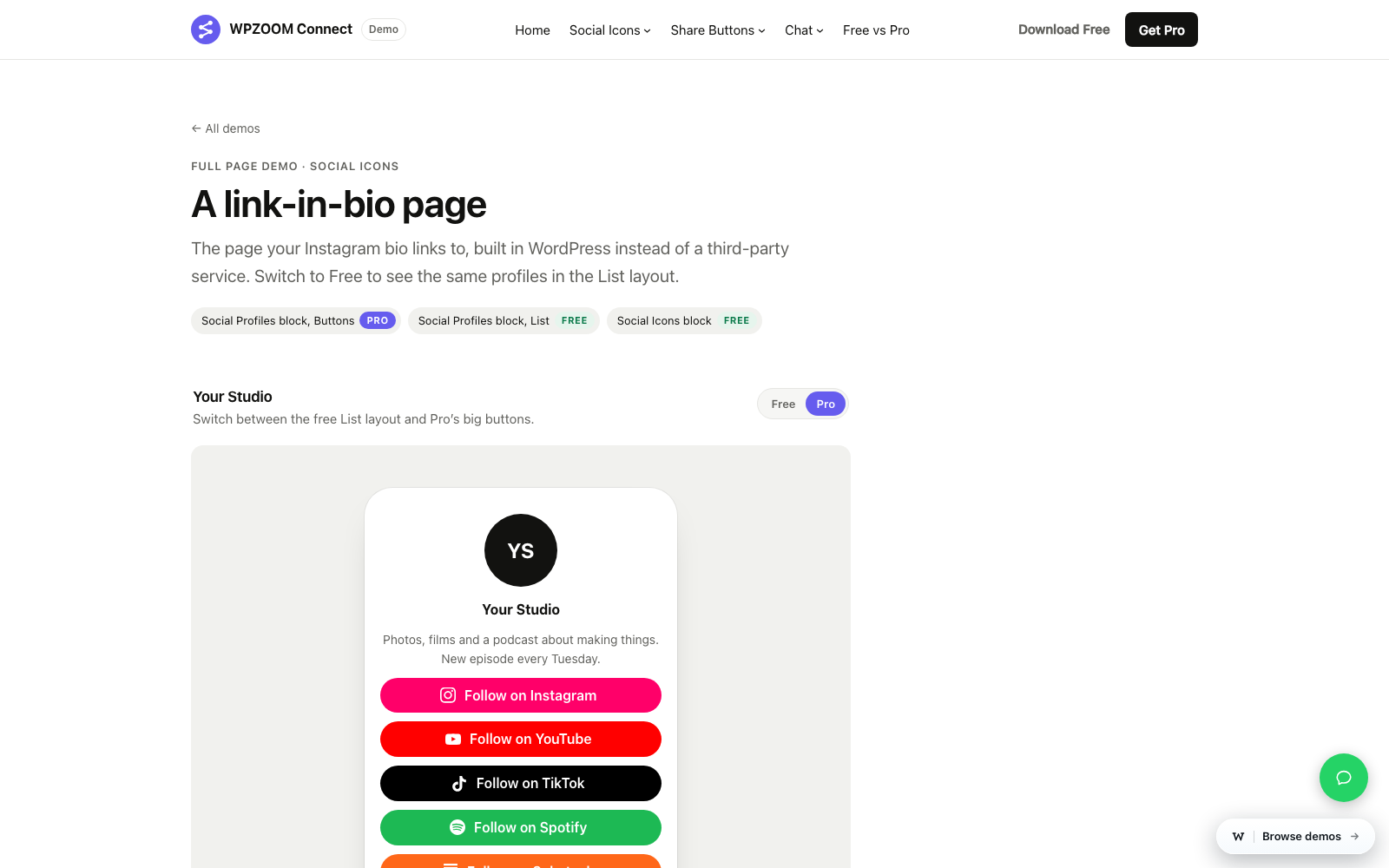
The block is rendered on the server, which means it will never greet you with the block editor’s “unexpected or invalid content” message after an update.
New: Google Preferred Sources button
Google lets readers mark a site as a preferred source. When they do, Google shows more of that site’s articles in Top Stories and in AI-generated results. The catch is that readers have to find the setting on their own.
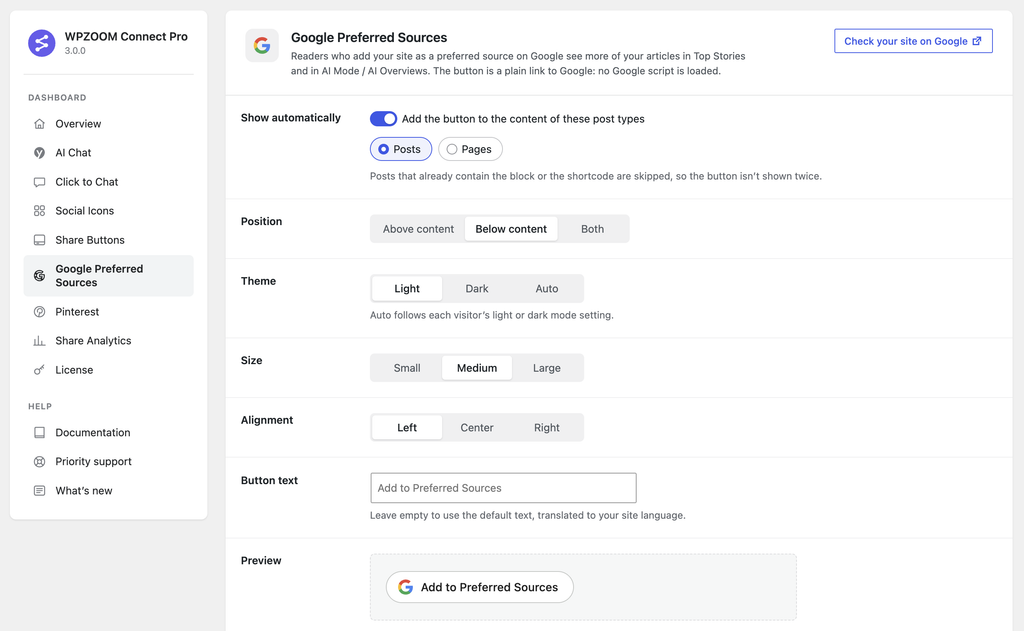
WPZOOM Connect now adds an Add to Preferred Sources button to your site. Turn it on for all posts, pages or any post type from Settings → Google Preferred Sources, or place it by hand with the new Google Preferred Source block or the [wpzoom_preferred_source] shortcode. It comes in light, dark and auto themes, and it loads no Google script on your site, so it costs your visitors nothing.
This one is in the free plugin.
A better way to add and style icons
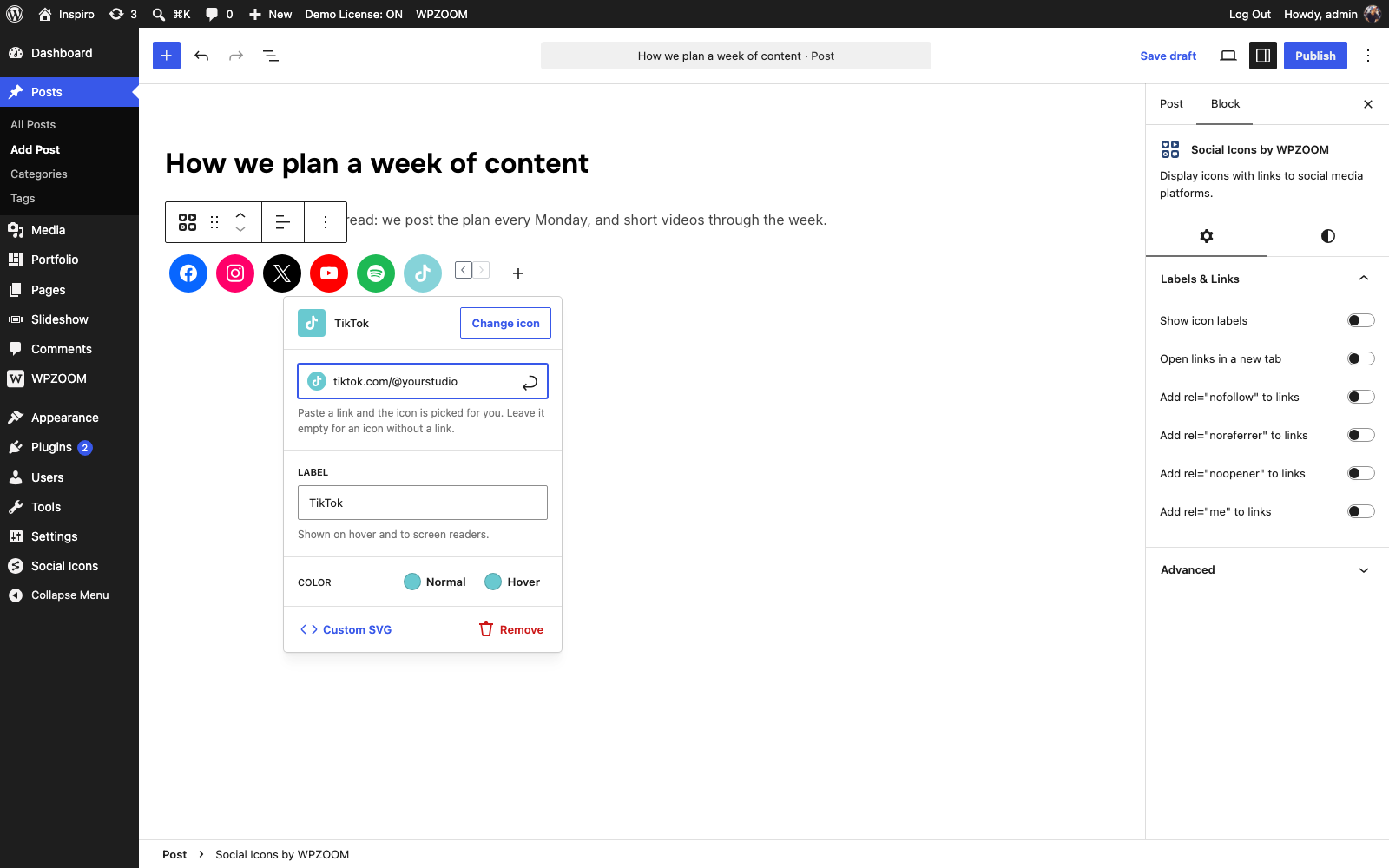
A few things in the block editor that used to be fiddly are now straightforward:
- Visual style picker. Instead of a dropdown of style names, you see each of the seven styles drawn with your own icons, so you know what you’re picking. Style names are shorter and easier to tell apart.
- The URL field shows the icon as you type. Start typing
tiktok.com/@...and the TikTok icon appears next to the field, with its label and brand color filled in. - Smarter detection. Detect Icon now looks in WPZOOM Icons first and only then in the other enabled sets. Previously it took the last set with a match, which often meant a Font Awesome icon where you expected the WPZOOM one.
- The Select Icon dialog behaves. Search covers every enabled icon set. The URL isn’t rewritten while you type, a custom label or color is kept when you pick another icon, the list no longer jumps around, and the Search, Delete and Save buttons stay visible on shorter screens.
A new dashboard and redesigned Settings
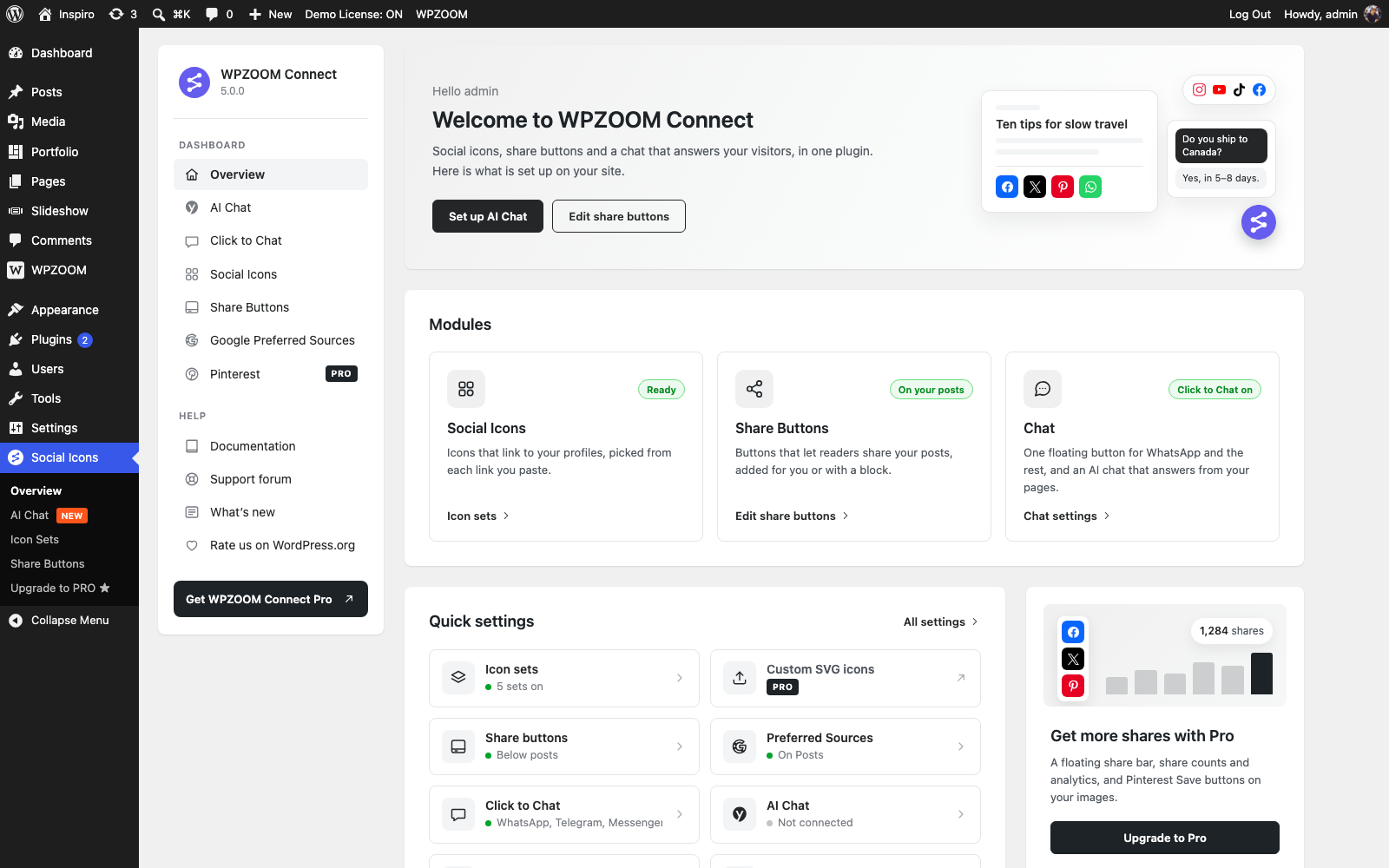
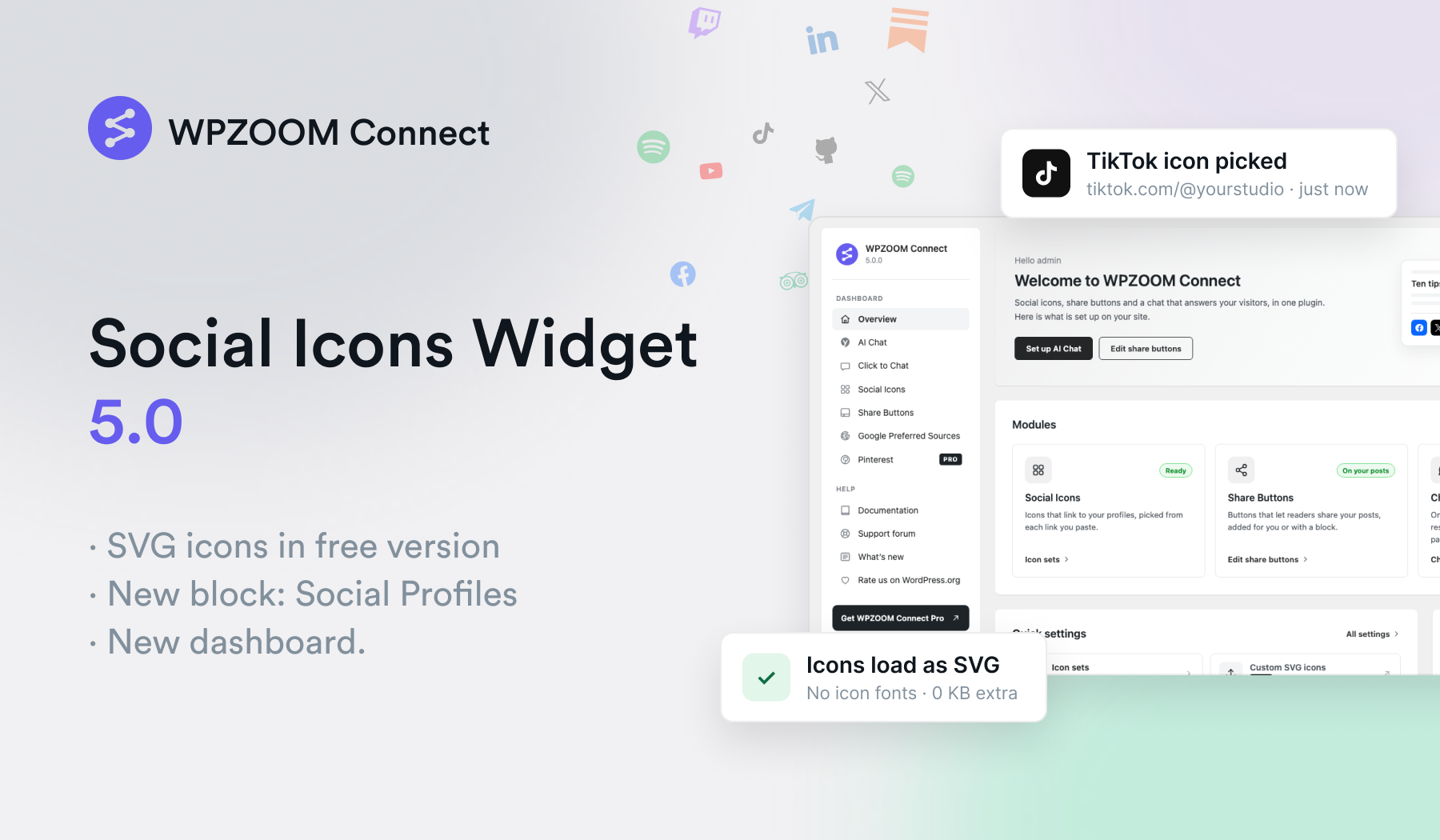
Open the Social Icons menu in your admin and the first item is now Overview: one card each for Social Icons, Share Buttons and Chat, showing what is set up on your site and where to change it. On Pro, the cards also show your custom icons, the floating bar, Pinterest pins and the number of shares in the last 30 days.
The Settings page was redesigned from scratch: on/off switches, sample icons and an icon count for each set, clearer descriptions, and a Modules tab (formerly “Misc.”). The Optimization tab is gone, because there are no fonts left to preload. In its place, Custom Icons and Pinterest tabs show what Pro adds.
Two switches were removed on purpose: “disable blocks” and “disable the widget”. Icons are SVG and load only where they’re used, so turning them off saved nothing, and turning blocks off quietly broke the automatic share buttons and the Preferred Sources button. If you had the widget switched off before, it stays off.
Sites that update get a short What’s new tour on the Overview page, so you can see the changes without reading this post.
A new demo site
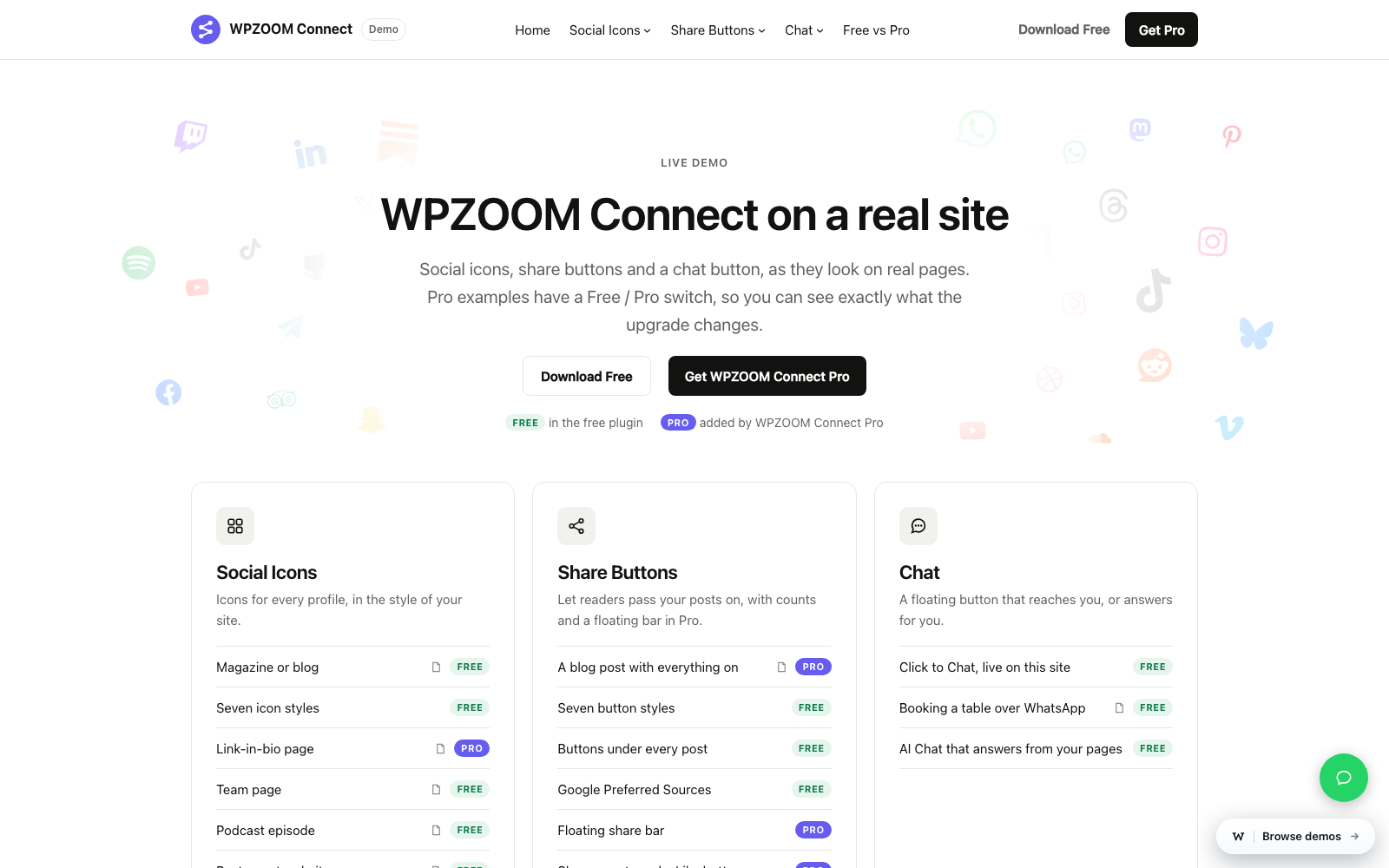
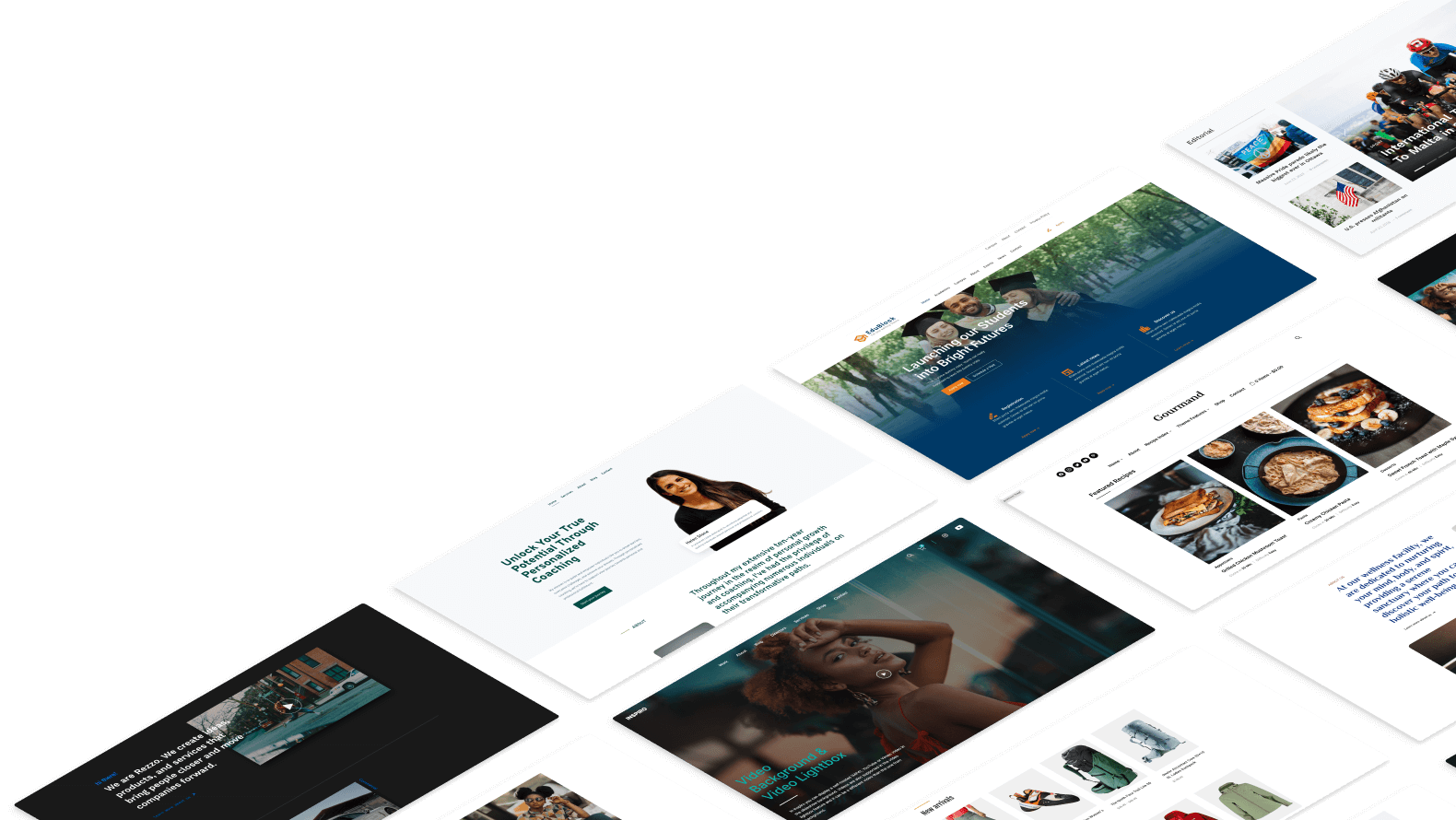
We rebuilt the demo from the ground up. Instead of a page of icons in a row, demo.wpzoom.com/social-icons now shows the plugin on the kinds of sites it’s used on: a magazine with share buttons on every article, a link-in-bio page, a team page, a podcast episode, a restaurant site with WhatsApp booking. Each feature has its own demo page, and a Free/Pro switch at the top shows what you get with each version.
How to update
Free: update from Plugins → Updates in your WordPress admin, or install WPZOOM Connect from WordPress.org.
Pro: the update appears in your admin as usual. Pro starts at $39/year for one site; the Professional plan (3 sites, $59) and Business plan (10 sites, $79) include the same features. Existing customers with an active license get 3.0 at no cost.
Try the demo · Learn more about WPZOOM Connect · Get Pro
The full changelog is in the plugin’s readme. If you run into anything after updating, let us know: a lot changed under the hood, and we’d rather hear about a rough edge than have you work around it.